
Shell and coding agent on claude and chatgpt

Project description
Shell and Coding agent for Claude and Chatgpt
Empowering chat applications to code, build and run on your local machine.
- Claude - An MCP server on claude desktop for autonomous shell and coding agent. (mac only)
- Chatgpt - Allows custom gpt to talk to your shell via a relay server. (linux or mac)
⚠️ Warning: do not allow BashCommand tool without reviewing the command, it may result in data loss.





Updates
-
[16 Feb 2025] You can now attach to the working terminal that the AI uses. See the "attach-to-terminal" section below.
-
[15 Jan 2025] Modes introduced: architect, code-writer, and all powerful wcgw mode.
-
[8 Jan 2025] Context saving tool for saving relevant file paths along with a description in a single file. Can be used as a task checkpoint or for knowledge transfer.
-
[29 Dec 2024] Syntax checking on file writing and edits is now stable. Made
initializetool call useful; sending smart repo structure to claude if any repo is referenced. Large file handling is also now improved. -
[9 Dec 2024] Vscode extension to paste context on Claude app
🚀 Highlights
- ⚡ Create, Execute, Iterate: Ask claude to keep running compiler checks till all errors are fixed, or ask it to keep checking for the status of a long running command till it's done.
- ⚡ Large file edit: Supports large file incremental edits to avoid token limit issues. Faster than full file write.
- ⚡ Syntax checking on edits: Reports feedback to the LLM if its edits have any syntax errors, so that it can redo it.
- ⚡ Interactive Command Handling: Supports interactive commands using arrow keys, interrupt, and ansi escape sequences.
- ⚡ File protections:
- The AI needs to read a file at least once before it's allowed to edit or rewrite it. This avoids accidental overwrites.
- Avoids context filling up while reading very large files. Files get chunked based on token length.
- On initialisation the provided workspace's directory structure is returned after selecting important files (based on .gitignore as well as a statistical approach)
- File edit based on search-replace tries to find correct search block if it has multiple matches based on previous search blocks. Fails otherwise (for correctness).
- File edit has spacing tolerant matching, with warning on issues like indentation mismatch. If there's no match, the closest match is returned to the AI to fix its mistakes.
- Using Aider-like search and replace, which has better performance than tool call based search and replace.
- ⚡ Shell optimizations:
- Only one command is allowed to be run at a time, simplifying management and avoiding rogue processes. There's only single shell instance at any point of time.
- Current working directory is always returned after any shell command to prevent AI from getting lost.
- Command polling exits after a quick timeout to avoid slow feedback. However, status checking has wait tolerance based on fresh output streaming from a command. Both of these approach combined provides a good shell interaction experience.
- ⚡ Saving repo context in a single file: Task checkpointing using "ContextSave" tool saves detailed context in a single file. Tasks can later be resumed in a new chat asking "Resume
task id". The saved file can be used to do other kinds of knowledge transfer, such as taking help from another AI. - ⚡ Easily switch between various modes:
- Ask it to run in 'architect' mode for planning. Inspired by adier's architect mode, work with Claude to come up with a plan first. Leads to better accuracy and prevents premature file editing.
- Ask it to run in 'code-writer' mode for code editing and project building. You can provide specific paths with wild card support to prevent other files getting edited.
- By default it runs in 'wcgw' mode that has no restrictions and full authorisation.
- More details in Modes section
- ⚡ Runs in multiplex terminal Run
screen -xto attach to the terminal that the AI runs commands on. See history or interrupt process or interact with the same terminal that AI uses.
Top use cases examples
- Solve problem X using python, create and run test cases and fix any issues. Do it in a temporary directory
- Find instances of code with X behavior in my repository
- Git clone https://github.com/my/repo in my home directory, then understand the project, set up the environment and build
- Create a golang htmx tailwind webapp, then open browser to see if it works (use with puppeteer mcp)
- Edit or update a large file
- In a separate branch create feature Y, then use github cli to create a PR to original branch
- Command X is failing in Y directory, please run and fix issues
- Using X virtual environment run Y command
- Using cli tools, create build and test an android app. Finally run it using emulator for me to use
- Fix all mypy issues in my repo at X path.
- Using 'screen' run my server in background instead, then run another api server in bg, finally run the frontend build. Keep checking logs for any issues in all three
- Create repo wide unittest cases. Keep iterating through files and creating cases. Also keep running the tests after each update. Do not modify original code.
Claude setup (using mcp)
First install uv using homebrew brew install uv
(Important: use homebrew to install uv. Otherwise make sure uv is present in a global location like /usr/bin/)
Then create or update claude_desktop_config.json (~/Library/Application Support/Claude/claude_desktop_config.json) with following json.
{
  "mcpServers": {
    "wcgw": {
      "command": "uv",
      "args": [
        "tool",
        "run",
        "--from",
        "wcgw@latest",
        "--python",
        "3.12",
        "wcgw_mcp"
      ]
    }
  }
}
Then restart claude app.
If there's an error in setting up
- If there's an error like "uv ENOENT", make sure
uvis installed. Then run 'which uv' in the terminal, and use its output in place of "uv" in the configuration. - If there's still an issue, check that
uv tool run --from wcgw@latest --python 3.12 wcgw_mcpruns in your terminal. It should have no output and shouldn't exit. - Try removing ~/.cache/uv folder
- Try using
uvversion0.6.0for which this tool was tested. - Debug the mcp server using
npx @modelcontextprotocol/inspector@0.1.7 uv tool run --from wcgw@latest --python 3.12 wcgw_mcp
Alternative configuration using smithery (npx required)
You need to first install uv using homebrew. brew install uv
Then to configure wcgw for Claude Desktop automatically via Smithery:
npx -y @smithery/cli install wcgw --client claude
If there's an error in setting up
- Try removing ~/.cache/uv folder
Usage
Wait for a few seconds. You should be able to see this icon if everything goes right.

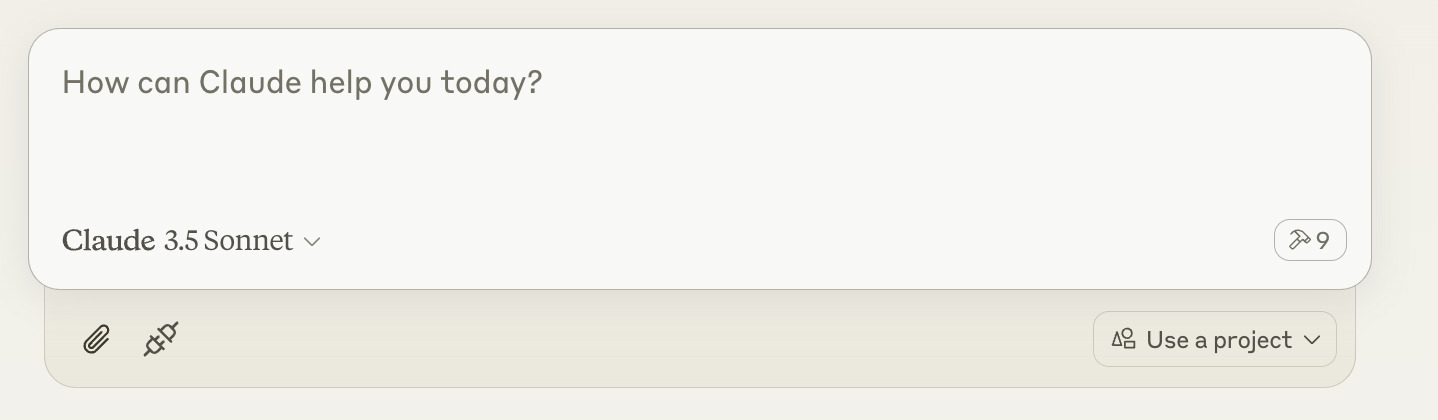
Then ask claude to execute shell commands, read files, edit files, run your code, etc.
Task checkpoint or knowledge transfer
- You can do a task checkpoint or a knowledge transfer by attaching "KnowledgeTransfer" prompt using "Attach from MCP" button.
- On running "KnowledgeTransfer" prompt, the "ContextSave" tool will be called saving the task description and all file content together in a single file. An id for the task will be generated.
- You can in a new chat say "Resume ''", the AI should then call "Initialize" with the task id and load the context from there.
- Or you can directly open the file generated and share it with another AI for help.
Modes
There are three built-in modes. You may ask Claude to run in one of the modes, like "Use 'architect' mode"
| Mode | Description | Allows | Denies | Invoke prompt |
|---|---|---|---|---|
| Architect | Designed for you to work with Claude to investigate and understand your repo. | Read-only commands | FileEdit and Write tool | Run in mode='architect' |
| Code-writer | For code writing and development | Specified path globs for editing or writing, specified commands | FileEdit for paths not matching specified glob, Write for paths not matching specified glob | Run in code writer mode, only 'tests/**' allowed, only uv command allowed |
| **wcgw** | Default mode with everything allowed | Everything | Nothing | No prompt, or "Run in wcgw mode" |
Note: in code-writer mode either all commands are allowed or none are allowed for now. If you give a list of allowed commands, Claude is instructed to run only those commands, but no actual check happens. (WIP)
Attach to the working terminal to investigate
If you've screen command installed, wcgw runs on a screen instance automatically. If you've started wcgw mcp server, you can list the screen sessions:
screen -ls
And note down the wcgw screen name which will be something like 93358.wcgw.235521 where the last number is in the hour-minute-second format.
You can then attach to the session using screen -x 93358.wcgw.235521
You may interrupt any running command safely.
You can interact with the terminal but beware that the AI might be running in parallel and it may conflict with what you're doing. It's recommended to keep your interactions to minimum.
You shouldn't exit the session using exit or Ctrl-d, instead you should use ctrl+a+d to safely detach without destroying the screen session.
[Optional] Vs code extension
https://marketplace.visualstudio.com/items?itemName=AmanRusia.wcgw
Commands:
- Select a text and press
cmd+'and then enter instructions. This will switch the app to Claude and paste a text containing your instructions, file path, workspace dir, and the selected text.
Chatgpt Setup
Read here: https://github.com/rusiaaman/wcgw/blob/main/openai.md
Examples
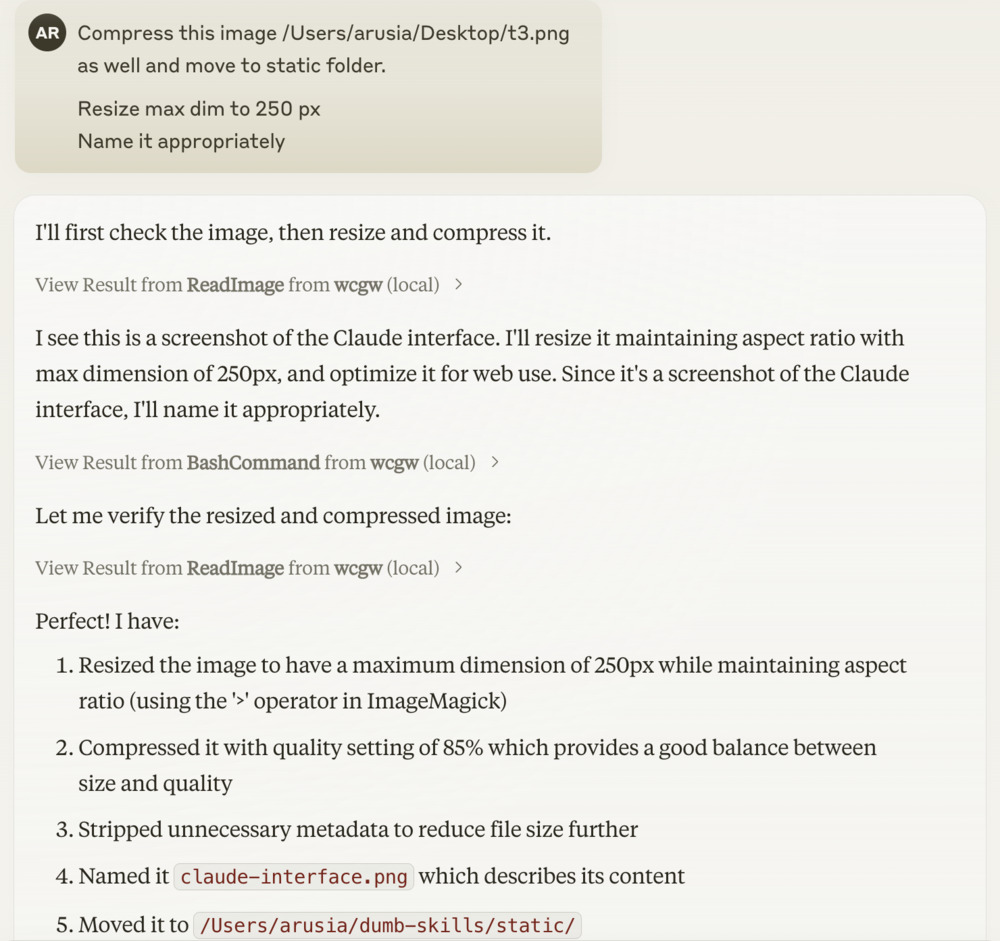
[Optional] Local shell access with openai API key or anthropic API key
Openai
Add OPENAI_API_KEY and OPENAI_ORG_ID env variables.
Then run
uvx --from wcgw@latest wcgw_local --limit 0.1 # Cost limit $0.1
You can now directly write messages or press enter key to open vim for multiline message and text pasting.
Anthropic
Add ANTHROPIC_API_KEY env variable.
Then run
uvx --from wcgw@latest wcgw_local --claude
You can now directly write messages or press enter key to open vim for multiline message and text pasting.
Tools
The server provides the following MCP tools:
Shell Operations:
Initialize: Reset shell and set up workspace environment- Parameters:
any_workspace_path(string),initial_files_to_read(string[]),mode_name("wcgw"|"architect"|"code_writer"),task_id_to_resume(string)
- Parameters:
BashCommand: Execute shell commands with timeout control- Parameters:
command(string),wait_for_seconds(int, optional) - Parameters:
send_text(string) orsend_specials(["Enter"|"Key-up"|...]) orsend_ascii(int[]),wait_for_seconds(int, optional)
- Parameters:
File Operations:
ReadFiles: Read content from one or more files- Parameters:
file_paths(string[])
- Parameters:
WriteIfEmpty: Create new files or write to empty files- Parameters:
file_path(string),file_content(string)
- Parameters:
FileEdit: Edit existing files using search/replace blocks- Parameters:
file_path(string),file_edit_using_search_replace_blocks(string)
- Parameters:
ReadImage: Read image files for display/processing- Parameters:
file_path(string)
- Parameters:
Project Management:
ContextSave: Save project context and files for Knowledge Transfer or saving task checkpoints to be resumed later- Parameters:
id(string),project_root_path(string),description(string),relevant_file_globs(string[])
- Parameters:
All tools support absolute paths and include built-in protections against common errors. See the MCP specification for detailed protocol information.
Release history Release notifications | RSS feed


Download files
Download the file for your platform. If you're not sure which to choose, learn more about installing packages.
Source Distribution
Built Distribution
Filter files by name, interpreter, ABI, and platform.
If you're not sure about the file name format, learn more about wheel file names.
Copy a direct link to the current filters
File details
Details for the file wcgw-3.0.3.tar.gz.
File metadata
- Download URL: wcgw-3.0.3.tar.gz
- Upload date:
- Size: 1.3 MB
- Tags: Source
- Uploaded using Trusted Publishing? No
- Uploaded via: twine/6.1.0 CPython/3.9.21
File hashes
| Algorithm | Hash digest | |
|---|---|---|
| SHA256 |
f5601a9af336a46b6c08192be3d07de4f8d368597bf877ea7a47bec5999a402f
|
|
| MD5 |
c9eef83d401c56e6d4cfcfed8bec1ec6
|
|
| BLAKE2b-256 |
83544be17105e1f01cc7f8a582f67f405f2e50b09ade4d398b9586b9ebcc63a3
|
File details
Details for the file wcgw-3.0.3-py3-none-any.whl.
File metadata
- Download URL: wcgw-3.0.3-py3-none-any.whl
- Upload date:
- Size: 650.8 kB
- Tags: Python 3
- Uploaded using Trusted Publishing? No
- Uploaded via: twine/6.1.0 CPython/3.9.21
File hashes
| Algorithm | Hash digest | |
|---|---|---|
| SHA256 |
c0bcee1e2ea51a7e3feb83ccd57dd8dc645e561984a81829166395e44d2a1109
|
|
| MD5 |
e331abd51ba785bcffa00c6ade4e1dbe
|
|
| BLAKE2b-256 |
eb4fe847fec894214ca34b733342b5ac4a9914056ee2de1f3f63f6104278c4c1
|






