
ClickNick
Better tools for AutomationDirect CLICK PLCs
CLICK Programming Software has no simulator. ClickNick adds one: run your saved program on your laptop, work the switches, and ask why an output did or didn't come on.
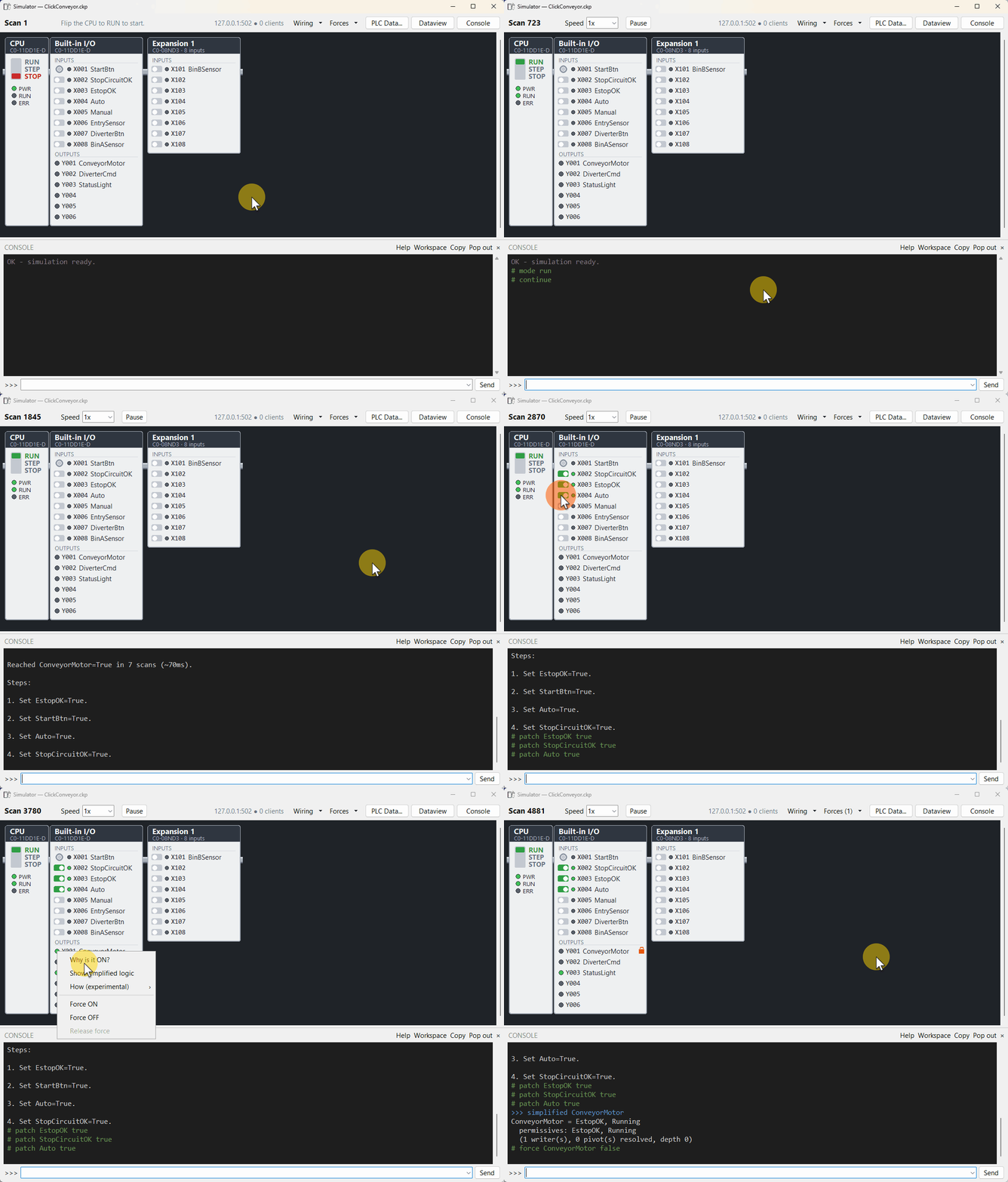
pyrung, the engine underneath, is checked against a real CLICK, case by case: conformance results · how it was built.
Also: nickname autocomplete, the Address Editor, Check Program, Review Changes, and your ladder as Python after every save.
CLICK stays CLICK. ClickNick gives you better tools around it.
Documentation and tour: https://pyrung.com/clicknick/
ClickNick is a free, open-source Windows application. It runs locally, with no telemetry or required cloud service. ClickNick is an independent project: not official, and not affiliated with or endorsed by AutomationDirect. The simulator and checks don't replace testing. Test on the real machine, with proper safeguards, before anything interacts with people.
Install
ClickNick supports Windows 10 and 11 and CLICK Programming Software v2.60-v4.00.
1. Install uv
Open PowerShell and run:
powershell -ExecutionPolicy ByPass -c "irm https://astral.sh/uv/install.ps1 | iex"
Already have uv? Update it with uv self update (or winget upgrade astral-sh.uv) and skip the install. Other installation methods are available in the uv documentation.
2. Install and run ClickNick
uv tool install clicknick
clicknick
To upgrade later, run uv tool upgrade clicknick. To try the latest release without installing it, run uvx clicknick@latest.
Then open your CLICK project as usual. ClickNick detects the open project and connects to it.
On Windows x64, a separate database driver normally isn't needed. If connecting fails, see connection help.
Install with pip instead
Python 3.11 or newer is required.
pip install clicknick
python -m clicknick
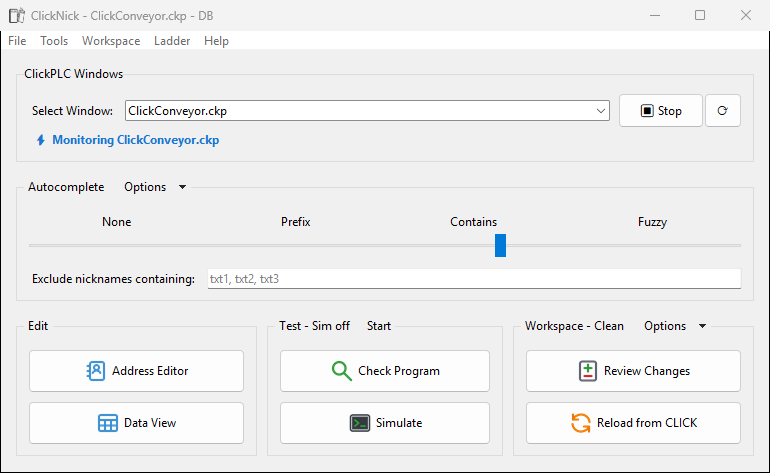
Make everyday CLICK programming easier
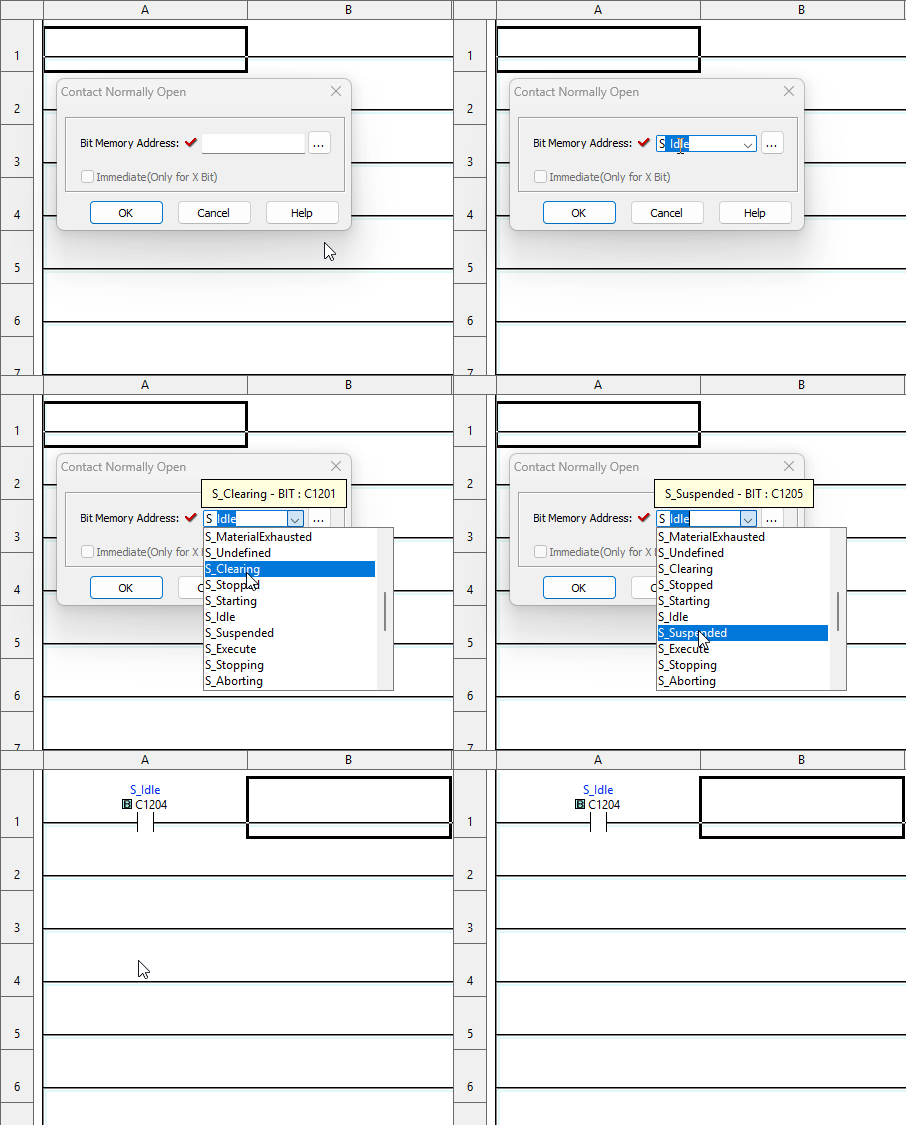
- Nickname autocomplete appears directly in CLICK instruction dialogs, so you can find
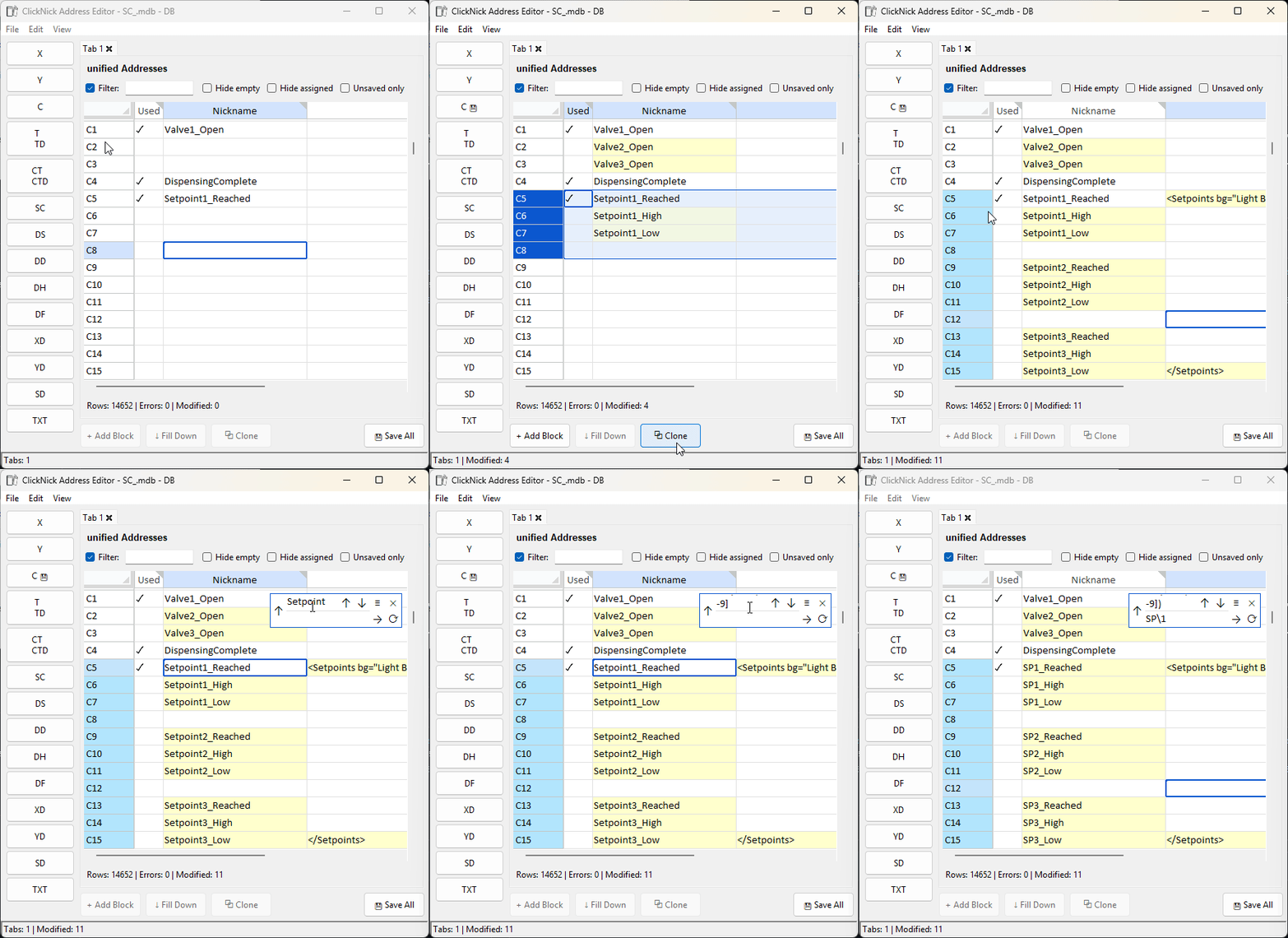
Valve5instead of rememberingC123. - Address Editor supports bulk nickname, comment, block, and annotation work with validation, search/replace, undo/redo, fill down, and structure cloning.
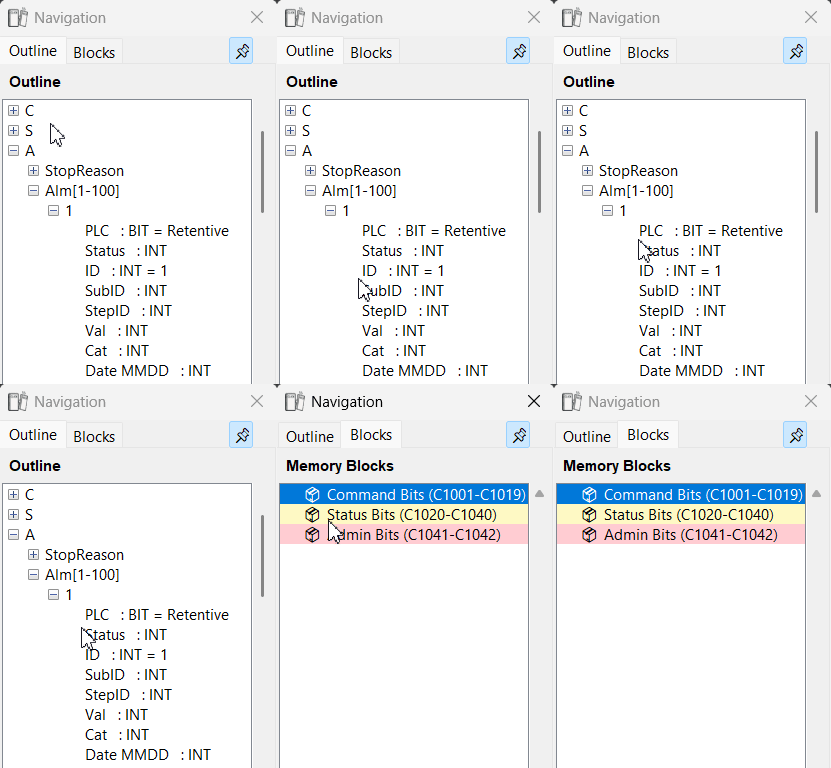
- Tag Browser organizes nicknames into a navigable hierarchy and recognizes related arrays.
- Data View tools add nickname lookup, grouped insertion, and drag-and-drop reordering.
- Project navigation filters show tag relationships such as inputs, outputs, upstream, downstream, and isolated tags.
ClickNick started by fixing a few editor annoyances - especially the need to remember addresses. You do not need Git, Python experience, an LLM, or a new programming environment to benefit from it. Start with autocomplete, open the Address Editor when it helps, and run Check Program when you want another set of eyes.
Simulate the program without the PLC
Simulate is an offline CLICK test bench: your hardware drawn from System Configuration, with LEDs and switches, and the Console in a pane at the bottom (pop it out into its own window if you like). It lets you:
- Run the saved program and work the panel like the machine, in real time or scan by scan.
- Force points and set up machine conditions without changing the live PLC.
- Work from saved PLC and tag data while troubleshooting.
- Right-click a point or use the Console to ask why something happened - or why it did not.
- Ask how to reach a state, including routes that must pass through or avoid particular conditions.
- Connect the Data View or an HMI over Modbus at
127.0.0.1:502, like the real PLC.
Interrupts, PID, and high-speed instructions are not yet supported.
Save the project in CLICK before opening Simulate so ClickNick can read the latest ladder files.
Check the program before running the machine
ClickNick automatically generates a readable, executable pyrung version of the saved ladder in the open CLICK project. Simulate runs it, and Check Program reads it, catching common ladder mistakes and questionable patterns without running the machine. Findings include the relevant ladder source, severity, and a suggested fix.
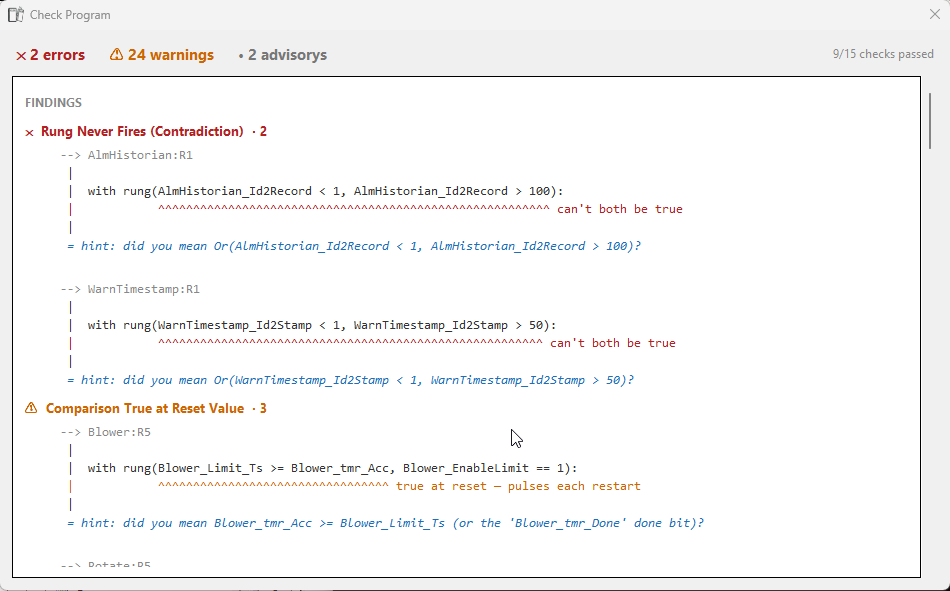
Save the project in CLICK before opening Check Program, too.
Keep engineering work with the machine
The generated pyrung project begins as a temporary workspace. That is convenient for quick checks and experiments. When you want tests, notes, and other engineering work to accumulate with the machine, create or select a persistent workspace folder from ClickNick.
In a workspace, you can:
- Read the ladder as ordinary, structured Python source with PLC scan semantics.
- Add automated tests alongside the ladder program.
- Keep notes, test fixtures, source history, and other project-specific files.
- Use normal software tools such as diffs, Git, editors, and coding agents.
- Edit generated ladder source and use Review Changes to review the proposed CLICK rungs, take or skip each difference, and paste the ones you take into CLICK step by step.
- Use Reload from CLICK to discard workspace changes and return to the saved CLICK program.
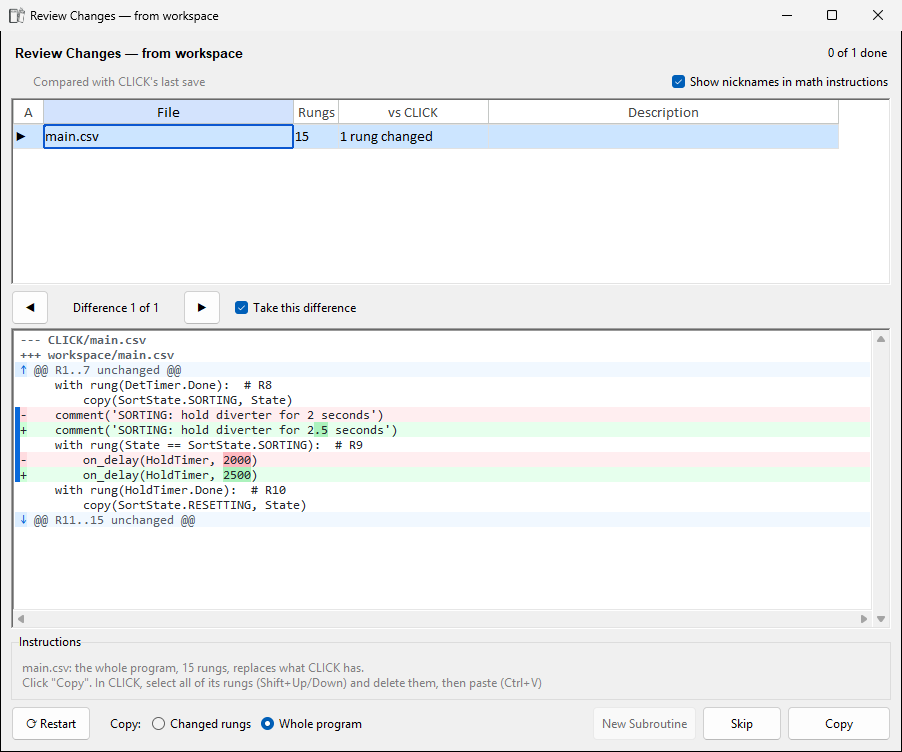
ClickNick preserves a recovery snapshot before regeneration replaces generated source. Files outside ClickNick's generated areas - such as your tests, notes, and editor configuration - remain yours.
How pyrung fits in
ClickNick is built on pyrung, the engine that runs your ladder as Python. That's what makes Check Program, the Console, and why / how possible, and it's what lets you run pytest, a diff, or a coding agent against the workspace. Edits go back the other way: Review Changes shows the rung diff and puts the rungs you take on the clipboard, you paste and save in CLICK. How it fits.
Feature details
- Nickname autocomplete: matching, filters and what the list offers.
- Address Editor, Tag Browser and Data Views: bulk edits, search and replace, blocks, the nickname outline, and Data Views built by name.
- Simulator, Review Changes and connection help: how each works, step by step.
Project links
- Report a bug or request a feature
- Ask a question or share an idea
- View the source
- Read the changelog
- Read the license
ClickNick is beta software. Review Address Editor, Data View, and ladder changes before saving them in CLICK.
1 maintainer

Metadata
1 maintainer
Release files for clicknick 0.24.0
For a detailed explanation of source distributions (sdists) and built distributions (wheels), please see the package formats documentation.
Source distribution (sdist)
| File | Size | Uploaded | Provenance | Actions |
|---|---|---|---|---|
| clicknick-0.24.0.tar.gz | 1.5 MB | With provenance | Details for clicknick-0.24.0.tar.gz |
Built distribution (wheel)
| File | Interpreter | ABI | Platform | Actions Reset |
|---|---|---|---|---|
| clicknick-0.24.0-py3-none-any.whl | Python 3 | none | any | Details for clicknick-0.24.0-py3-none-any.whl |
Total release size: 2.0 MB
Release files / clicknick-0.24.0.tar.gz
| Download URL | clicknick-0.24.0.tar.gz |
|---|---|
| Size | 1.5 MB |
| Tags | Source |
|
SHA-256 checksum How to use checksums |
b0587c4d0dc72ccd86af96bc86563ae4e21a2e01b84659cf3cac041e55e83589
|
|
BLAKE2b-256 checksum How to use checksums |
56c775e3d5aa714550123b70ea2ff133e22b9884416c0e79ba03aa99ce9e05d4
|
| Upload date | |
|
Uploaded using Trusted Publishing? What is trusted publishing? |
Yes |
| Uploaded via |
twine/7.0.0 CPython/3.13.16
|
Provenance
Provenance describes where a file came from. On PyPI, provenance is shared via attestations, which provide a verifiable record of the build or publishing details. View details, limitations and caveats.


PyPI Publish Attestation
PyPI verified that this artifact, at this checksum, originated from the publisher listed below.
Signed by GitHub Actions, verified by PyPI on Nov 14, 2026.
Transparency logRelease files / clicknick-0.24.0-py3-none-any.whl
| Download URL | clicknick-0.24.0-py3-none-any.whl |
|---|---|
| Size | 486.3 kB |
| Tags | Python 3 |
|
SHA-256 checksum How to use checksums |
d3d78c21ee6341a8966857d8d7f942a5680aa02b4f910c660100514a7f7824df
|
|
BLAKE2b-256 checksum How to use checksums |
189ac9c38d57c691e21dacb588b594a8646462a17ce2822843b0102c5e969786
|
| Upload date | |
|
Uploaded using Trusted Publishing? What is trusted publishing? |
Yes |
| Uploaded via |
twine/7.0.0 CPython/3.13.16
|
Provenance
Provenance describes where a file came from. On PyPI, provenance is shared via attestations, which provide a verifiable record of the build or publishing details. View details, limitations and caveats.
PyPI Publish Attestation
PyPI verified that this artifact, at this checksum, originated from the publisher listed below.
Signed by GitHub Actions, verified by PyPI on Nov 14, 2026.
Transparency logSecurity for clicknick 0.24.0
Provenance
Provenance describes where a file came from. On PyPI, provenance is shared via attestations, which provide a verifiable record of the build or publishing details. View details, limitations and caveats.
Full provenance
Both files in this release have been uploaded with provenance metadata.
Attestation for clicknick-0.24.0.tar.gz
PyPI Publish Attestation
PyPI verified that this artifact, at this checksum, originated from the publisher listed below.
Signed by GitHub Actions, verified by PyPI on Nov 14, 2026.
Transparency logA note on package security
PyPI is a repository for distributing packages, not a service for auditing them. While third-party security researchers and our staff do their best to detect and remove malicious packages, PyPI cannot guarantee the quality, security or suitability of any given package.
To learn more about protecting yourself from malicious actors, visit our package security documentation.














