
v_ase



v_ase combines ASE's convenient terminal and Python workflow with flexible
3D structure manipulation in one local visualizer. It opens atomic structures
and trajectories in a browser, remains lightweight for viewing large systems,
and enables direct atom editing when requested.
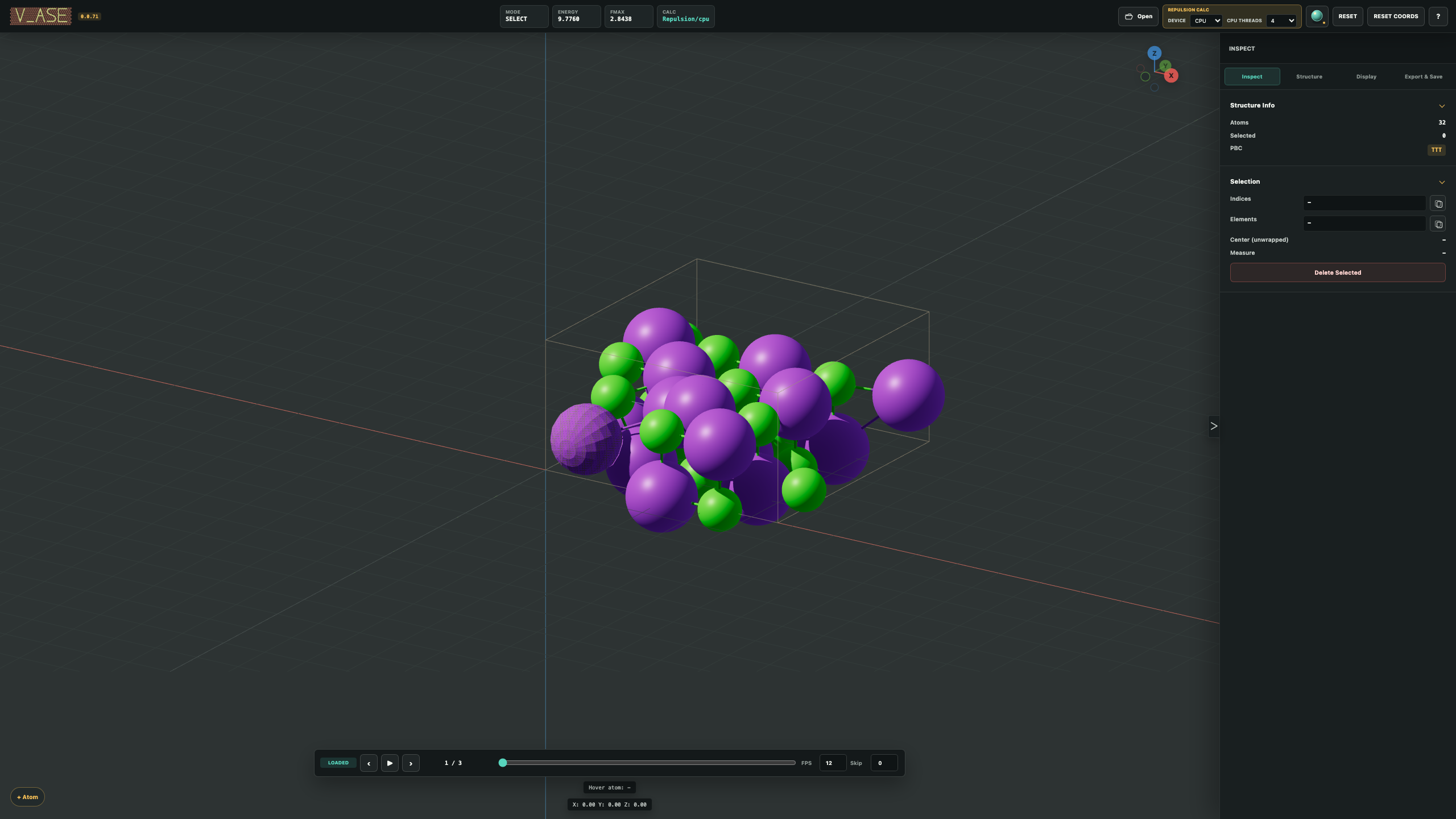
Graphene/hBN in axis-locked rotate mode, with commensurate cell-match angles shown directly in the viewport.
Quick Start
Install from PyPI:
python -m pip install v_ase-gui
Or install the current GitHub source:
git clone https://github.com/lgyEthan/v_ase.git
cd v_ase
python -m pip install -e .
Open an empty workspace or a structure directly:
v_ase gui
v_ase gui FILE
| File | Example |
|---|---|
| POSCAR | v_ase gui POSCAR |
| VASP structure | v_ase gui structure.vasp |
| XYZ trajectory | v_ase gui trajectory.extxyz |
| ASE trajectory | v_ase gui relaxation.traj |
| Saved v_ase project | v_ase gui project.vase |
No Node.js installation is required. The terminal is released when the v_ase browser document closes.
View is the lightweight default for inspection, movies, measurement, appearance, bonds, supercells, and export. Switch to Edit in the top bar, or start there directly:
v_ase gui structure.vasp --interactive
Automatic bonds are visible by default. Use --hide-bonds for an atom-only
view.
Practical Guide
| Goal | Action |
|---|---|
| Inspect a structure | Open it, then orbit with middle drag and select with left click |
| Edit coordinates | Enter Edit, select atoms, close the panel with Esc, then use G or R |
| Measure geometry | Select 2, 3, or 4 atoms in order for distance, angle, or torsion |
| Play a trajectory | Use the bottom timeline or press Space; adjust FPS and Skip live |
| Style a figure | Use Structure > Appearance, Bonding, and View |
| Repeat or wrap a cell | Use Structure > Cell & Replication |
| Save the complete session | Use Export > Save Project to create a self-contained .vase |
| Work with a remote file | Run v_ase gui HOST:/path/to/STRUCTURE locally |
| Let an AI inspect, edit, and render | Run v_ase gui FILE --for-ai; use the agent skill guide |
Tip: After selecting atoms, press
Escto close the control panel before startingG/Rtransforms. This returns keyboard focus to the viewport without clearing the selection.
The ? button shows all shortcuts. The top-bar renderer button switches between fast modeling light and publication-oriented Sun lighting. Unit-cell color, thickness, and material are available under View > Viewport.
The current structure, trajectory frame, camera, labels, appearance, bonds, and selection remain in place during a mode change. If individual atoms have different visual materials, switching to View creates numbered labels only for those visual variants. Position-only edits stay in the same label group.
AI And Agent Use
Start an agent-ready session without creating a separate renderer:
v_ase gui STRUCTURE --for-ai
v_ase prints one JSON handshake containing the live GUI URL, semantic structure state, control schema, and bundled agent guide. Agents can read coordinates, cell, PBC, labels, constraints, trajectories, measurements, visual settings, and camera state directly. They can edit structures, configure the scene, control documents, and produce final exports without a screenshot-analysis loop.
The interface is vendor-neutral and exposed as window.v_aseAI in the live
page. Open the handshake's human_url at any time to take over the same
document, frame, camera, and settings in the regular GUI. Complete command and
JavaScript examples are available at its skill_url and in
skills_v_ase.md.
Opening And Documents
The top-bar Open command starts with the operating system file picker. After choosing a file, select its reader, frame range, and one of these actions:
| Action | Result |
|---|---|
| Replace this tab | Replace the current structure or trajectory |
| Add to trajectory | Append the selected frames to the current movie |
| Open in new tab | Open an independent document beside the current tab |
Replacing a tab or opening a new tab with .vase restores the complete saved
project. Adding .vase to a trajectory imports its structures only and keeps
the active tab's camera, appearance, bonds, lighting, and other visual settings.
New labels and chemical types are added to the existing Appearance and
pairwise-bond controls automatically.
Use + immediately after the document tabs to create an empty independent
tab. Tabs resize as documents are added. Each tab owns its structure or
trajectory, camera, selection, calculator, history, display settings,
relaxation state, and .vase project. Inactive tabs pause rendering and movie
playback.
Remote Servers And Clusters
Install v_ase on both the local computer and remote server. Then run one command from the local computer:
v_ase gui USER@SERVER:/path/to/STRUCTURE
An SSH config alias works as well:
v_ase gui physics:/path/to/STRUCTURE
That is the complete workflow. v_ase starts the backend beside the remote file, creates a private SSH connection, and opens the local browser automatically. The source file remains on the server. Trajectories transfer only the frame needed for the current view instead of downloading the complete trajectory. This is the remote-session rule for every file size, not a large-file threshold. Three.js renders in the local browser, so the displayed atom/frame data crosses the encrypted tunnel; the original structure or trajectory file does not. Closing the browser tab stops the remote viewer and removes the connection.
For a compute node reached through a login node, put ProxyJump in the local
~/.ssh/config entry and use that host alias in the same command.
Controls
| Input | Action |
|---|---|
| Left click | Select an atom or confirm a transform |
| Shift + left click | Add or remove selection |
| Left drag | Box selection |
| Middle drag | Orbit |
| Shift + middle drag | Pan |
| Wheel | Zoom |
G |
Move selected atoms |
R |
Rotate selected atoms |
X, Y, Z |
Lock a transform axis; otherwise align the camera |
| Number keys | Enter an exact distance or angle during G/R |
Enter / left click |
Confirm a transform |
Esc / right click |
Cancel a transform |
Ctrl+C, Ctrl+V |
Copy and paste atoms |
Ctrl+Z, Ctrl+Shift+Z |
Undo and redo structure or camera changes |
Delete / Backspace |
Delete selected atoms |
Space |
Play or pause the selected timeline |
Left Arrow / Right Arrow |
Previous or next frame in the selected timeline |
Tab / Esc |
Open the collapsed control panel |
Esc |
Close the open panel and return focus to the viewport |
The ? button shows the complete shortcut list. The six camera buttons are ordered as up/down, left/right, and counterclockwise/clockwise roll. The first four are 3D orbit controls; the last two rotate in the screen plane. They change only the view by the selected angle, never the atomic coordinates.
Trajectories
Multi-frame inputs add a timeline below the viewport. Frame scrubbing updates
immediately, FPS changes apply during playback, and Skip advances by
skip + 1 frames per tick. Bond settings, appearance, and supercell display
remain active across all frames. Valid selected atom indices remain selected
when the frame changes, so measurements update without rebuilding the
selection.
Video export keeps FPS as the playback-speed control. Optional linear
interpolation can create N× as many intervals between source frames; 1×
keeps the original trajectory unchanged. Minimum image convention follows
the shortest periodic displacement using each adjacent frame's cell and PBC.
Interpolation increases the number of rendered frames and therefore takes
longer.
In interactive mode, relaxation creates a separate optimization timeline.
When source and relaxation trajectories both exist, choose Source frames or
Relaxation · calculator from the timeline selector. Playback, Space, and
the Left/Right Arrow keys control only the selected timeline; the other
timeline remains visible in a separate row.
Constraints
ASE constraints remain authoritative during interactive transforms while Apply constraints is enabled.
FixedLine
The atom moves only along its permitted line. A short cyan axis and compact collar remain visible around every constrained atom even when it is not selected.

v_ase gui examples/readme_scene_assets/fixedline.traj --interactive
FixedPlane And FixScaled
FixedPlane atoms move within their displayed plane. VASP selective dynamics
read as FixScaled are displayed from their allowed fractional directions.
Each constrained atom keeps its own local plane ring, crosshair, and normal
marker visible without selection.

v_ase gui examples/readme_scene_assets/fixedplane.traj --interactive
FixAtoms
Fixed atoms keep their element color and use a distinct constrained surface treatment. They remain visible without looking selected.
Hookean
Hookean constraints show the inactive cutoff, threshold, and active state. A
shaded 3D helical spring appears only after the constrained distance passes
rt, so the force-free region and engaged extension remain distinct.
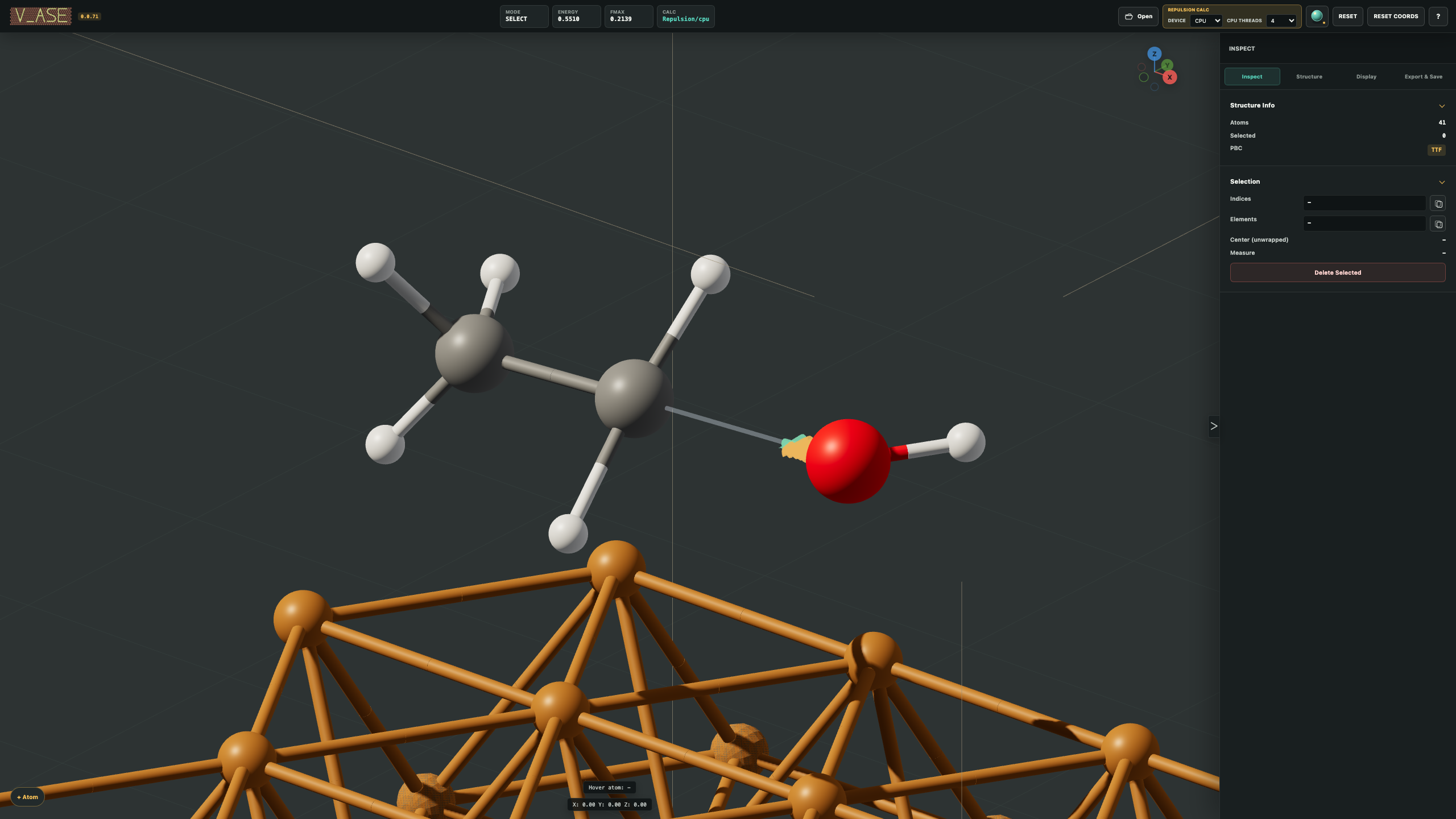

v_ase gui examples/readme_scene_assets/hookean.traj --interactive
Editing And Measurement
Move and angle increments, transform pivot, constraints, cell transforms, supercells, and wrapping are available from Structure. Translate atoms moves every frame while keeping the cell fixed; enter either Cartesian values in Angstrom or fractional cell coordinates, then select Apply Translation. Axis-locked rotation can show low-strain commensurate cell-boundary angles and optionally snap to them. The guide is enabled by default; magnetic snapping is opt-in.
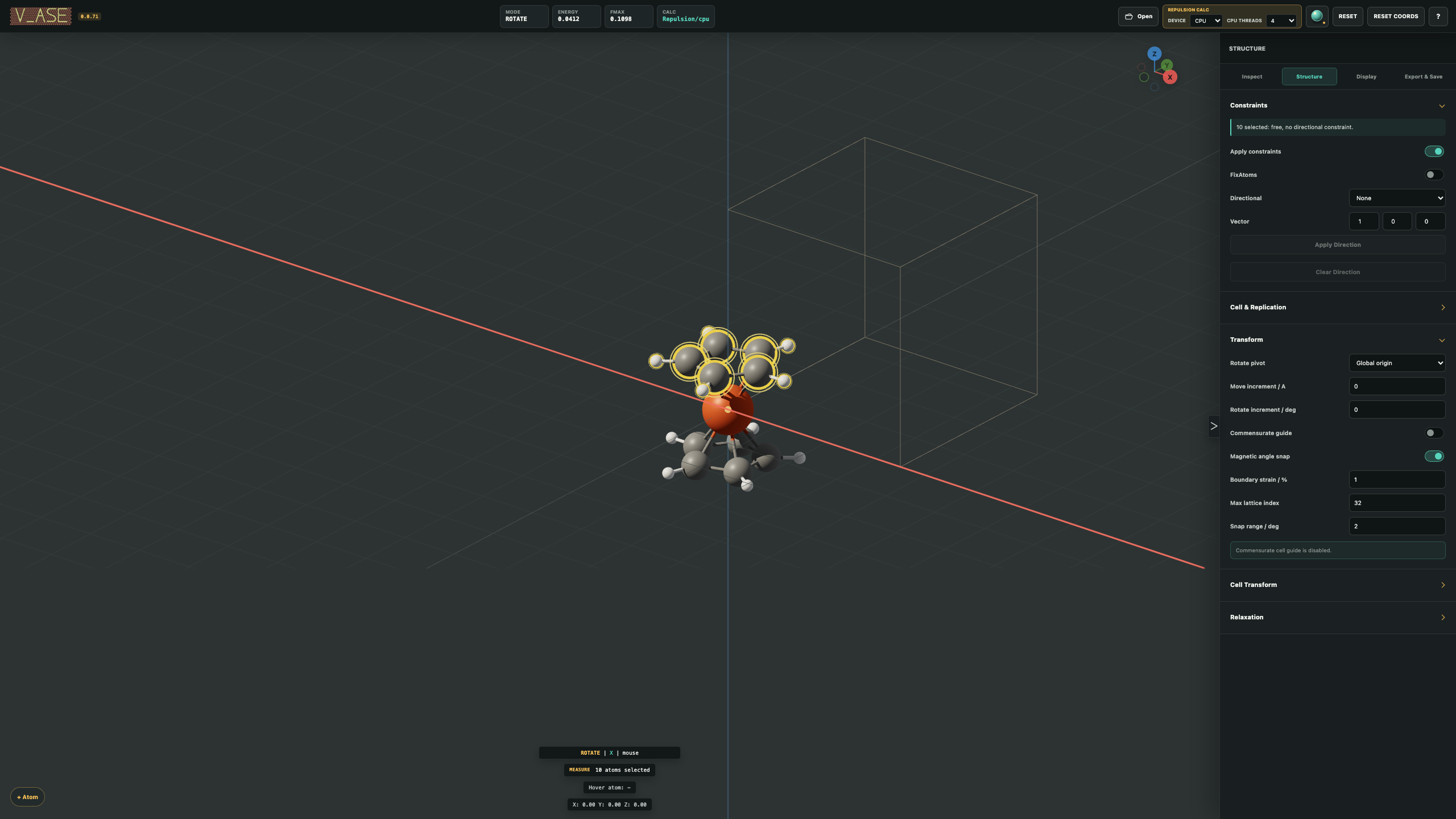

One through four ordered selections are marked a1 through a4. The viewport
shows point information, a1-a2 distance, the a1-a2-a3 angle centered on
a2, or the signed a1-a2-a3-a4 torsion. Distances report direct and
minimum-image-convention (MIC) values; selecting a displayed supercell image
also reports its unit-cell-mapped distance. Angles and torsions use the
displayed coordinates without an additional MIC value. Larger selections show
the total followed by counts for each atom label. Hovered-atom metadata is
displayed separately.
Displacement Analysis
The Analysis workspace displays per-atom displacement vectors for a trajectory. Compare the current frame with the previous frame or a specific frame, enable or disable minimum-image correction, and choose 3D or flat 2D arrows. Vector scale, thickness, and color are display-only controls. Particle IDs are used when present; otherwise equal-size frames use stable atom indices.
Structure, View, And Rendering
The control panel has five workspaces: Inspect, Structure, Analysis, View, and Export. Structure keeps related scientific controls together: Atoms & Appearance, Cell & Replication, Cell Transform, Atom Transform, Constraints, Bonding, and Relaxation. Use the section selector to jump directly to a group.
View provides:
- orthographic or perspective projection;
- a true-white viewport background by default, with balanced modeling light for clear element colors and a dark background option;
- 3D spheres/cylinders or 2D atoms/flat bonds;
- live atomic scale in pixels per Angstrom;
- anti-aliasing and atom smoothness controls;
- unit cell, axes, grid, and overlay controls;
- unit-cell color, thickness in Angstrom, and Unlit, Standard, or Metal material.
Structure > Atoms & Appearance controls per-label TYPE, label, visibility,
color, radius, and material. New documents use a 0.60x atom radius. Material
presets are Standard, Metal, and Rubber. In View, a preset applies
to a complete label group. In Edit, selected atoms can use independent
materials and can be merged into an existing label by entering that exact
label. Chemical TYPE remains synchronized with ASE while labels control visual
grouping.
The top-bar renderer switches among Modeling, Studio Sun, and Sun + Soft Shadow. Sun intensity, source, target, and viewport handles are editable.
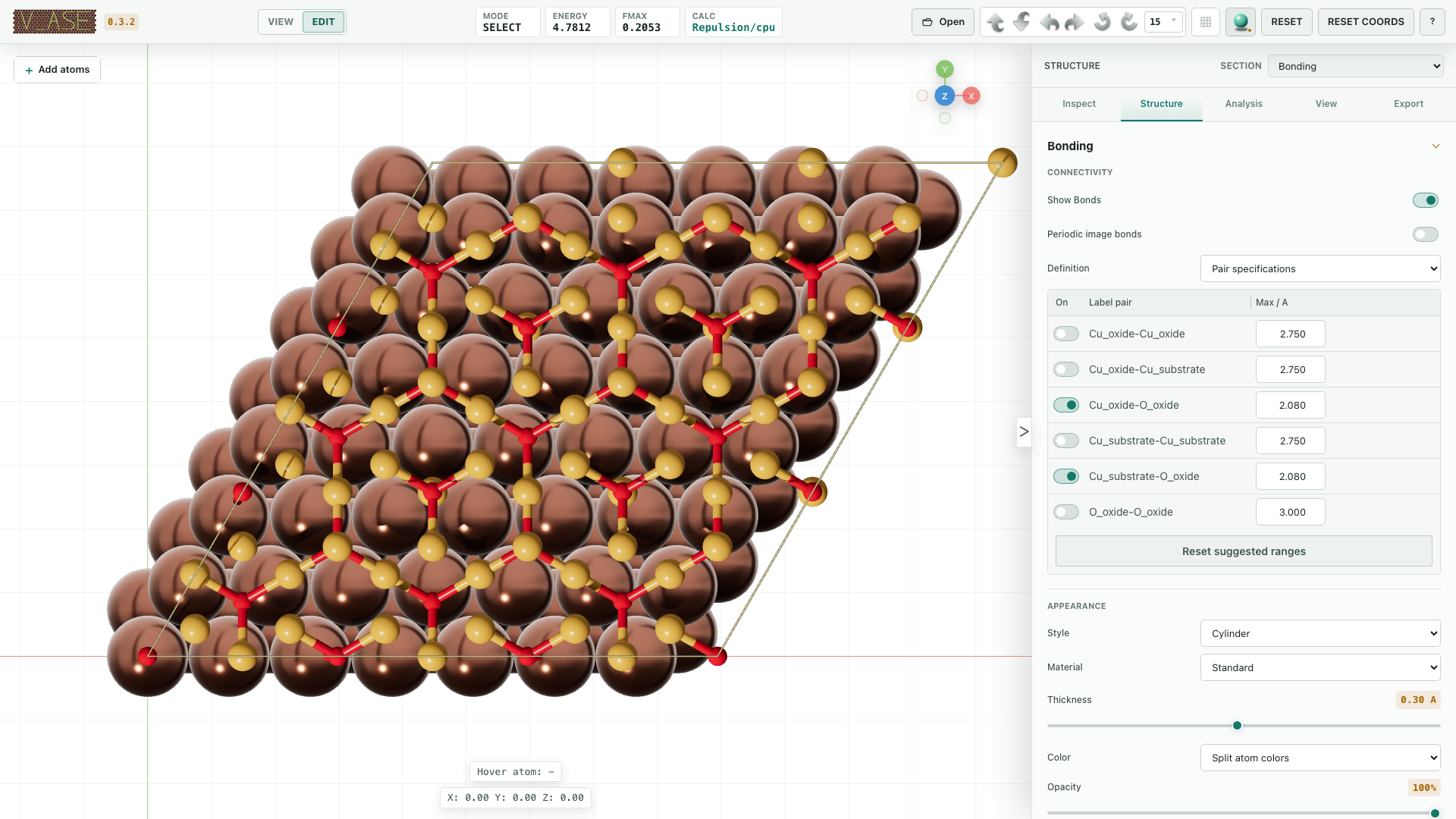
Structure > Bonding supports automatic element-radius inference, explicit
label-pair specifications, and manual atom-index pairs. Each pair specification
has an enable checkbox plus minimum and maximum distances in Angstrom. Changes
apply immediately; no separate apply step is required. Thickness, cylinder/flat
style, custom color, and midpoint-split atom colors are configurable. New
documents show bonds by default and use a 0.25 A bond diameter. Interactive
bonds form and break during atom transforms.
Structure > Relaxation exposes the repulsive fallback calculator's cutoff
scale and strength. The default cutoff scale is 0.70; reducing it shortens
the pair-interaction range, while strength scales the repulsive force. These
controls affect only the repulsive calculator, not visualization or bond
cutoffs.
Export And Save
| Option | Contents |
|---|---|
| Export POSCAR | Current atomic structure in VASP format |
| Export ASE Pickle | Current ASE Atoms, labels, constraints, arrays, and valid SinglePointCalculator results |
| Export Image | Lossless WebP (compact default) or optimized PNG, using the Preview Area camera and crop |
| Export Video | Compact H.264 MOV or MPEG-4 AVI, with optional N× interpolation and MIC |
| Export Blender | Optimized Python scene with atoms, bonds, camera, Sun, optional cell, and trajectory animation |
| Export 3DM | Instanced Rhino geometry, metadata, and saved views |
| Export OBJ | OBJ/MTL plus camera and metadata JSON in a ZIP |
| Save Project | Self-contained .vase structure/trajectory and complete visual state |
| Save Settings | Reusable appearance, bonds, camera, lighting, quality, and supercell JSON |
Preview Area uses the exact image/video aspect ratio, camera, crop, display, and lighting profile used for export. The frame stays fixed while orbit and zoom change the structure inside it. Unit cell, grid, axes, background, atom smoothness, and renderer are independently selectable for output.
Lossless WebP keeps the exact rendered dimensions and RGBA pixels while usually using less space than PNG. Choose PNG when compatibility with a PNG-only workflow is required. Video encoding preserves the selected pixel dimensions; compression settings reduce storage without resizing the frames.
When the browser supports the system save picker, v_ase asks for the destination before generating a structure, image, video, Blender, Rhino, OBJ, project, or settings export. Canceling the picker cancels the export before rendering or encoding starts.
.vase files are self-contained; reopening one does not require the original
structure file. Opening an ordinary structure from an active workspace keeps
the current visual settings. Opening a .vase project restores its saved state.
Rhino export requires:
python -m pip install "v_ase-gui[rhino]"
OBJ export has no optional dependency.
Python
from ase.build import molecule
from v_ase.visualize import view

atoms = molecule("H2O")
view(atoms)  # lightweight visualization mode
To edit and return an ASE object:
edited = view(atoms, viz_only=False)
print(edited.positions)
view() works with one Atoms, a sequence of frames, or a supported file path.
view_edit() remains as a compatibility alias for interactive mode.
File Formats
File type is normally detected automatically. Common inputs include POSCAR,
CONTCAR, VASP files, XDATCAR, vasprun.xml, XYZ/extxyz, ASE .traj, LAMMPS
dump/data files, and .vase.
Repeated POSCAR/CONTCAR species blocks remain separate visual groups. For
example, O Cu O with counts 1 14 5 appears as O1, Cu, and O2.
The ASE chemical symbols remain unchanged, so calculations and exports continue
to use the correct elements.
For an ambiguous filename, select the reader explicitly:
v_ase gui ABCD --format POSCAR
v_ase gui ABCD --format XDATCAR
v_ase gui ABCD --format vasprun.xml
v_ase gui ABCD --format lammpstrj
v_ase gui ABCD --format extxyz
v_ase gui ABCD --format data
Use --index : for all frames, --index -1 for the last frame, or an integer
for one frame.
Help
v_ase --help
v_ase gui --help
Troubleshooting
Open the item that matches the visible symptom.
v_ase command is not found
Use the same Python environment for installation and execution:
python -m pip install --upgrade v_ase-gui
python -m v_ase.cli --version
If python -m v_ase.cli works but v_ase does not, reopen the terminal after
activating the environment and check that its Python scripts directory is on
PATH. A clean virtual environment is the fastest way to isolate broken
metadata from manually installed development packages.
The browser does not open automatically
The terminal prints a complete local URL when automatic launch is unavailable.
Ctrl+click the URL, or copy the text beginning with http:// into a browser.
Keep the terminal process running while using the application.
WSL reports gio: ... Operation not supported
Current v_ase releases detect WSL and try the Windows default browser through
wslview, PowerShell, or Explorer instead of Linux gio. The message can
still appear with an older v_ase release or when Windows interoperability is
disabled. In that case, use the printed URL:
(base) giyeok@DESKTOP-XXXX:~$ v_ase gui
gio: http://127.0.0.1:58039/workspace?workspace_id=xxxx&session_id=xxxx: Operation not supported
Ctrl+click the URL or paste it into Chrome, Edge, Firefox, or another Windows browser. The identifiers above are intentionally masked; use the complete URL printed by your own session.
For better large-file performance in WSL, keep trajectories in the Linux
filesystem (for example under ~/data) instead of /mnt/c/....
Run v_ase on a remote server
Run v_ase gui HOST:/path/to/STRUCTURE on the local computer. Confirm that
ssh HOST works and that a current v_ase release is installed on the remote
server. v_ase manages the private connection automatically.
A file is not detected correctly
Specify the reader explicitly:
v_ase gui FILE --format POSCAR
v_ase gui FILE --format vasprun.xml
v_ase gui FILE --format lammpstrj
v_ase gui FILE --format data
Use --index : for the complete trajectory or --index -1 for its final
frame.
The page is blank or says the session is unavailable
- Confirm that the original
v_ase guiprocess is still running. - Open the exact URL printed by that process; old session URLs cannot be reused.
- Reload once after the terminal reports that the local server is ready.
- For a remote file, rerun the single
v_ase gui HOST:/path/to/STRUCTUREcommand rather than reusing an old browser URL.
Export does not show a save picker, or video export fails
Chrome and Edge can show the native save picker on a local secure context. Other browsers may save directly to their configured Downloads directory. Canceling a supported picker stops export before rendering or encoding.
Video export requires a trajectory with at least two frames and browser support
for MediaRecorder. MOV/AVI conversion uses the bundled
imageio-ffmpeg dependency. Interpolation requires stable atom ordering,
chemical types, labels, and atom count between adjacent frames. With N source
frames and an interpolation multiplier m, output contains
(N - 1) × m + 1 frames.
A large trajectory opens or plays slowly
- Use the default View mode unless atom editing is required.
- In WSL, keep the file in the Linux filesystem rather than
/mnt/c/.... - Keep browser hardware acceleration enabled.
- Close unused v_ase tabs; inactive tabs pause rendering, but their structures remain in memory.
- LAMMPS dump files use the optimized numeric loader automatically in View.
Optional export tools are unavailable
Rhino 3DM export requires:
python -m pip install "v_ase-gui[rhino]"
OBJ export has no optional dependency. Blender export generates a Python scene script; run it with a supported Blender installation if Blender is not found automatically.
Installation reports an unrelated package metadata error
An error mentioning a package version of None generally comes from another
manually installed or incomplete package in that Python environment. Verify the
environment with python -m pip check, repair or uninstall the named package,
or install v_ase in a clean environment:
python -m venv .venv
python -m pip install --upgrade pip
python -m pip install v_ase-gui
Report reproducible problems at GitHub Issues.
1 maintainer

Download files
Download the file for your platform. If you're not sure which to choose, learn more about installing packages.
Source Distribution
Built Distribution
Filter files by name, interpreter, ABI, and platform.
If you're not sure about the file name format, learn more about wheel file names.
Copy a direct link to the current filters
File details
Details for the file v_ase_gui-0.0.100.tar.gz.
File metadata
- Download URL: v_ase_gui-0.0.100.tar.gz
- Upload date:
- Size: 42.7 MB
- Tags: Source
- Uploaded using Trusted Publishing? No
- Uploaded via:
twine/6.2.0 CPython/3.11.0
File hashes
| Algorithm | Hash digest | |
|---|---|---|
| SHA256 |
da931141ff2d4b421ea0989d8ceeeedf806095657a8d8e547d3cbae84bf6a0d0
|
|
| MD5 |
727e90f59addaaf13a8e05f0562f8f79
|
|
| BLAKE2b-256 |
53f429d6fcedfde18b7df0e9c33be181017016930f7277a8d7a11b981c68bd33
|
File details
Details for the file v_ase_gui-0.0.100-py3-none-any.whl.
File metadata
- Download URL: v_ase_gui-0.0.100-py3-none-any.whl
- Upload date:
- Size: 6.5 MB
- Tags: Python 3
- Uploaded using Trusted Publishing? No
- Uploaded via:
twine/6.2.0 CPython/3.11.0
File hashes
| Algorithm | Hash digest | |
|---|---|---|
| SHA256 |
28f50c19c83eacbfb6e3aaff14a36eded057e12aa1439864ff9324251b6c0384
|
|
| MD5 |
cbcf86a20f6ec91b62883946d99054a1
|
|
| BLAKE2b-256 |
24c5d3e23e261acaad401c9496e87223a543133f5bb365c5d0e3e833da96179d
|














