
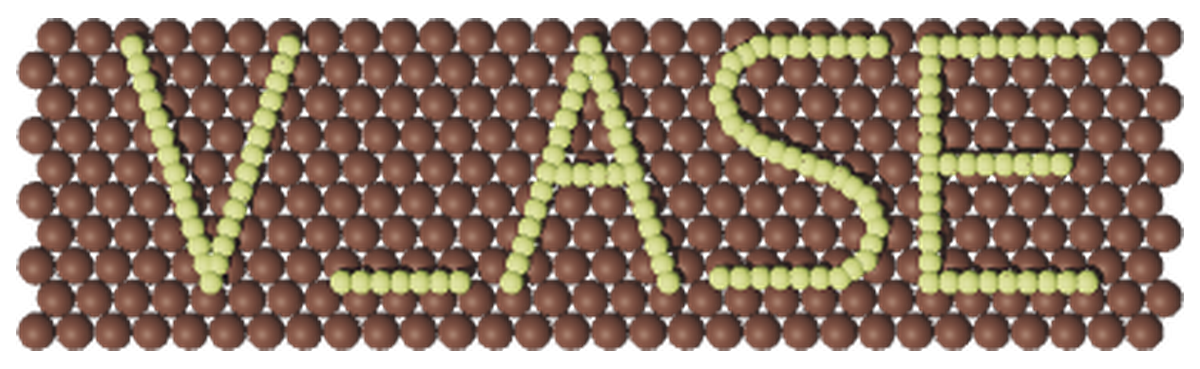
v_ase



v_ase brings ASE's convenient terminal and Python workflow together with
direct, Blender-style 3D structure editing. Open a structure or trajectory
with one command, inspect and measure it in a local browser, edit it manually
or ask an AI agent to perform verified multi-step changes from natural
language, then export publication- or CAD-ready results.

This is an actual v_ase editing sequence, not playback of a finished model. The amber drag box, yellow selection outline, Transform controls, and rotation commits are recorded from the live app. Each selection boundary advances by one puckered phosphorene ridge, accumulating from a fixed first ridge to the 36 degree H-APNR target tabulated in the cited study. The compact ribbon is wider and shorter so the complete edit remains legible without a long sequence of repetitive steps.
| Work directly in v_ase | Included |
|---|---|
| Structures and trajectories | ASE-supported formats, live timeline, per-frame bonds |
| Geometry editing | Ordered selection, G move, R rotate, axis locks, numeric input |
| Scientific inspection | Distances, angles, torsions, displacement vectors, constraints |
| Figure preparation | Appearance, bonds, lighting, exact preview, image/video export |
| Reproducible sessions | Self-contained .vase projects and reusable visual settings |
| Agent workflows | Semantic state/command API and a vendor-neutral AI skill |
Quick Start
Install from PyPI:
python -m pip install v_ase-gui
Or install the current GitHub source:
git clone https://github.com/lgyEthan/v_ase.git
cd v_ase
python -m pip install -e .
Start an empty workspace or open a file:
v_ase gui
v_ase gui FILE
Examples:
v_ase gui POSCAR
v_ase gui trajectory.extxyz
v_ase gui relaxation.traj
v_ase gui project.vase
The default View mode is optimized for visualization, trajectories, measurement, appearance, bonds, supercells, and export. Use the top-bar mode switch or start directly in Edit when atomic coordinates must change:
v_ase gui structure.vasp --interactive
No Node.js installation or hosted account is required. Closing the v_ase browser document releases the blocking terminal process.
Everyday Workflow
| Goal | Action |
|---|---|
| Inspect a structure | Middle-drag to orbit, wheel to zoom, left-click to select |
| Edit coordinates | Enter Edit, select atoms, press Esc to focus the viewport, then use G or R |
| Measure geometry | Select 2, 3, or 4 atoms in the required order |
| Play a trajectory | Use the bottom timeline or Space; FPS and Skip update live |
| Style a figure | Use Structure > Appearance/Bonding and View |
| Repeat or wrap a cell | Use Structure > Cell & Replication |
| Save the whole session | Use Export > Save Project to create a self-contained .vase |
| Reuse only the visual style | Use Export > Save Settings |
| Share an offline 3D view | Use Export > Export HTML View |
| Hand the scene to an AI | Launch with --for-ai and provide the bundled agent skill |
Viewport tip: after selecting atoms, press
Escto close the control panel before usingGorR. The selection is preserved and keyboard focus returns to the 3D viewport.
Ask An AI To Edit A Structure
Give an AI the bundled v_ase agent skill, then describe the scientific result rather than a sequence of mouse actions:
From this pristine 6 x 6 graphene sheet, remove the carbon nearest the cell center, convert its three nearest neighbors to pyridinic nitrogen, add a
Li_siteatom 2.15 A above the vacancy, preserve PBC and bonds, use a clean oblique studio-shadow view, and render a 4K image.
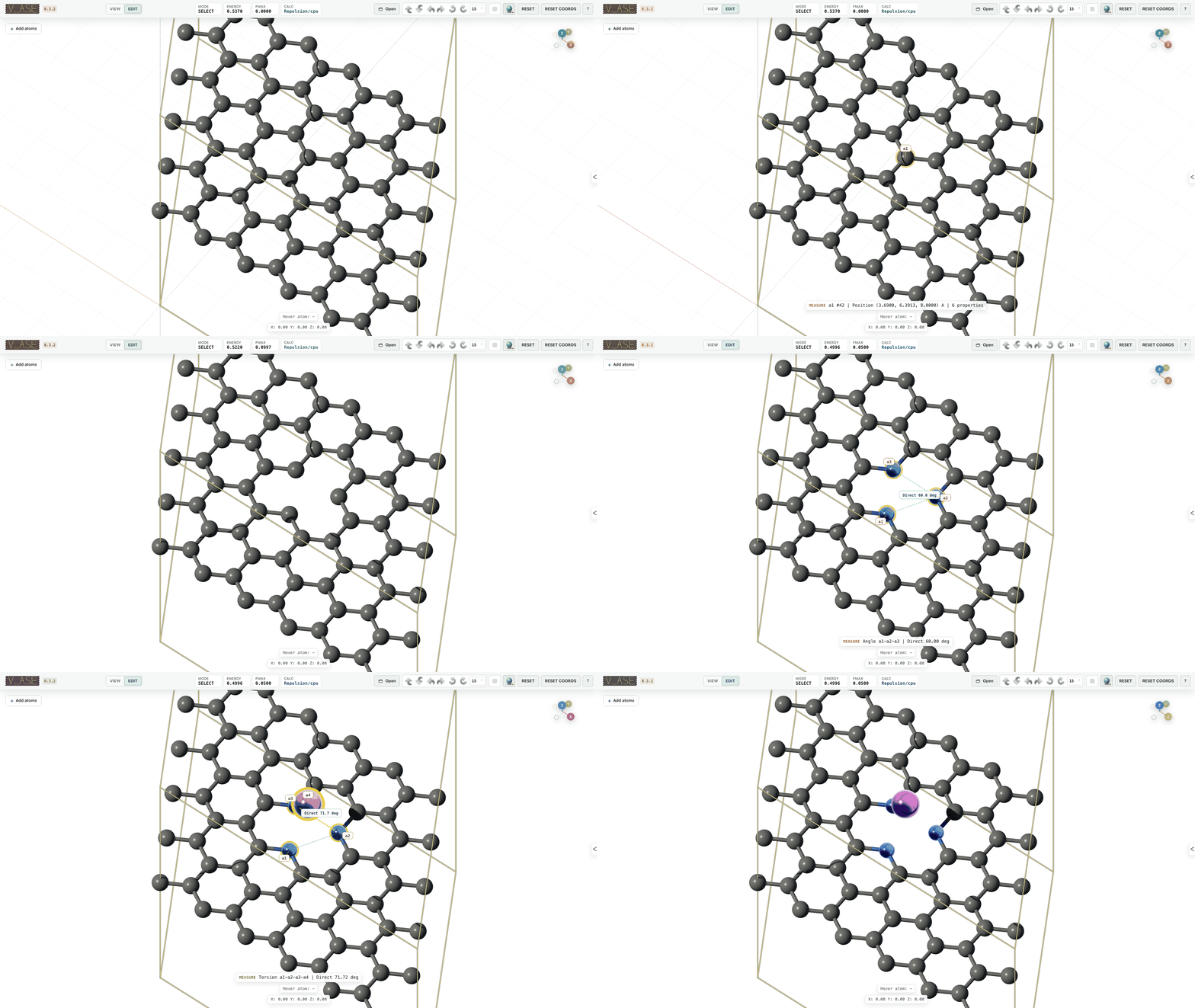
The agent reads atom identities, coordinates, cell, PBC, selection, and camera
directly from v_ase's semantic state. It finds the central site, resolves and
remaps neighbor indices after deletion, changes three ASE elements and labels,
creates Li at a measured height, verifies the 72-atom result, and renders the
same document a human can continue editing. This combines geometry search,
topology editing, atom creation, styling, and export in one request. No
screenshot OCR or coordinate guessing is required. The final validation checks
three N_pyridinic labels and one Li_site label against ASE elements.
This example is generated entirely from ase.build.graphene, so it contains
no copied structure or private data:
- source graphene CIF
- intermediate pyridinic N3 CIF
- final N3/Li-site CIF
- ASE trajectory preserving labels
Structure Manipulation
Use Edit when atom coordinates must change. Selection, measurement, appearance, bonds, replication, wrapping, visual translation, and export remain available in the default View mode.
Select
- Left-click selects one atom;
Shift+ click extends or removes selection. - Left-drag draws a visible selection box.
- Appearance rows select complete label groups without merging distinct labels.
- Ordered single-atom selections are retained for geometry measurement.
Move
Press G after selecting atoms. Lock the move with X, Y, or Z, type an
exact displacement in angstrom, then confirm with left-click or Enter.
Configured ASE constraints remain authoritative when Apply constraints is
enabled.
Rotate
Press R after selecting atoms. Choose Selection COM, Origin, or
Unit-cell center as the pivot, lock an axis if needed, and enter an exact
angle. For a panel-driven edit, use Structure > Transform > Exact selection
rotation to choose the axis and angle, then click Rotate Selection. Both
paths use the same constraint-aware backend commit and undo history. Every
active rotation shows:
- the rotation axis through the chosen pivot;
- a neutral line fixed at the direction where the operation started;
- an amber line that follows the current structure;
- cyan candidate lines only when the commensurate guide is enabled.
Ferrocene: Choose The Pivot

The GIF contains both operations needed to understand the pivot:
- Rotate pivot = Origin, then
R,Z: the selected upper cyclopentadienyl ring rotates around an axis through Fe. - Rotate pivot = Selection COM, then
R,X: the same ring folds about its own center instead of orbiting the external Fe pivot.
The selected ring is unchanged between the two passes, so the different motion comes only from the pivot and axis settings.
Phosphorene: Build The Twist One Edit At A Time
The animation records a sequence of normal v_ase edits:
- Keep the first puckered ridge fixed. Left-drag the visible amber box from the second ridge through the end of the ribbon, then release to commit the yellow outlined selection.
- Open Structure > Transform, keep Selection COM, choose axis
X, enter2.4degrees, and click Rotate Selection. - Close the panel, left-drag a new box from the third ridge through the end, enter the same exact angle, and rotate again from the edited coordinates.
- Continue advancing the real box-selection boundary by one 8-atom ridge. After 15 backend commits, the final ridge is rotated by exactly 36 degrees.
The box is generated by the production left-drag selection path, not a
documentation overlay. The yellow outline identifies the atoms affected by
each step, while the Transform panel displays the exact axis and angle used.
Bonds update after every committed edit, and the complete source ribbon stays
in frame so the fixed end, moving boundary, and final twisted shape remain
comparable.
Black phosphorene has two puckered sublayers in one armchair unit cell. The example uses a compact 8 x 4 repeat and one half-cell ridge per step (8 atoms at this ribbon width), rather than rotating both ridges together. Green and purple distinguish the upper and lower P sublayers; both remain phosphorus in the ASE structure.
The relaxed source coordinates come from the supporting information of Villegas et al.. The 36 degree target is the largest H-APNR angle tabulated by Jang et al., and the green/purple sublayer convention follows published phosphorene structure diagrams such as Zhang et al.. The sequence is a deterministic v_ase editing demonstration. It uses the paper's target angle, but it is not the paper's periodic DFT cell or an energy-minimized nanoribbon.
Graphene/hBN: Find A Commensurate Rotation
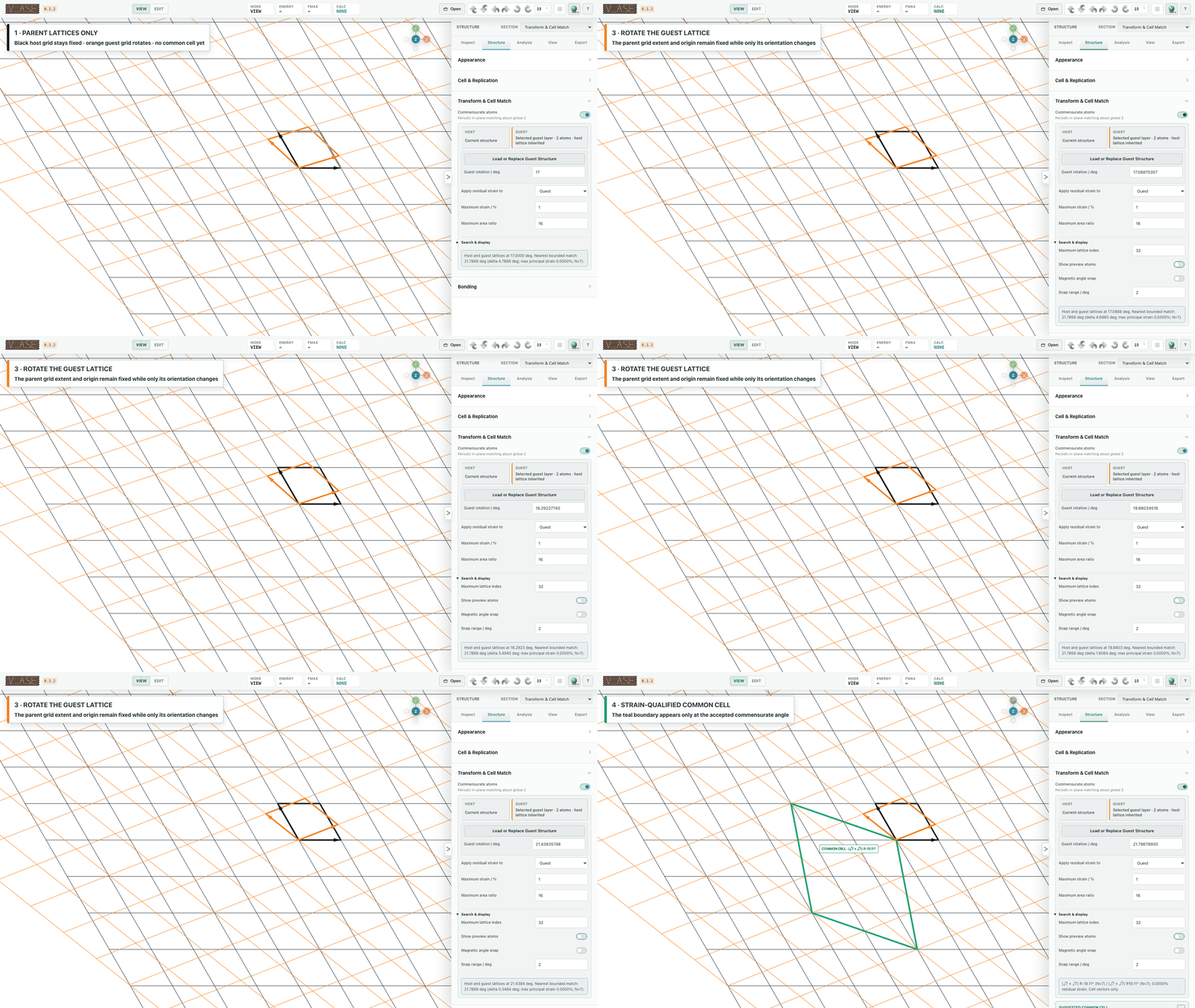
Select the hBN layer, enable Commensurate guide, then use R, Z. The
top view intentionally hides the world X/Y/Z axes so the neutral start line,
amber current line, and labeled cyan cell-match candidates remain distinct.
Magnetic angle snap can pull the active rotation to a candidate within the
configured tolerance.
Normal R rotates selected atoms. Cell Transform is a separate periodic
operation that applies an integer matrix to the cell and every trajectory
frame. Its equations and assumptions are documented in
unit_cell_aware_rotate.md.
Measurement And Analysis
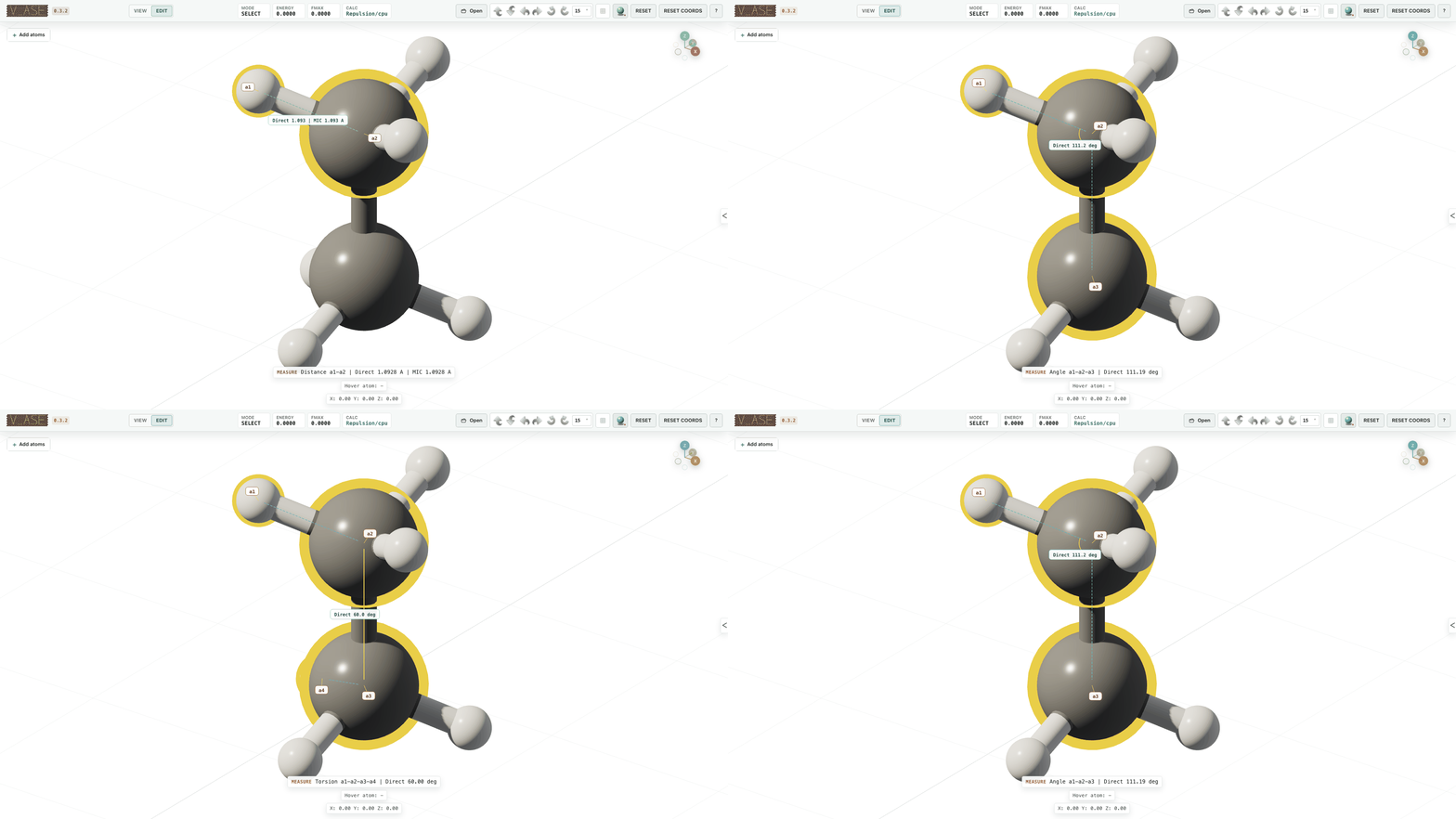
The close viewport crop keeps the molecule, numbered geometry guides, and
value badge readable without spending space on the control panel. The numbered
a1 to a4 markers record selection order; they are deliberately different
from atom indices.
| Ordered selection | Reported result |
|---|---|
| 1 atom | Label, element, position, force, charge, tag, magnetic moment |
| 2 atoms | Direct distance and minimum-image distance |
| 3 atoms | Angle a1-a2-a3, centered on a2 |
| 4 atoms | Signed torsion a1-a2-a3-a4 |
| 5 or more | Total count and per-label counts |
The connector, angle arc, torsion axis, and compact value badge stay attached to the selected atoms. Hover information is independent, so moving the pointer does not replace a saved measurement.
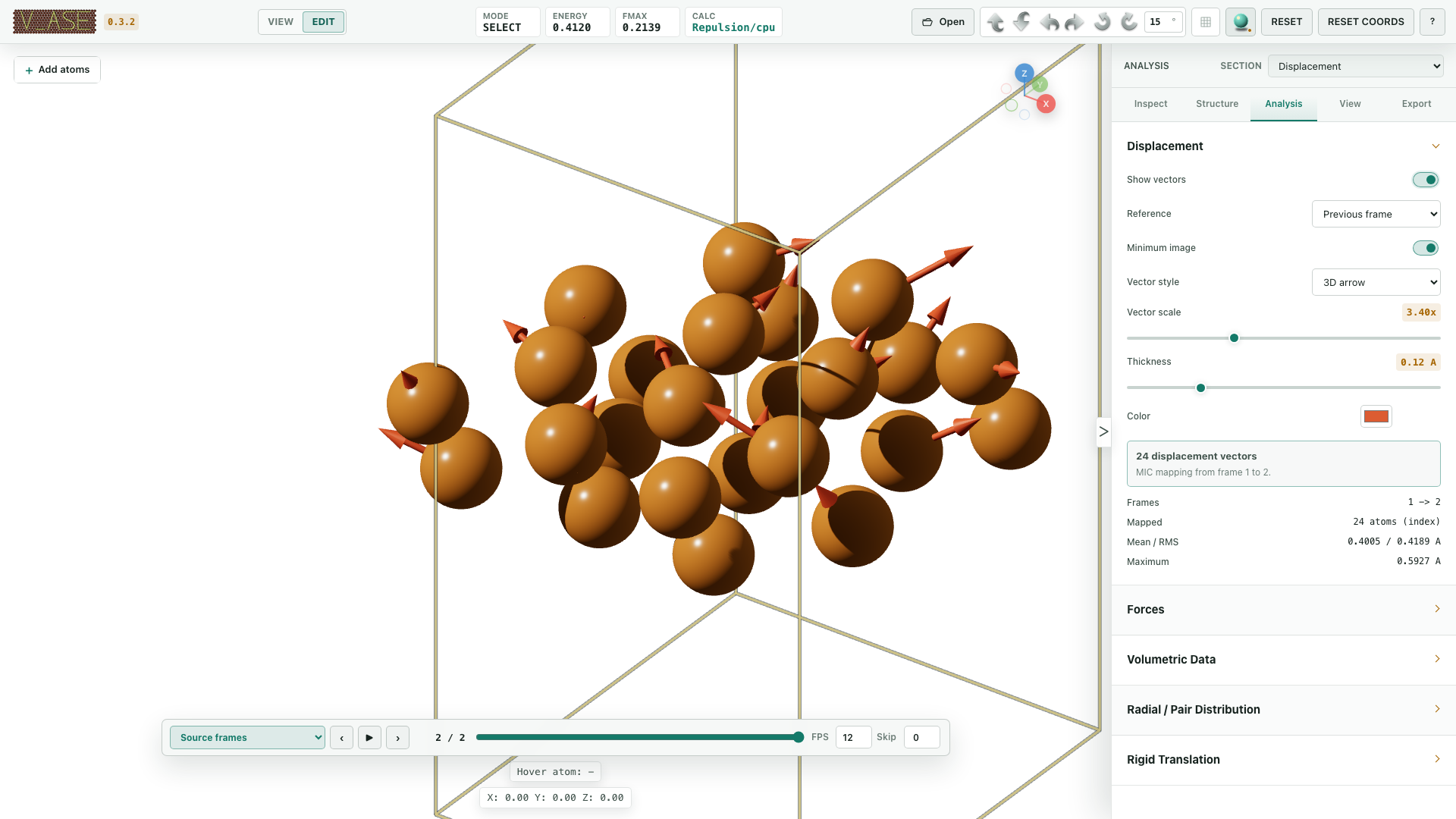
For trajectories, Analysis > Displacement compares the current frame with the previous frame or a chosen reference. Minimum-image correction, vector scale, thickness, color, and 2D/3D style are configurable. Displayed supercells repeat the vectors, and visual translation moves both endpoints without changing the physical displacement.
Constraints
ASE remains authoritative when Apply constraints is enabled. Constraint visualization is local to each atom rather than merged at a group center.
FixedLine
A straight cyan axis and two short parallel rail marks remain visible without
selection. FixedLine never uses a ring or plane disc; those shapes are reserved
for plane constraints. The close crop below keeps the constrained ion and its
channel context readable. During G, ASE restricts the atom to that line.

v_ase gui examples/readme_scene_assets/fixedline.traj --interactive
FixedPlane And FixScaled
Each constrained atom keeps its own local ring, crosshair, and normal marker.
When G starts, a larger translucent guide plane appears at that atom's
original position so the permitted surface remains visible while the atom
moves. Multiple selected atoms retain independent planes; no center-of-mass
plane is substituted.
VASP selective dynamics read as FixScaled are displayed from their allowed
fractional directions.

v_ase gui examples/readme_scene_assets/fixedplane.traj --interactive
FixAtoms
Fixed atoms keep their element color but use a distinct constrained surface treatment. They remain identifiable without looking selected.
Hookean
Hookean constraints show their inactive cutoff and engaged state separately.
After the constrained distance passes rt, a shaded 3D helical spring appears
between the constrained atoms.
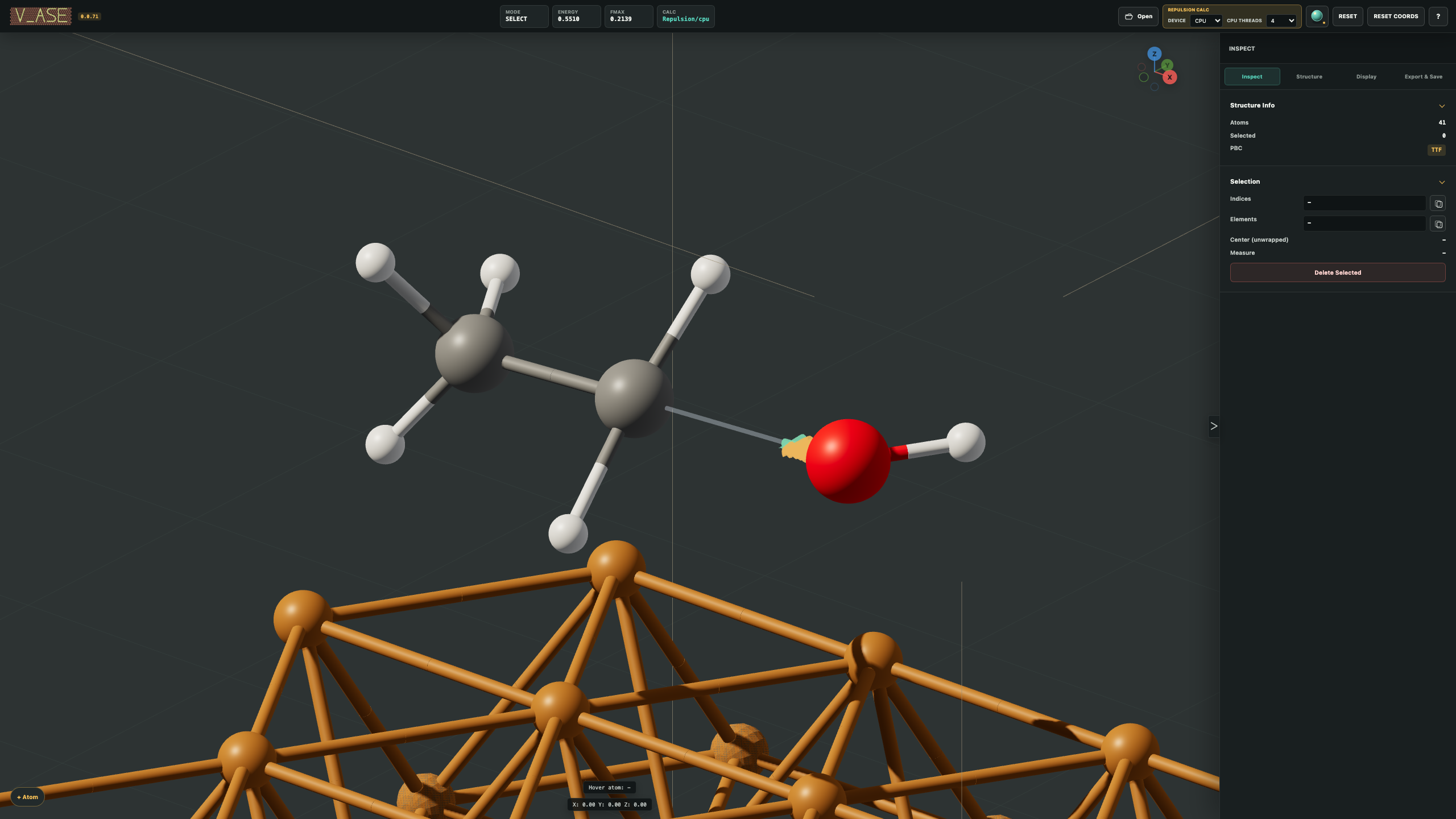

v_ase gui examples/readme_scene_assets/hookean.traj --interactive
Relaxation

Structure > Relaxation places every optimization step on a dedicated timeline. A single loaded structure gains a relaxation movie after the first run. If a source trajectory is already open, source and relaxation timelines remain separate and the active timeline is clearly selected.
The included example starts from a deliberately compressed C60 geometry and runs ASE FIRE with v_ase's repulsive fallback calculator:
v_ase gui examples/readme_scene_assets/crowded_c60_initial.cif --interactive
The fallback calculator is intended for removing obvious close contacts, not for predictive chemistry. Its cutoff scale and strength are editable. Attach a scientific ASE calculator when the optimized energy or forces will be used as physical results.
Trajectories
Multi-frame inputs add a timeline below the viewport. Scrubbing updates the
frame continuously, selected atom indices persist when topology permits, FPS
changes apply during playback, and Skip advances by skip + 1 source
frames per tick.
Bond topology is evaluated for each frame, so bonds form or break when a pair crosses its cutoff. Appearance, pair settings, supercell display, camera, and analysis settings remain active across the movie.
Video export uses FPS as playback speed. Optional N x interpolation creates
(source_frames - 1) * N + 1 output frames. Minimum-image interpolation uses
periodic cells to avoid jumps across a boundary. Interpolation takes longer
because more frames are rendered.
Appearance, Bonds, And Rendering
Structure > Appearance controls each stable atom label:
- ASE chemical TYPE and independent visual label;
- visibility and selection availability;
- color and radius;
- Standard, Metal, or Rubber material;
- all/partial/none selection checkbox.
View mode applies appearance by label. Edit mode can keep per-atom material overrides. Relabeling does not reorder the table or merge otherwise distinct atom types accidentally.
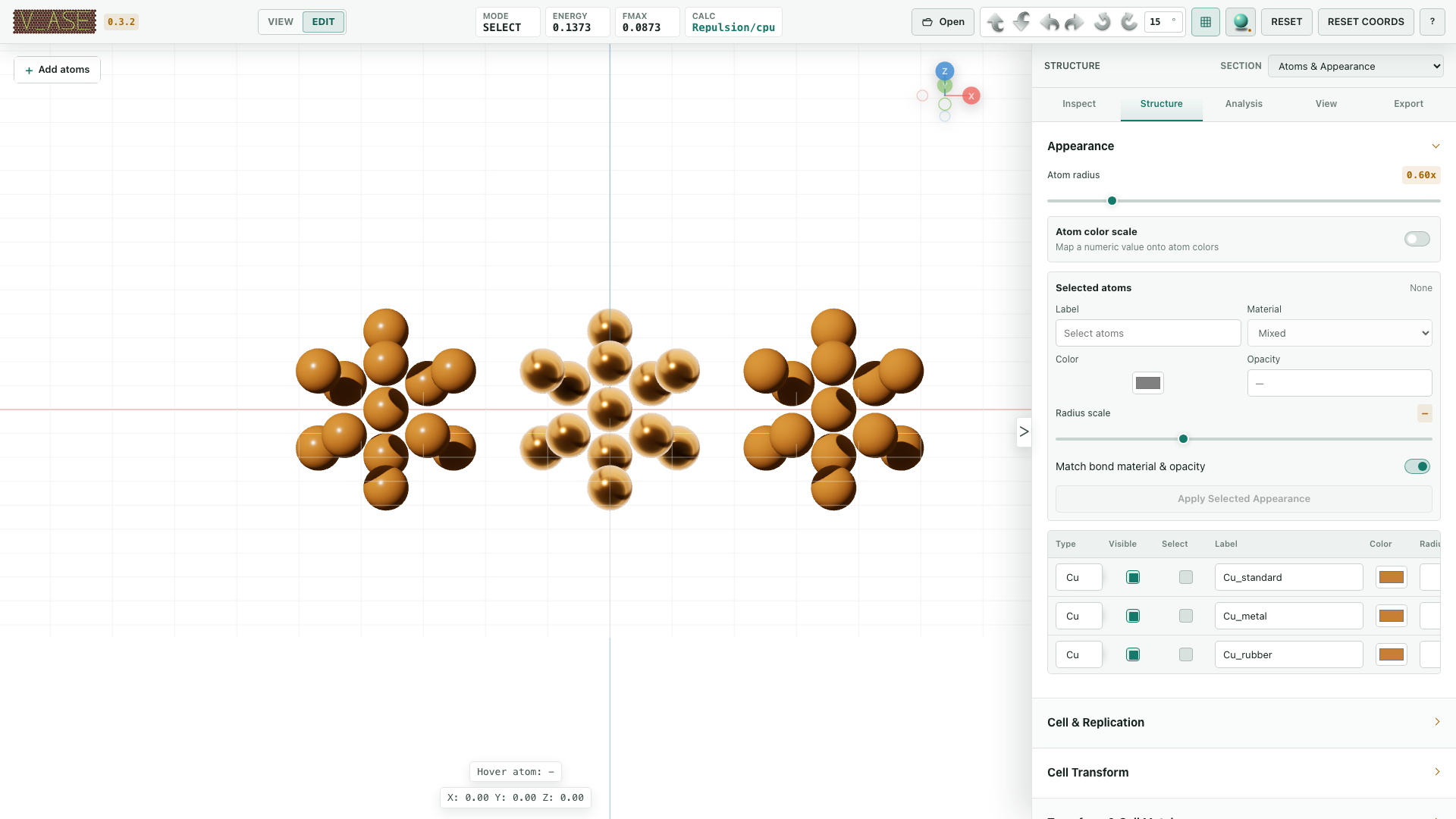
The comparison uses three identical Cu13 clusters with the same element color and radius, so only the optical material changes:
| Material | Visual response | Typical use |
|---|---|---|
| Standard | Balanced diffuse color and compact highlight | General structures and chemically neutral figures |
| Metal | Strong environment reflection and bright metallic highlight | Metals, electrodes, and reflective surfaces |
| Rubber | High roughness with broad, muted highlights | Soft visual grouping and low-glare nonmetal regions |
Materials affect rendering only. ASE elements, coordinates, calculators, and constraints are unchanged.
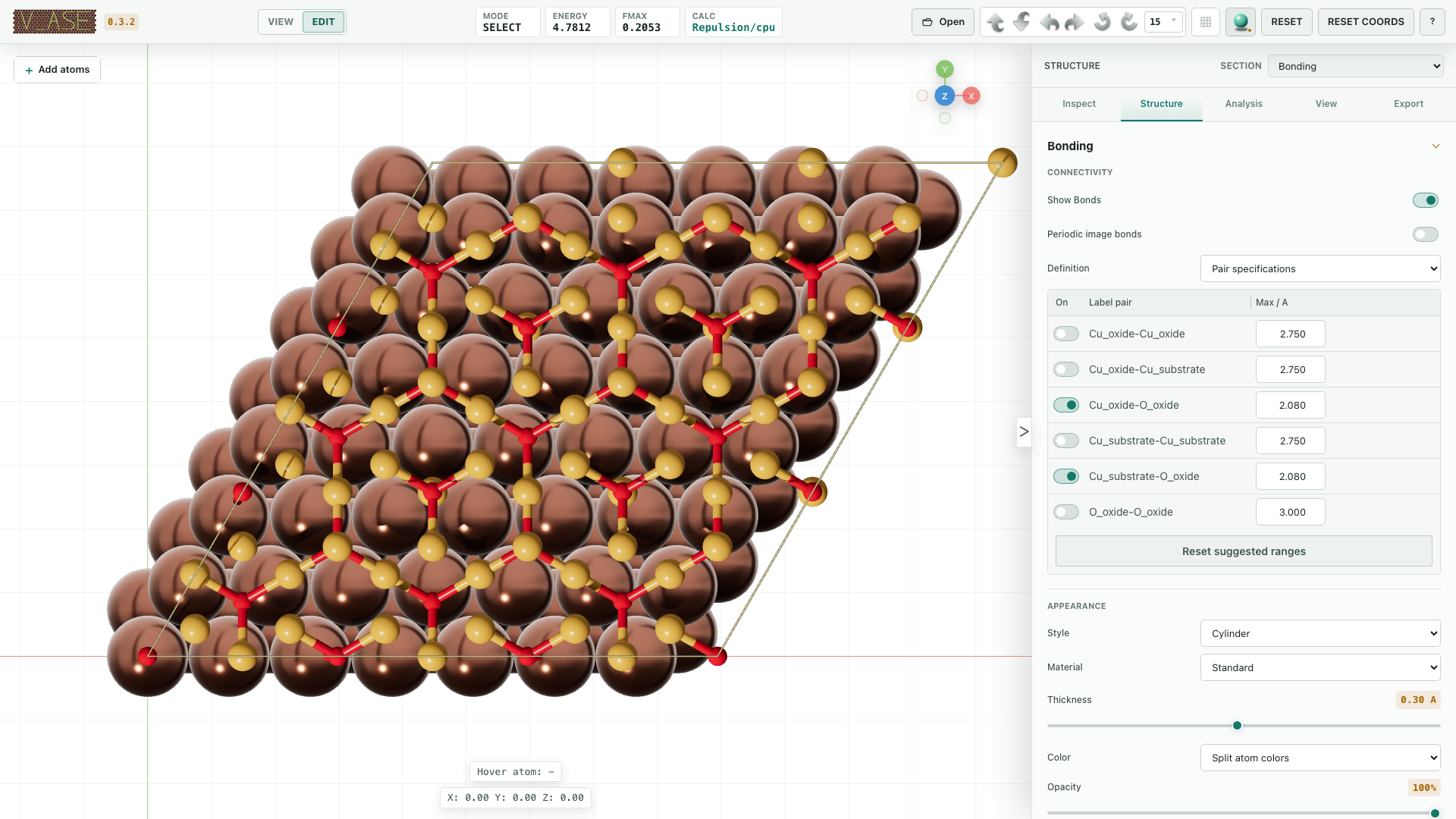
Structure > Bonding provides automatic inference, explicit label-pair cutoffs, and manual index pairs. A pair cutoff of zero disables that pair. Changes apply immediately. Bonds support:
- cell-local or periodic minimum-image display;
- cylinder or flat 2D geometry;
- custom color or two half-bonds using the atom colors;
- configurable diameter;
- live formation and breaking during Edit transforms.
The example uses an oxygen-covered Cu(111) slab and label-specific pairs:
Cu_surface-Cu_surface and O_ads-O_ads are disabled, while
Cu_surface-O_ads is enabled. The structure remains chemically Cu/O; the
labels only let the visualization apply different pair rules.
v_ase gui examples/readme_scene_assets/cu111_oxygen_pairwise_bonds.traj
View controls projection, atomic scale, anti-aliasing, sphere smoothness, background, 2D/3D display, grid, axes, unit cell, overlays, and cell material. The Axes and Unit Cell switches update the working viewport immediately; they are not export-only settings. Hiding world axes does not remove the compact orientation gizmo. New documents use orthographic projection and a true-white background.
The top-bar renderer switches between fast modeling light and Sun/soft-shadow rendering. Sun source, target, intensity, and direction can be manipulated in the viewport and carried into Blender export.
Export And Save
| Command | Result |
|---|---|
| Export POSCAR | Current physical ASE structure in VASP format |
| Export ASE Pickle | ASE Atoms, labels, constraints, arrays, and a valid SinglePointCalculator |
| Export Image | PNG by default; JPEG, PDF, and lossless WebP from the exact preview frame |
| Export Video | Constant-frame-rate H.264 MOV or MPEG-4 AVI with optional interpolation |
| Export Blender | Optimized scene script with atoms, bonds, cell, camera, and Sun |
| Export 3DM | Instanced Rhino geometry, metadata, and saved camera views |
| Export OBJ | OBJ/MTL, camera, and metadata in a ZIP |
| Export HTML View | One offline, view-only 3D document with the complete .vase embedded |
| Save Project | Self-contained .vase with structure/trajectory and visual state |
| Save Settings | Reusable visual settings without coordinates |
The Preview Area is the authoritative image/video frame. Its aspect ratio, camera, crop, lighting, atom scale, and included overlays match the export. Cell, grid, axes, and background can be included or excluded independently.
The system save picker is opened before expensive rendering or scene generation when the browser supports it. Canceling the picker cancels the export. Chrome may then show This site can view changes you make to this file. That message is Chrome's File System Access permission notice: v_ase can write only to the destination selected in that picker. Browser code cannot hide the notice while retaining destination selection before rendering.
Image export uses one determinate progress bar for rendering, pixel capture,
upload, encoding, download, and the final file write. It reports estimated
remaining time and reaches 100% once, only after the destination is complete.
Video export follows the same monotonic rule across all frames and encoding.
Every source frame is retained exactly once at 1x; interpolation adds
in-between frames. Visible displacement vectors and other selected scene
overlays are recalculated for each rendered frame.
Project Or Shareable HTML
Use Save Project when the result will be reopened and edited in v_ase.
The .vase file is the compact, canonical project: it contains every loaded
frame, coordinates, cells, PBC, labels, constraints, safe calculator results,
camera, appearance, bonds, lighting, analysis, and export settings.
It is self-contained and never references the original input file.
Use Export HTML View when the result should open directly in a browser.
The generated .html:
- opens offline without v_ase, Python, a server, or a CDN;
- restores the saved camera, viewport styling, bonds, constraint overlays, displacement vectors, supercell, visual translation, and trajectory;
- allows orbit, pan, zoom, frame stepping, and movie playback;
- exposes no atom, structure, appearance, or project editing controls;
- embeds the complete
.vase, which can be downloaded from the viewer for lossless reopening in v_ase.
An HTML View is larger than its .vase because it also contains the browser
renderer, immediately readable scene data, and a Base64 copy of the project.
Keep .vase as the editable source of truth and use HTML as the portable
view-only handoff.
Opening an ordinary structure in an existing tab keeps the current visual
settings; opening .vase restores the saved project.
Rhino export requires the optional dependency:
python -m pip install "v_ase-gui[rhino]"
OBJ export has no optional Python dependency.
AI And Agent Use
--for-ai exposes the same document through a semantic state and command API,
so an agent can inspect coordinates, cell, constraints, trajectory frames,
selection, measurements, camera, materials, lighting, and export state without
repeatedly interpreting screenshots.
v_ase gui STRUCTURE --for-ai
The startup handshake reports the human GUI URL, state and command-schema
URLs, the live window.v_aseAI browser API, and the installed agent-skill
location. A user can take over the same document in the normal GUI at any time.
Use the complete v_ase agent skill. It is vendor-neutral and can be used by Codex, Claude Code, ChatGPT desktop agents, Gemini-based agents, agentic IDEs, or another model that can run local commands or control a browser. The agent setup reference explains each integration path.
What To Give The AI
Prefer the complete skill directory. If the client accepts only individual files, provide the following:
| Always provide | Add when the task needs it |
|---|---|
SKILL.md |
semantic-api.md for live state, edits, camera, render, or export |
agent-setup.md |
workflows-and-examples.md for multi-step scientific workflows |
cli-and-environments.md for installation, server, WSL, or process handling |
|
safety-and-errors.md before destructive edits, relaxation, or file output |
|
evaluation.md when changing or releasing v_ase itself |
Then launch the document:
v_ase gui STRUCTURE --for-ai
Give the AI the first JSON line printed by the command. It contains the live GUI URL, semantic state URL, command schema URL, browser API name, and installed skill path. Do not paste screenshots or manually transcribe coordinates when the semantic state is available.
This bootstrap instruction works for clients without a native skill loader:
Read SKILL.md and agent-setup.md first. Load only the reference files needed
for this task. Start v_ase with --for-ai, inspect capabilities() and describe()
before editing, execute semantic operations one at a time, verify state after
each physical change, inspect the decoded final render, and give me human_url
for manual takeover.
The compatibility document
skills_v_ase.md points existing integrations to the
same canonical skill and reference set.
Installing The Skill
Clients with skill-folder support should install the complete directory:
# Codex
cp -R v_ase/skills/visualizing-atomic-structures-with-v-ase "$CODEX_HOME/skills/"

# Claude Code, from a project root
mkdir -p .claude/skills
cp -R v_ase/skills/visualizing-atomic-structures-with-v-ase .claude/skills/
For another AI, use its documented local skill directory if it supports the
same SKILL.md convention. Otherwise attach the files listed above or make
them readable in the project and include the bootstrap instruction. The live
semantic protocol is the same regardless of model vendor.
Documents And File Opening
The top-bar Open button starts with the operating system file picker. A selected file can:
- replace the active document;
- append structures to its current trajectory;
- open in a new independent v_ase tab.
If the active document is empty, the selected file opens there immediately; the destination chooser is shown only when a document already contains a structure or trajectory.
The + beside the document tabs creates an empty independent document. Each
tab owns its structure, trajectory, camera, selection, history, settings,
calculator, and .vase output.
Adding .vase to an existing trajectory imports only its structures and keeps
the current tab's visual state. Replacing a tab or opening a new one restores
the complete .vase project.
Python
from ase.build import molecule
from v_ase.visualize import view

atoms = molecule("H2O")
view(atoms)  # View mode
Return an edited ASE object:
edited = view(atoms, viz_only=False)
print(edited.positions)
view() accepts one ASE Atoms, a sequence of frames, or a supported file
path. view_edit() remains a compatibility alias for Edit mode.
File Formats
Common inputs include POSCAR/CONTCAR, VASP files, XDATCAR, vasprun.xml,
XYZ/extxyz, ASE .traj, LAMMPS dump/data, CIF, and .vase. ASE readers cover
additional formats.
Use --format when an ambiguous filename does not identify the reader:
v_ase gui ABCD --format POSCAR
v_ase gui ABCD --format vasprun.xml
v_ase gui ABCD --format lammpstrj
v_ase gui ABCD --format data
Use --index : for every frame, --index -1 for the last frame, or an integer
for one frame.
Repeated POSCAR/CONTCAR species blocks remain separate visual labels. For
example, O Cu O with counts 1 14 5 becomes O1, Cu, and O2 while all
oxygen atoms remain ASE element O.
Controls
| Input | Action |
|---|---|
| Left click / Shift + click | Select / extend selection |
| Left drag | Box select |
| Middle drag | Orbit without inertia |
| Shift + middle drag | Pan |
| Wheel | Zoom |
G / R |
Move / rotate selected atoms |
X, Y, Z during G/R |
Lock transform axis |
X, Y, Z otherwise |
Align camera to an axis |
| Number keys | Exact move distance or rotation angle |
Enter or left click |
Confirm transform |
Esc or right click |
Cancel transform |
Ctrl+C, Ctrl+V |
Copy and paste atoms |
Ctrl+Z, Ctrl+Shift+Z |
Undo and redo structure, camera, appearance, bond, and rendering changes |
Delete / Backspace |
Delete selected atoms |
Space |
Play or pause the active timeline |
| Left / Right Arrow | Previous / next frame in the active timeline |
Tab or Esc |
Open a collapsed control panel |
Esc with the panel open |
Close it and return focus to the viewport |
The ? button contains the complete shortcut table.
Remote Servers
Install v_ase on both the local computer and remote host, then run one command locally:
v_ase gui USER@SERVER:/absolute/path/to/STRUCTURE
An SSH config alias works:
v_ase gui physics:/absolute/path/to/trajectory.extxyz
v_ase selects private ports automatically, starts the backend beside the
remote file, creates the SSH tunnel, and opens the local browser. The source
file and full trajectory cache remain on the server; only the current frame
data required for local Three.js rendering crosses the tunnel. Use ProxyJump
in ~/.ssh/config when a login node is required.
Troubleshooting
v_ase command is not found
Install and run with the same Python environment:
python -m pip install --upgrade v_ase-gui
python -m v_ase.cli --version
If the module command works but the console command does not, reactivate the
environment or add its Python scripts directory to PATH.
The browser does not open, or WSL prints gio: ... Operation not supported
The terminal also prints the complete local URL. Ctrl+click it or copy the text
beginning with http:// into Chrome, Edge, Firefox, or another browser. Keep
the terminal process running.
Example with sensitive session identifiers masked:
(base) giyeok@DESKTOP-XXXX:~$ v_ase gui
gio: http://127.0.0.1:58039/workspace?workspace_id=xxxx&session_id=xxxx: Operation not supported
For better WSL performance, keep trajectories under the Linux filesystem
rather than /mnt/c/....
A file is detected with the wrong format
Force the reader:
v_ase gui FILE --format POSCAR
v_ase gui FILE --format vasprun.xml
v_ase gui FILE --format lammpstrj
v_ase gui FILE --format data
Replicated supercell atoms cannot be selected
In Edit, displayed replicas are noneditable previews. Use Set Supercell as Cell to create real ASE atoms and an editable larger cell. In View, displayed replicas are selectable and participate in center, distance, and other measurements.
Video export is unavailable or slow
Video export requires at least two frames and browser MediaRecorder support.
MOV/AVI conversion uses the bundled imageio-ffmpeg. Interpolation renders
additional frames and requires stable atom count, element, label, and ordering
between adjacent source frames. The selected FPS controls playback time:
72 frames at 30 FPS produce 2.40 seconds. The progress indicator reaches 100%
only after encoding and the destination write both finish.
Chrome says this site can view changes made to the saved file
This is a Chrome security notice for the File System Access API. v_ase opens the system save picker before a costly image, video, Blender, or CAD export so canceling does not waste time. It receives write access only to the file you choose. Chrome does not allow a page to suppress this notice; using an ordinary browser download would remove advance destination selection.
A large trajectory opens or plays slowly
- Keep the default View mode unless editing is required.
- Use
--stream-frameswhen frame data should be loaded on demand. - Keep browser hardware acceleration enabled.
- Close unused v_ase tabs; inactive tabs pause rendering but retain document state in memory.
- In WSL, keep data in the Linux filesystem.
Installation fails while pip checks an unrelated package version
A package version reported as None usually belongs to a different incomplete
or manually installed distribution in that environment. Run
python -m pip check, repair that distribution, or use a clean environment:
python -m venv .venv
python -m pip install --upgrade pip
python -m pip install v_ase-gui
Run v_ase --help or v_ase gui --help for all CLI options. Report
reproducible problems at
GitHub Issues.
1 maintainer

Download files
Download the file for your platform. If you're not sure which to choose, learn more about installing packages.
Source Distribution
Built Distribution
Filter files by name, interpreter, ABI, and platform.
If you're not sure about the file name format, learn more about wheel file names.
Copy a direct link to the current filters
File details
Details for the file v_ase_gui-0.0.111.tar.gz.
File metadata
- Download URL: v_ase_gui-0.0.111.tar.gz
- Upload date:
- Size: 97.6 MB
- Tags: Source
- Uploaded using Trusted Publishing? No
- Uploaded via:
twine/6.2.0 CPython/3.11.0
File hashes
| Algorithm | Hash digest | |
|---|---|---|
| SHA256 |
3cd90c0ed96e7f72d9dba95db3ee28f6081e758c563eb2f51bbc491fa7df0407
|
|
| MD5 |
368dc589cc34a16fc9050e6855bda553
|
|
| BLAKE2b-256 |
3baf82d84f15a542904037a12db059f82e178e4090dae01bf4167cd0c0e98289
|
File details
Details for the file v_ase_gui-0.0.111-py3-none-any.whl.
File metadata
- Download URL: v_ase_gui-0.0.111-py3-none-any.whl
- Upload date:
- Size: 7.2 MB
- Tags: Python 3
- Uploaded using Trusted Publishing? No
- Uploaded via:
twine/6.2.0 CPython/3.11.0
File hashes
| Algorithm | Hash digest | |
|---|---|---|
| SHA256 |
e3640a1f12f637df85b5c4a80359ac1169630f644761d9c11b87062a4541512b
|
|
| MD5 |
a9c91838c50e33f5a3e9d1aac0b1b28d
|
|
| BLAKE2b-256 |
fd3f65cdddcb0f9656719478149691b75babda41ea6b139ff908c77e2b23fe81
|














