Anatomy of a Field Analysis Worksheet
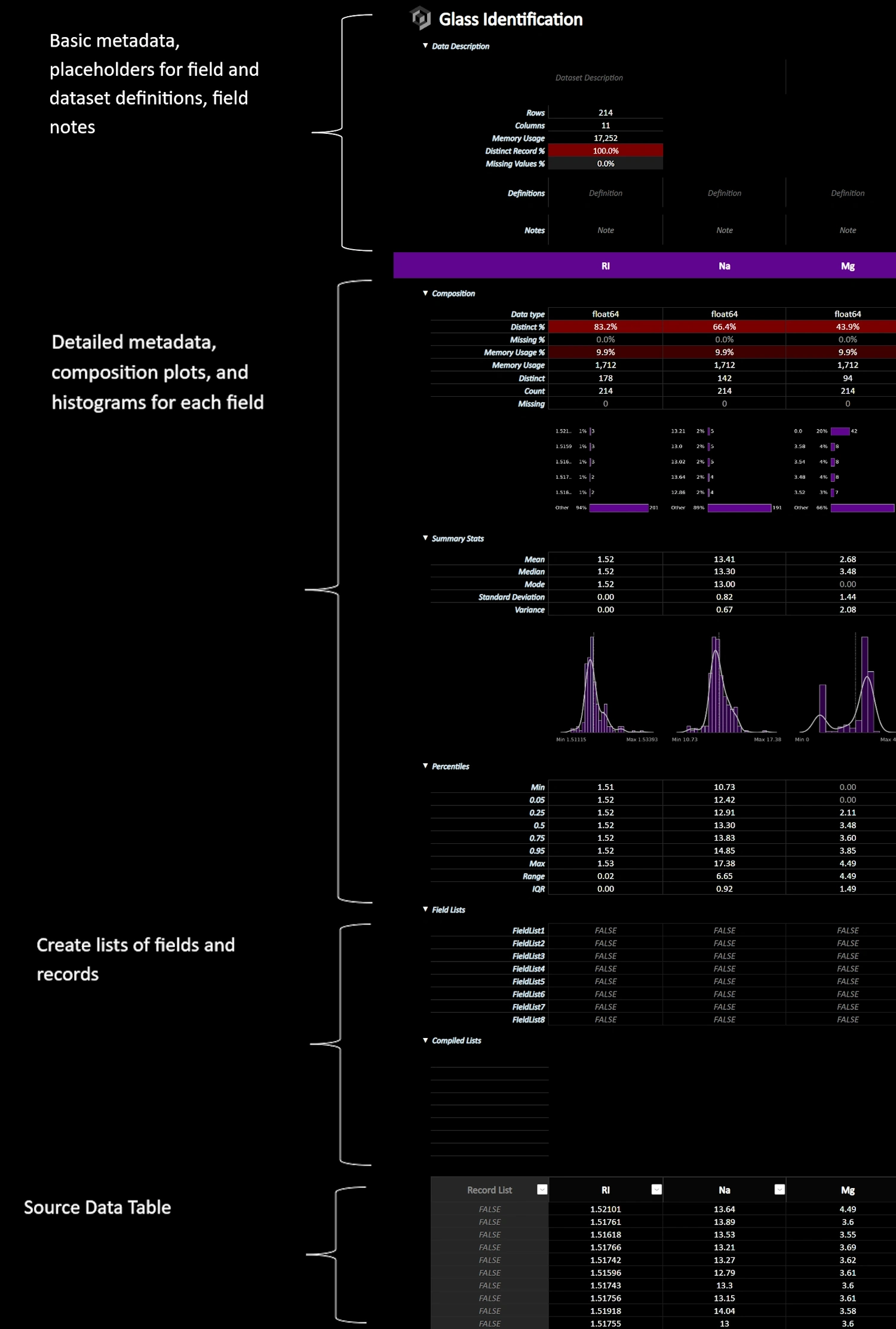







xleda is a Python/Excel powered EDA tool that creates workbooks from dataframes or data files that are highly optimized to explore, define, and document data sets.
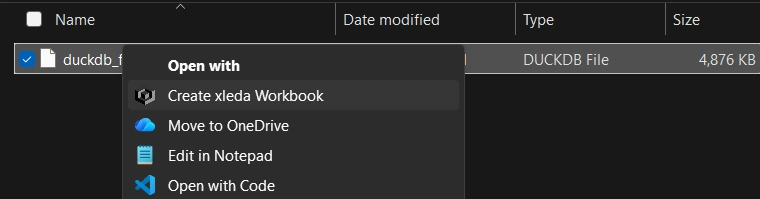
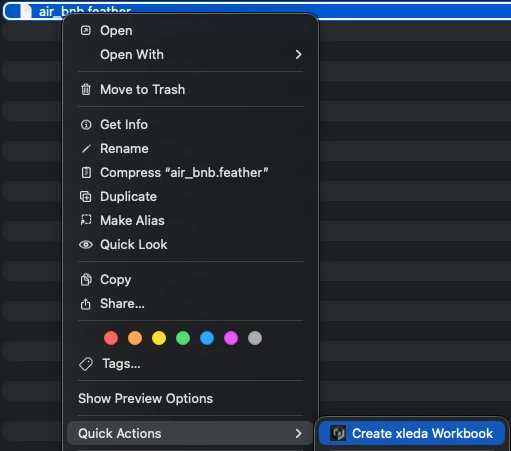
Works on Windows or MacOS as a Python package, a CLI, or as a service that lets you create workbooks by right-clicking supported files.
There are some amazing EDA tools available to data professionals. You shouldn't have to start from scratch to include Microsoft Excel among them.
See some example xleda workbooks here, docs here, and a quick-start guide for non-developers here.

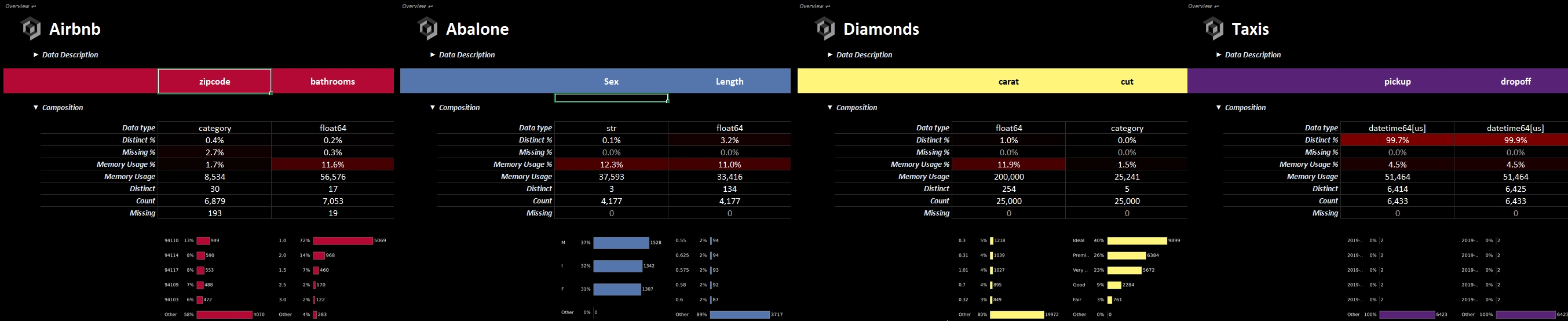
Top view of a Field Analysis worksheet.
| Desktop Excel |
Requires the full version of Microsoft Excel (2016+) on either MacOS or Windows to create workbooks
|
| Supported Data |
Supports pandas dataframes, CSV, DuckDB, SQLite, Feather, Parquet, Pickle, Excel, RData, JSON, and XML |
Installing the package makes the CLI available but doesn't add right-click functionality to your OS.
Running xleda install after installing the package adds right-click funcitonality to your OS but it does not modify your path to make the CLI available systemwide
If the Python environment that xleda was installed into is deleted after running xleda install, the right-click functionality will need to be either repaired or uninstalled by running xleda install/xleda uninstall from a new Python environment.
If you have UV installed, you can install the package, CLI, and right-click menus systemwide without having to maintain a venv with these two lines.
Windows or MacOS
# Installs the package and makes the xleda command available
uv tool install xleda

# Note you may need a new terminal window to see the newly installed xleda command
xleda install
If you're working with data professionally in any role and find yourself looking at foreign data, one of the most important things you can do is document and define your data so that you can ensure everyone is working with the same data and definitions.
xleda can help you perform this task easily, quickly, and without having to write a single line of Python code.
Following the steps below will provide you with:
| 1. Prepare Your Source Data |
We'll start by gathering your source data into one place that we can provide to xleda
|
|---|---|
| 2. Install UV |
UV will be installed to manage Python
Windows PowerShell
powershell -ExecutionPolicy ByPass -c "irm https://astral.sh/uv/install.ps1 | iex"
MacOS
curl -LsSf https://astral.sh/uv/install.sh | sh
|
| 3. Install xleda |
UV will be used to install xleda
uv tool install xleda
|
| 4. Install right-click functionality |
xleda will be used to install right-click on supported files functionality
xleda install
|
| 5. Create an xleda workbook |
This step lets you create your workbook and choose your theme for future xleda workbooks at the same time
xleda wb YourSourceData.xlsx --theme '#305CDE'
|
What's the Catch?
Now that everything is installed, this guide is no longer necessary. You can now create workbooks in the future without any terminal commands by right-clicking on supported files.
If you want to change your theme, use that very last line to create a new workbook once and it will remember your preference. VBA preference persists in the same way after it's set. Run xleda wb --help in your terminal for guidance on how to set either with/without creating a workbook and other settings.
What's the Catch? There's not one really. The only thing that's close to a catch is that using this method doesn't include automatic updates. If you've followed these steps, be sure to periodically update xleda using uv tool upgrade xleda.
Use wb() to quickly create an xleda workbook from a dataframe, a dictionary of dataframes, or a supported data file.
from xleda import wb
import seaborn as sns

# < your dataframe goes here >
df = sns.load_dataset("titanic")

# Creates xleda.xlsm in the current directory
wb(df)
from xleda import wb
import seaborn as sns

# < your dataframes go here >
df1 = sns.load_dataset("titanic")
df2 = sns.load_dataset("penguins")

# Creates Titanic.xlsm in the current directory
wb({"Titanic": df1,
    "Penguins": df2})
from xleda import wb
from pathlib import Path

# < your data file goes here >
duckdb_file = "https://github.com/InfoDesigner/xleda/raw/refs/heads/main/examples/data/duckdb.duckdb"

# Creates duckdb.xlsm in the current directory
# Includes data from all tables in the db file
wb(duckdb_file)
# Creates 'userdata.xlsm' in the current directory
xleda wb 'https://github.com/InfoDesigner/xleda/raw/refs/heads/main/examples/data/userdata.parquet'

# Shows the help command
xleda --help

# Shows the wb help command
xleda wb --help
Windows |
MacOS |
|
|
dataDataFrame or dict[str, DataFrame] or Path or string | Mandatory
If the provided data file doesn't parse correctly, try creating a dataframe first and use that with xleda instead of the file
.CSV file with tabs instead of commas.db files that are neither SQLite nor DuckDB files.txt extensionfile_namestr | Optional
The workbook file name to create.
Defaults to same name as data files provided for data, the first key in a dataframe dict provided for data, or xleda
wb_pathPath or string | Optional
Use a directory or file path
If a directory is provided, the workbook is created there
If a filename ends with .xlsm or .xlsx, xleda will create or export from that file
Defaults to the current working directory or the source file directory
themestr | Optional
Sets the primary workbook theme.
Accepts a hex color or random.
Defaults to a neutral color.
theme affects the workbooks and default charts.
plotsdict[str, Figure] | Optional
Adds extra plot worksheets using a dict of matplotlib Figure objects
Accepts {'plotname': Figure, ...} format
No automatic styling or sizing is applied
overwritebool | Optional
Overwrites existing workbooks of the same name
Existing files are moved to Trash/Recycle Bin
Defaults to False
large_reportbool | Optional
Raises data limits to Excel's maximum: 1,000,000 rows and 16,000 columns
Requires more memory and time for large datasets
Defaults to False
no_vbabool | Optional
Creates a .xlsx workbook without VBA
Setting this flag persists the preference so that you can set it and forget it
Use an .xlsx file for wb_path as an alternative though this won't persist
Defaults to False
open_wbbool | Optional
Opens the workbook after creation
Set to False when creating multiple workbooks
Defaults to True
exportbool | Optional
Exports data from an xleda workbook instead of creating one
See the Examples/Exporting Metadata sections below for details
Defaults to False
Installing the Python package also installs the xleda CLI
It works almost the same way as the Python API except that it only accepts files for data and doesn't accept the plots argument
xleda --help |
Shows the xleda help menu |
xleda wb --help |
Shows help for the wb command and it's flags |
xleda install |
Installs right-click on supported files to create workbooks functionality |
xleda uninstall |
Uninstalls right-click on supported files to create workbooks functionality |
xleda version |
Compares your installed version with the latest available version on PyPi |
xleda vba |
This toggles your preference for creating workbooks with/without VBA and persists once set. |
xleda theme |
This changes your theme preference without creating a workbook and persists once set # Sets theme to a dark grey
xleda theme '#262626'
# Also sets theme to a dark grey
xleda theme 262626
|
import seaborn as sns
from xleda import wb

seaborn_datasets = ['diamonds', 'dots', 'dowjones']
dataframe_dict = {df_name: sns.load_dataset(df_name) for df_name in seaborn_datasets}

# Creates diamonds.xlsm in the current directory
# Also includes dots and dow jones data
wb(data=dataframe_dict)
from xleda import wb
from pathlib import Path

# Creates "c:\my_target_folder\Penguins.xlsm"
wb(data={"Penguins": df},
   wb_path=Path(r"c:\my_target_folder"))

# Creates "c:\my_awesome_workbook.xlsx"
wb(data={"Penguins": df},
   wb_path=r"c:\my_awesome_workbook.xlsx")
from xleda import wb
import matplotlib.pyplot as plt
import seaborn as sns
import missingno as msno

# < your dataframe goes here >
df = penguins = sns.load_dataset("penguins")

# Style the additional plots | optional
plt.style.use("dark_background")

# Create additional plots
pair_plots = sns.pairplot(df, hue="species").figure
null_matrix = msno.matrix(df).get_figure()

# Resize the null matrix  | optional
null_matrix.set_size_inches(9.35, 4.5)

# Creates Penguins.xlsm with two extra plot sheets
wb(data={"Penguins": df},
   theme="#4C4C4C",
   plots={'Pair Plots': pair_plots,
          'Null Matrix': null_matrix})
from xleda import wb
import seaborn as sns

df = sns.load_dataset('penguins')

# Creates "Penguins.xlsx" in the current directory and changes the default workbook style to .xlsx
wb(data={"Penguins": df},
   no_vba=True)

# Also creates "Penguins.xlsx" but doesn't change the default workbook style
wb(data=df,
   wb_path="Penguins.xlsx")
From Python
from xleda import wb

# < your database goes here>
sqlite_db = "https://github.com/InfoDesigner/xleda/raw/refs/heads/main/examples/data/chinook.db"

# Creates "Chinook.xlsm" in the current directory with 11 dataframes
wb(data=sqlite_db,
   file_name="Chinook")
From the CLI
# Creates "Chinook.xlsm" in the current directory with 11 dataframes
xleda wb chinook.db --name "Chinook"
Basic metadata export sources data from Python
from xleda import wb
import seaborn as sns

# < your dataframe goes here >
df = sns.load_dataset("titanic")

# Creates "Titanic.xlsm" and returns basic metadata
export_dicts = wb(data={"Titanic": df},
                  file_name="Titanic").export_dicts

# returns ['field_overview', 'df_overview', 'source_data']
print(export_dicts[0].keys())
Full export sources data from the workbook when possible
The xleda workbook pictured here is used in for the export code example below .
It can be found here..
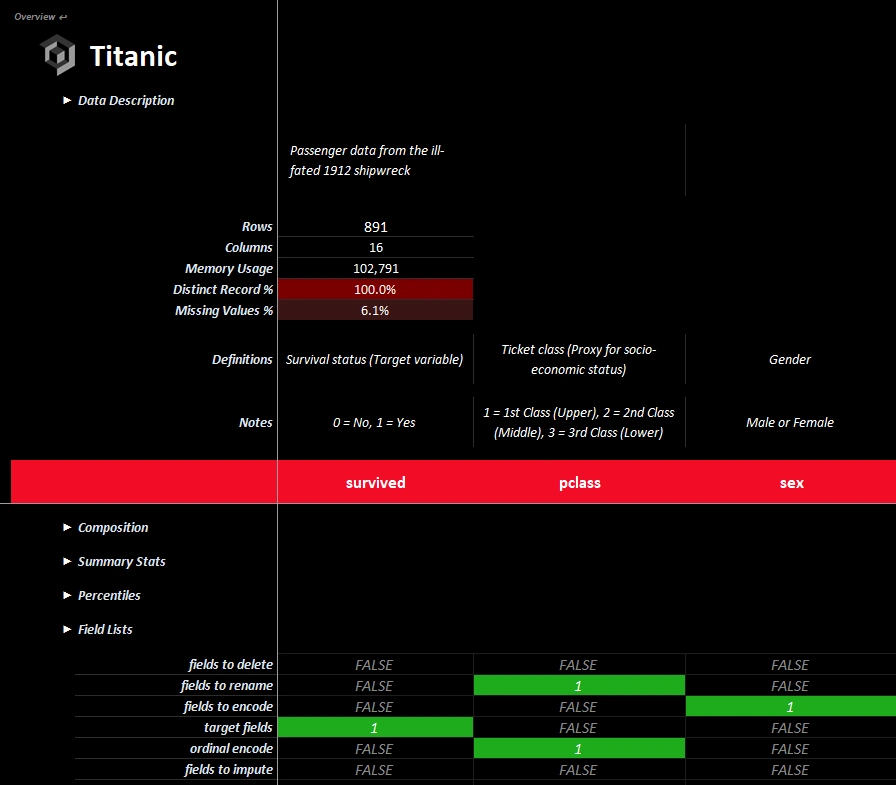
A completed xleda workbook showing definitions, notes, lists, etc.
from xleda import wb
import seaborn as sns

# < your dataframe goes here >
df = sns.load_dataset("titanic")

# < your completed workbook goes here >
edited_workbook_path = "https://github.com/InfoDesigner/xleda/raw/refs/heads/main/examples/Titanic%20Completed.xlsm"

# Performs a full export from "Titanic Completed.xlsm"
export_dicts = wb(data={"Titanic": df},
                  wb_path=edited_workbook_path,
                  export=True).export_dicts

# Returns ['description', 'definitions', 'notes', 'lists', 'field_overview', 'df_overview', 'source_data']
print(export_dicts[0].keys())
bool | Optional
The Field Lists section includes placeholders to create 8 custom lists of fields
Use these to organize fields into groups such as "fields_to_delete", "fields_from_system_a", "fields_to_fix", or whatever your workflow needs
The Record List column of the source data table works similarly though it tags individual records instead of lists
Anything You Want and the list will be renamed to anything_you_wantRecord List field added to your source data works the same way except it creates a list of all tagged records instead of a list of fieldsCompiled Lists section formats your lists as python listsPythonList, that creates Python formatted lists out of cell values

Easily create lists of fields in your data.
bool | Optional
On an average machine, xleda creates workbooks for most data sets less than 20 seconds on Windows/1-2 minutes on MacOS
To ensure workbooks are created quickly, each dataframe is by default subsampled to only include the first 50 columns and a random sample of 25,000 records.
You can optionally override default limits to use Excel's limits of 16,000 columns, 1,000,000 rows by using large_report=True.

debug section of the Overview worksheet has a breakdown of how the time spent to produce your workbook was allocated.bool | Optional
Accessing your notes/lists/defintions from Python is easy
Metadata from all xleda.wb() objects is collected into a list of dictionary objects, one for each dataframe, accessible through xleda.wb().export_dicts.
You can also access expanded metadata, sourced from the workbook by using export=True.
Because expanded metadata reflects changes you've made in Excel, this will in effect make Excel a UI for editing your Python data. This should work reliably if you don't rename the Excel tables and care for data type changes in the round-trip.
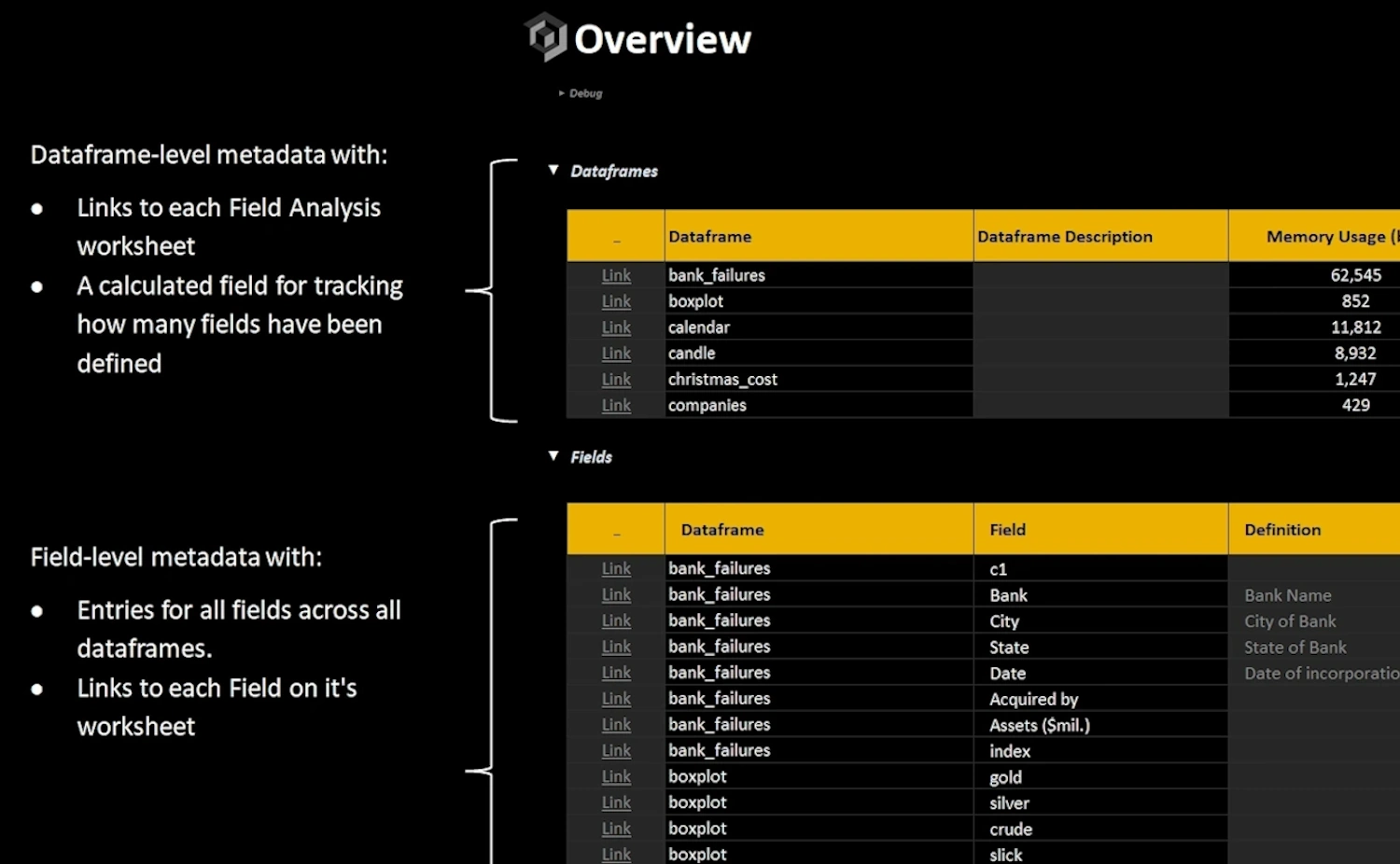
export=Truedf_overview: Dataframe level metadata from all dataframes with empty placeholders for dataframe descriptionsfield_overview: Field-level metadata from all dataframes with empty placeholders for field definitions and notesfield_metadata: A basic metadata dataframe, combining information from pandas info/describe/quantilesource_data: A copy of the source data that also includes Record Hash/Record List/HasBlank/index columnsUsing export=True also provides the default metadata though it is sourced from the
workbook instead and includes any notes, lists, dataframe descriptions, and field definitions you've added to it
The following metadata is included for each provided dataframe when using export=True:
df_overview: Dataframe level metadata from all dataframes. This includes any dataframe descriptions you've added to the workbookfield_overview: Field-level metadata from all dataframes. This includes any field definitions and notes you've addeed to your fieldsfield_metadata: A basic metadata dataframe, combining information from pandas info/describe/quantilesource_data: A copy of the source data that also includes Record Hash/Record List/HasBlank/index columns. This will
reflect any changes you've made such as tagging records in the Record List column, removing/editing records, removing/renaming columns, etc description: A Dataframe description if you've added onedefinitions: Any field definitions you've addednotes: Any field notes you've addedlists: Any lists showing in the compiled lists sectionbool | Optional
xleda will create the same workbooks in MacOS
Creating them is significantly slower and you may get two different types of prompts that require your attention
Look for the bouncing Excel icon
| To Access Files | To Enable Macros | |
|---|---|---|
| Source | MacOS | Excel |
| Details | Prompts to Allow Excel to access the file it's creating. If you get these prompts, you'll potentially get one for each unique file you create. |
Prompts to "Enable Macros". If you get these prompts, you'll get two when creating a workbook: 1. When opening the blank template 2. When opening your created workbook. |
| Example | 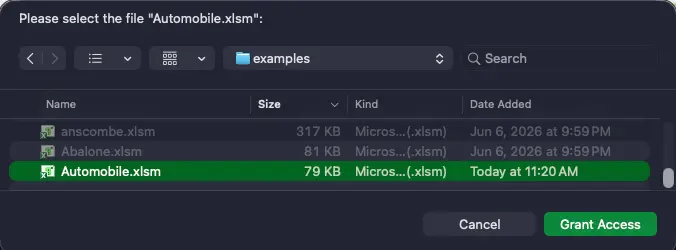 |
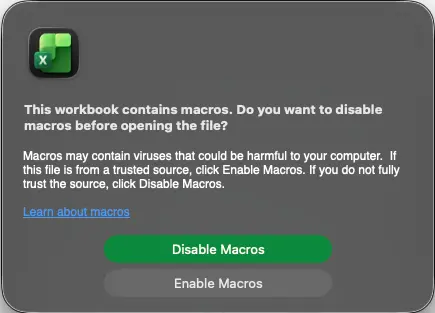 |
| Remedy | There's not a reliable remedy to this. MacOS doesn't permit applications like Microsoft Excel real access to the file system, even after explicitly granting Excel Full Disk Access under Settings > Privacy & Security > Full Disk Access. |
You can either: 1. Create a VBA free workbook (see the next section for details). 2. Change Excel's default macro settings (shown) to one of the other two options. 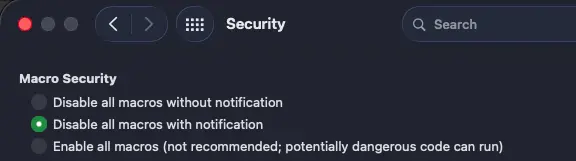 |
bool | Optional
The included VBA code is short and easy to understand
You can create a VBA-free, xlsx workbook by either setting no_vba=True or providing a wb_path ending in .xlsx.
Providing the no_vba flag will change the default so that the setting will persist. Using wb_path doesn't work this way.
|
Use headings like web pages to navigate with VBA. |

Use row groupings to navigate without VBA. |
Besides Enable Macros prompts, using VBA also includes one annoying side effect:
pip install xlwings and run the script successfully.import xlwings as xw
app = xw.App()
Version 0.8.185 |
New simplified API, simplified export, general polishSimplified basic usage to make it quicker to use and easier to memorize.
Simplified export functionality
Template updates
Other updates
|
Version 0.8.186 |
Add multiple dataframes, module refactoring into classes, added loggingImplemented add_dfs
|
Version 0.8.193 |
Added MacOS support
Other Updates
Template Adjustments
|
Version 0.8.197 |
Readme/pyproject.toml polish/minor fixes
|
Version 0.9.014 |
Simplified API, Expanded Input Options/Interfaces, Significantly improved experience with multiple dataframesSimplified API
|
Download the file for your platform. If you're not sure which to choose, learn more about installing packages.
Filter files by name, interpreter, ABI, and platform.
If you're not sure about the file name format, learn more about wheel file names.
Copy a direct link to the current filters
Details for the file xleda-0.9.14.tar.gz.
uv/0.11.28 {"installer":{"name":"uv","version":"0.11.28","subcommand":["publish"]},"python":null,"implementation":{"name":null,"version":null},"distro":{"name":"Ubuntu","version":"24.04","id":"noble","libc":null},"system":{"name":null,"release":null},"cpu":null,"openssl_version":null,"setuptools_version":null,"rustc_version":null,"ci":true}
| Algorithm | Hash digest | |
|---|---|---|
| SHA256 |
beed20168d7263d21d6888489be7f4291c449c0e1df0cdd3e12d298b7aba3d25
|
|
| MD5 |
cbf6e17aa8a7128424d5f4095f1db45a
|
|
| BLAKE2b-256 |
1d20aa3be4430f3d69e31f45f2421d253c2c190301afa74379e33086c1e0d12b
|
Details for the file xleda-0.9.14-py3-none-any.whl.
uv/0.11.28 {"installer":{"name":"uv","version":"0.11.28","subcommand":["publish"]},"python":null,"implementation":{"name":null,"version":null},"distro":{"name":"Ubuntu","version":"24.04","id":"noble","libc":null},"system":{"name":null,"release":null},"cpu":null,"openssl_version":null,"setuptools_version":null,"rustc_version":null,"ci":true}
| Algorithm | Hash digest | |
|---|---|---|
| SHA256 |
bde9fff35dfb4e2fceb8e1086fcf61fc472ed7972ce91ff99cfc3112db375360
|
|
| MD5 |
255fb8486ae8e0961ef0d35493c3554d
|
|
| BLAKE2b-256 |
20ca2e85b7dc03137ae4e0a207f0cbd63ffb397e9ca7484c1cb478d35e00bd09
|
 Anthropic, PBC
Visionary sponsor
Anthropic, PBC
Visionary sponsor
 Bloomberg
Visionary sponsor
Bloomberg
Visionary sponsor
 Hudson River Trading
Visionary sponsor
Hudson River Trading
Visionary sponsor
 Meta
Visionary sponsor
Meta
Visionary sponsor
 NVIDIA
Visionary sponsor
NVIDIA
Visionary sponsor
 Microsoft
Sustainability sponsor
Microsoft
Sustainability sponsor
 Depot
Continuous Integration
Depot
Continuous Integration
 AWS
Cloud computing and Security Sponsor
AWS
Cloud computing and Security Sponsor
 Datadog
Monitoring
Datadog
Monitoring
 Fastly
CDN
Fastly
CDN
 Google
Download Analytics
Google
Download Analytics
 Sentry
Error logging
Sentry
Error logging
 StatusPage
Status page
StatusPage
Status page