







xleda is a Python/Excel powered EDA tool that creates workbooks from dataframes or data files that are highly optimized to explore, define, and document data sets.
-
Works on Windows or MacOS as a Python package, a CLI, or as a service that lets you create workbooks by right-clicking supported files.
-
There are some amazing EDA tools available to data professionals. You shouldn't have to start from scratch to include Microsoft Excel among them.

Top view of a Field Analysis worksheet.
xleda Components
All xleda workbooks include an Overview worksheet and a Field Analysis worksheet for each provided dataframe.
| Field Analysis |
Anatomy of a Field Analysis Worksheet
|
| Overview |
Anatomy of an Overview Worksheet
|


Requirements/Compatibility
| Desktop Excel |
Requires the full version of Microsoft Excel (2016+) on either MacOS or Windows to create workbooks
|
| Supported Data |
Supports pandas dataframes, CSV, DuckDB, SQLite, Feather, Parquet, Pickle, Excel, RData, JSON, and XML |
Tips: Managing the Install
-
xleda installadds right-click functionality to your OS but it does not modify your path to make the CLI available systemwide -
If the Python environment that xleda was installed into is deleted after running
xleda install, the right-click functionality will need to be either repaired or uninstalled by runningxleda install/xleda uninstallfrom a new Python environment. -
If you have UV installed, you can install the package, CLI, and right-click menus systemwide without having to maintain a venv with these two lines.
Windows or MacOS
# Installs the package and makes the xleda command available
uv tool install xleda

# Note you may need a new terminal window to see the newly installed xleda command
xleda install
xleda for Non-Developers
If you're working with data professionally in any role and find yourself looking at foreign data, one of the most important things you can do is document and define your data so that you can ensure everyone is working with the same data and definitions.
xleda can help you perform this task easily, quickly, and without having to write a single line of Python code.
Non-Developer Quick Start Guide
Following the steps below will provide you with:
- A comprehensive document for your data with worksheets for each related data source and placeholders for field definitions and notes that you can share with other contributors
- The ability to create the same workbooks in the future by right-clicking on your source data files and choosing Create xleda Workbook
| 1. Prepare Your Source Data |
We'll start by gathering your source data into one place that we can provide to xleda
|
|---|---|
| 2. Install UV |
UV will be installed to manage Python
Windows PowerShell
powershell -ExecutionPolicy ByPass -c "irm https://astral.sh/uv/install.ps1 | iex"
MacOS
curl -LsSf https://astral.sh/uv/install.sh | sh
|
| 3. Install xleda |
UV will be used to install xleda
uv tool install xleda
|
| 4. Install right-click functionality |
xleda will be used to install right-click on supported files functionality
xleda install
|
| 5. Create an xleda workbook |
This step lets you create your workbook and choose your theme for future xleda workbooks at the same time
xleda wb YourSourceData.xlsx --theme '#305CDE' |
What's the Catch?
There's not one really. Now that everything is installed, this guide is no longer necessary. You can now create workbooks in the future without any terminal commands by right-clicking on supported files.
If you want to change your theme, use that very last line to create a new workbook once and it will remember you preference. VBA preference works the same way. Run xleda wb --help in your terminal for guidance on how to set either without creating a workbook and other settings.
The only thing that's close to a catch is that using this method doesn't include automatic updates. If you've followed these steps, be sure to periodically update it using uv tool upgrade xleda.
Basic Usage
Use wb() to quickly create an xleda workbook from a dataframe, a dictionary of dataframes, or a supported data file.
From a Dataframe
from xleda import wb
import seaborn as sns

# < your dataframe goes here >
df = sns.load_dataset("titanic")

# Creates xleda.xlsm in the current directory
wb(df)
From a Dictionary of Dataframes
from xleda import wb
import seaborn as sns

# < your dataframes go here >
df1 = sns.load_dataset("titanic")
df2 = sns.load_dataset("penguins")

# Creates Titanic.xlsm in the current directory
wb({"Titanic": df1,
    "Penguins": df2})
From a File
from xleda import wb
from pathlib import Path

# < your data file goes here >
duckdb_file = "https://github.com/InfoDesigner/xleda/raw/refs/heads/main/examples/data/duckdb.duckdb"

# Creates duckdb.xlsm in the current directory
# Includes data from all tables in the db file
wb(duckdb_file)
From the CLI
# Creates 'userdata.xlsm' in the current directory
xleda wb 'https://github.com/InfoDesigner/xleda/raw/refs/heads/main/examples/data/userdata.parquet'

# Shows the help command
xleda --help

# Shows the wb help command
xleda wb --help
From Right-Clicking
Windows |
MacOS |
|
|


xleda.wb() Configuration
data
|
Dataframe or Path or string | Mandatory
Data File LimitationsIf the provided data file doesn't parse correctly, try creating a dataframe first and use that with xleda instead of the file Expect problems with:
Don't expect to see:
|
file_name
|
str | Optional
|
wb_path
|
Path or string | Optional
|
theme
|
str | Optional
|
plots
|
dict | Optional
|
overwrite
|
bool | Optional
|
large_report
|
bool | Optional
|
no_vba
|
bool | Optional
|
open_wb
|
bool | Optional
|
export
|
bool | Optional
|

CLI Basics
Installing the Python package also installs the xleda CLI command
It works almost the same way as the Python API except that it only accepts files for data and doesn't accept the plots argument
CLI Commands
xleda --help |
Shows the xleda help menu |
xleda wb --help |
Shows help for the wb command and it's flags |
xleda install |
Installs right-click on supported files to create workbooks functionality |
xleda uninstall |
Uninstalls right-click on supported files to create workbooks functionality |
xleda version |
Compares your installed version with the latest available version on PyPi |
xleda vba |
This toggles your preference for creating workbooks with/without VBA and persists once set. |
xleda theme |
This changes your theme preference without creating a workbook and persists once set # Sets theme to a dark grey
xleda theme '#262626'
# Also sets theme to a dark grey
xleda theme 262626
|
Examples
Example: Creating a workbook from multiple dataframes
import seaborn as sns
from xleda import wb

seaborn_datasets = ['diamonds', 'dots', 'dowjones']
dataframe_dict = {df_name: sns.load_dataset(df_name) for df_name in seaborn_datasets}

# Creates diamonds.xlsm in the current directory
# Also includes dots and dow jones data
wb(data=dataframe_dict)
Example: Using wb_path as a directory or a file
from xleda import wb
from pathlib import Path

# Creates "c:\my_target_folder\Penguins.xlsm"
wb(data={"Penguins": df},
   wb_path=Path(r"c:\my_target_folder"))

# Creates "c:\my_awesome_workbook.xlsx"
wb(data={"Penguins": df},
   wb_path=r"c:\my_awesome_workbook.xlsx")
Example: Adding custom plots to a workbook
from xleda import wb
import matplotlib.pyplot as plt
import seaborn as sns
import missingno as msno

# < your dataframe goes here >
df = penguins = sns.load_dataset("penguins")

# Style the additional plots | optional
plt.style.use("dark_background")

# Create additional plots
pair_plots = sns.pairplot(df, hue="species").figure
null_matrix = msno.matrix(df).get_figure()

# Resize the null matrix  | optional
null_matrix.set_size_inches(9.35, 4.5)

# Creates Penguins.xlsm with two extra plot sheets
wb(data={"Penguins": df},
   theme="#4C4C4C",
   plots={'Pair Plots': pair_plots,
          'Null Matrix': null_matrix})
Example: Creating workbooks without VBA
from xleda import wb
import seaborn as sns

df = sns.load_dataset('penguins')

# Creates "Penguins.xlsx" in the current directory and changes the default workbook style to .xlsx
wb(data={"Penguins": df},
   no_vba=True)

# Also creates "Penguins.xlsx" but doesn't change the default workbook style
wb(data=df,
   wb_path="Penguins.xlsx")
Example: Creating a workbook from a database
From Python
from xleda import wb

# < your database goes here>
sqlite_db = "https://github.com/InfoDesigner/xleda/raw/refs/heads/main/examples/data/chinook.db"

# Creates "Chinook.xlsm" in the current directory with 11 dataframes
wb(data=sqlite_db,
   file_name="Chinook")
From the CLI
# Creates "Chinook.xlsm" in the current directory with 11 dataframes
xleda wb chinook.db --name "Chinook"
Example: Basic Metadata Export
Basic metadata export sources data from Python
from xleda import wb
import seaborn as sns

# < your dataframe goes here >
df = sns.load_dataset("titanic")

# Creates "Titanic.xlsm" and returns basic metadata
export_dicts = wb(data={"Titanic": df},
                  file_name="Titanic").export_dicts

# returns ['field_overview', 'df_overview', 'source_data']
print(export_dicts[0].keys())
Example: Full Metadata Export
Full export sources data from the workbook when possible
-
The xleda workbook pictured here is used in for the export code example below .
-
It can be found here..
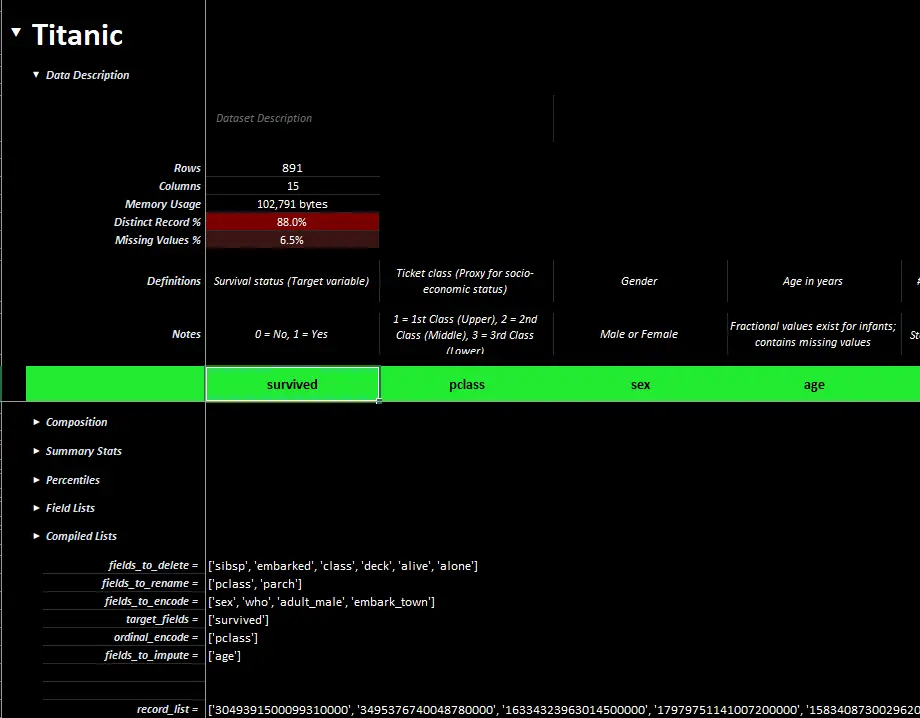
A completed xleda workbook showing definitions, notes, lists, etc.
from xleda import wb
import seaborn as sns

# < your dataframe goes here >
df = sns.load_dataset("titanic")

# < your completed workbook goes here >
edited_workbook_path = "https://github.com/InfoDesigner/xleda/raw/refs/heads/main/examples/Titanic%20Completed.xlsm"

# Performs a full export from "Titanic Completed.xlsm"
export_dicts = wb(data={"Titanic": df},
                  wb_path=edited_workbook_path,
                  export=True).export_dicts

# Returns ['description', 'definitions', 'notes', 'lists', 'field_overview', 'df_overview', 'source_data']
print(export_dicts[0].keys())
Usage Notes
Field and Record Lists |

The Field Lists section includes placeholders to create 8 custom lists of fields
List Details
|
|||||||||||||||
Large Data Sets |
On an average machine, xleda creates workbooks for most data sets less than 20 seconds on Windows/1-2 minutes on MacOS
Performance Details
|
|||||||||||||||
| Exporting Metadata | Accessing your notes/lists/defintions from Python is easy
Default MetadataThe default metadata is the same field and dataframe metadata that is added to the workbooks and is available without using export=True
Expanded Metadata:Using export=True also provides the default metadata though it is sourced from the workbook instead.This includes your notes, lists, definitions, etc. and will reflect any changes you've made in Excel such as renaming fields/deleting values/etc. Includes the following for each provided dataframe:
|
|||||||||||||||
| MacOS Support | xleda will create the same workbooks in MacOS
MacOS Details
|
|||||||||||||||
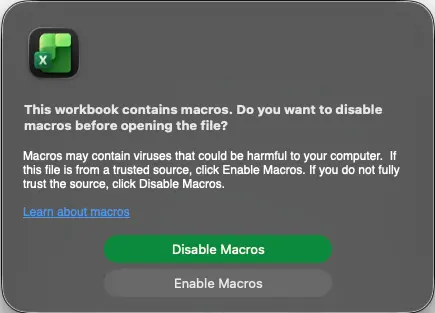
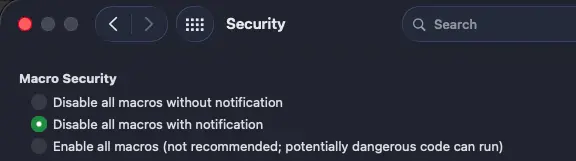
VBA Code |
The included VBA code is short and easy to understand
What the VBA Code Does
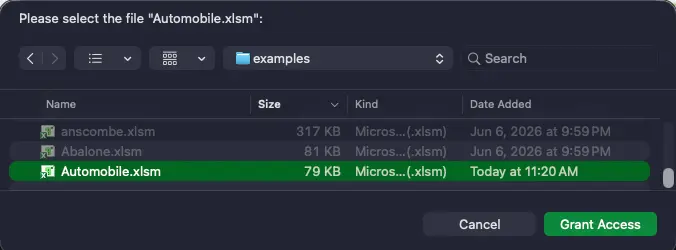

The Annoyance Cost Besides Enable Macros prompts, using VBA also includes one annoying side effect:
|

Troubleshooting
xleda is slow
- Try reducing the amount of data you're sending to it, and let it finish.
- After production, refer to the `debug` section of the `Overview` worksheet for how the time to produce your workbook is being spent.
- Note that on MacOS, `xleda` is much slower by default and the timings in the debug section may be inflated from missed permission prompts during production.
"Error: The workbook cannot be overwritten while open!" and you don't see any open workbooks
If you receive the "Exception: Could not activate App!" or "The RPC server is unavailable". errors:
- The Excel app may have crashed or is otherwise disconnected from Python.
- Close all Excel windows and try running the command again.
xleda won't run at all and are using Windows/MacOS with a full Office Installation
- If you can get the script below to run successfully using xlwings (not xlwings-lite), xleda has a good chance of working reliably.
- All it does is open Excel and create a new workbook.
- You should be able to `pip install xlwings` and run the script successfully.
- If that doesn't work, see their installation instructions for details on how to get it set up.
- Be aware that xlwings has a ton of functionality and that for xleda to work, it only requires communication with Excel and not the addin, xlwings lite, udfs, or many of the other things xlwings can potentially do.
- If you can't get it to work and you're on Windows, this may help.
import xlwings as xw
app = xw.App()
Changelog
Version 0.8.185 |
New simplified API, simplified export, general polishSimplified basic usage to make it quicker to use and easier to memorize.
Simplified export functionality
Template updates
Other updates
|
Version 0.8.186 |
Add multiple dataframes, module refactoring into classes, added loggingImplemented add_dfs
|
Version 0.8.193 |
Added MacOS support
Other Updates
Template Adjustments
|
Version 0.8.197 |
Readme/pyproject.toml polish/minor fixes
|
Version 0.9.005 |
Simplified API, Expanded Input Options/Interfaces, Significantly improved experience with multiple dataframesSimplified API
|
1 maintainer

Download files
Download the file for your platform. If you're not sure which to choose, learn more about installing packages.
Source Distribution
Built Distribution
Filter files by name, interpreter, ABI, and platform.
If you're not sure about the file name format, learn more about wheel file names.
Copy a direct link to the current filters
File details
Details for the file xleda-0.9.5.tar.gz.
File metadata
- Download URL: xleda-0.9.5.tar.gz
- Upload date:
- Size: 457.5 kB
- Tags: Source
- Uploaded using Trusted Publishing? Yes
- Uploaded via:
uv/0.11.28 {"installer":{"name":"uv","version":"0.11.28","subcommand":["publish"]},"python":null,"implementation":{"name":null,"version":null},"distro":{"name":"Ubuntu","version":"24.04","id":"noble","libc":null},"system":{"name":null,"release":null},"cpu":null,"openssl_version":null,"setuptools_version":null,"rustc_version":null,"ci":true}
File hashes
| Algorithm | Hash digest | |
|---|---|---|
| SHA256 |
48618495b5b47513f599f8d3218bbdf201b63e3d26f9a0b5c340230d8b4acfaa
|
|
| MD5 |
605696a4cd44c4be9630ec1012c4f4a3
|
|
| BLAKE2b-256 |
11c268e9f16cc60d7308f979aa058b9a875bed7a8aa7e3f0d7ab6b75d70fab39
|
File details
Details for the file xleda-0.9.5-py3-none-any.whl.
File metadata
- Download URL: xleda-0.9.5-py3-none-any.whl
- Upload date:
- Size: 445.3 kB
- Tags: Python 3
- Uploaded using Trusted Publishing? Yes
- Uploaded via:
uv/0.11.28 {"installer":{"name":"uv","version":"0.11.28","subcommand":["publish"]},"python":null,"implementation":{"name":null,"version":null},"distro":{"name":"Ubuntu","version":"24.04","id":"noble","libc":null},"system":{"name":null,"release":null},"cpu":null,"openssl_version":null,"setuptools_version":null,"rustc_version":null,"ci":true}
File hashes
| Algorithm | Hash digest | |
|---|---|---|
| SHA256 |
64913d7e7d6d15489d8f43b39fcf05a8a7b6c3d308395a9bd89afb2d04eda3cf
|
|
| MD5 |
4909d209e433e78e841eed12e0a75ede
|
|
| BLAKE2b-256 |
11bf80db41c32a74a91db20656520a6afd295697c04970badf23e01e775fc9b1
|














