


Logo

xleda is a Python/Excel powered EDA tool that creates workbooks from dataframes or data files that are highly optimized to explore, define, and document data sets.

  • Works on Windows or MacOS as a Python package, a CLI, or as a service that lets you create workbooks by right-clicking supported files.

  • There are some amazing EDA tools available to data professionals. You shouldn't have to start from scratch to include Microsoft Excel among them.

  • See some example xleda workbooks here, docs here, and a quick-start guide for non developers here.


Example Top View
Top view of a Field Analysis worksheet.


xleda Components

All xleda workbooks include an Overview worksheet and a Field Analysis worksheet for each provided dataframe.

Field Analysis
Anatomy of a Field Analysis Worksheet

Field Analysis Anatomy

Field Analysis Anatomy

Overview
Anatomy of an Overview Worksheet

Overview Anatomy

Overview Worksheet with Multiple Dataframes


Requirements/Compatibility

Desktop Excel

Requires the full version of Microsoft Excel (2016+) on either MacOS or Windows to create workbooks

  • See MacOS Support section below for details on MacOS usage.
Supported Data

Supports pandas dataframes, CSV, DuckDB, SQLite, Feather, Parquet, Pickle, Excel, RData, JSON, and XML


Tips: Managing the Install

  • xleda install adds right-click functionality to your OS but it does not modify your path to make the CLI available systemwide

  • If the Python environment that xleda was installed into is deleted after running xleda install, the right-click functionality will need to be either repaired or uninstalled by running xleda install/xleda uninstall from a new Python environment.

  • If you have UV installed, you can install the package, CLI, and right-click menus systemwide without having to maintain a venv with these two lines.


Windows or MacOS

# Installs the package and makes the xleda command available
uv tool install xleda

# Note you may need a new terminal window to see the newly installed xleda command
xleda install


xleda for Non-Developers

If you're working with data professionally in any role and find yourself looking at foreign data, one of the most important things you can do is document and define your data so that you can ensure everyone is working with the same data and definitions.

xleda can help you perform this task easily, quickly, and without having to write a single line of Python code.


Non-Developer Quick Start Guide


Following the steps below will provide you with:

  1. A comprehensive document for your data with worksheets for each related data source and placeholders for field definitions and notes that you can share with other contributors


  2. The ability to create the same workbooks in the future by right-clicking on your source data files and choosing Create xleda Workbook


1. Prepare Your Source Data

We'll start by gathering your source data into one place that we can provide to xleda


  • If you're only working with one data source and you already have it in a single file such as a CSV/DuckDB/Parquet/SQLite/JSON/XML file, you can skip this step.

  • Using an Excel workbook as a data souce for xleda, will let you create an xleda workbook that includes data from multiple sources

  • Get an export or dump from each data source. You can include as many records for each source as you want though xleda will use a sample of 25,000 rows from each by default.

  • Create an Excel workbook that has a proper Excel Table for each data source.

  • Be sure to name each table clearly. Worksheet names in this workbook will be ignored by xleda but the table names will be used as worksheet names in your xleda workbook.

2. Install UV

UV will be installed to manage Python


  • It can be installed safely and easily without affecting other software on your system.

  • They have one-line installs for all operating systems

  • See their site for a variety of install options or use one of the TLDR versions below in your operating system's terminal


Windows PowerShell

powershell -ExecutionPolicy ByPass -c "irm https://astral.sh/uv/install.ps1 | iex"

MacOS

curl -LsSf https://astral.sh/uv/install.sh | sh

3. Install xleda

UV will be used to install xleda


  • If step 2 was the first time you've installed UV, you'll need to open a new terminal window to use the newly installed uv command in this step. See this if you run into issues

  • Now that UV is installed and the uv command is available, you can install xleda on either MacOS/Windows with

uv tool install xleda
4. Install right-click functionality

xleda will be used to install right-click on supported files functionality

  • This step lets you create xleda workbooks without any terminal commands in the future

  • If step 3 was the first time you've installed xleda, you'll need to open a new terminal window to use the newly installed xleda command in this step. See this if you run into issues

  • Now that xleda is installed and the xleda command is available, we'll install right-click functionality by running:

  • xleda install
    
5. Create an xleda workbook

This step lets you create your workbook and choose your theme for future xleda workbooks at the same time


  • If you're fine using the default neutral theme, you can skip this step and right-click on the workbook you compiled in step 1

  • Create your workboook on either MacOS or Windows with the same command.

  • Be sure to Replace YourSourceData and 305CDE with your source data and favorite color


  • xleda wb YourSourceData.xlsx --theme '#305CDE'


What's the Catch?

There's not one really. Now that everything is installed, this guide is no longer necessary. You can now create workbooks in the future without any terminal commands by right-clicking on supported files.

If you want to change your theme, use that very last line to create a new workbook once and it will remember you preference. VBA preference works the same way. Run xleda wb --help in your terminal for guidance on how to set either without creating a workbook and other settings.

The only thing that's close to a catch is that using this method doesn't include automatic updates. If you've followed these steps, be sure to periodically update it using uv tool upgrade xleda.


Basic Usage

Use wb() to quickly create an xleda workbook from a dataframe, a dictionary of dataframes, or a supported data file.

From a Dataframe

from xleda import wb
import seaborn as sns

# < your dataframe goes here >
df = sns.load_dataset("titanic")

# Creates xleda.xlsm in the current directory
wb(df)


From a Dictionary of Dataframes

from xleda import wb
import seaborn as sns

# < your dataframes go here >
df1 = sns.load_dataset("titanic")
df2 = sns.load_dataset("penguins")

# Creates Titanic.xlsm in the current directory
wb({"Titanic": df1,
    "Penguins": df2})


From a File

from xleda import wb
from pathlib import Path

# < your data file goes here >
duckdb_file = "https://github.com/InfoDesigner/xleda/raw/refs/heads/main/examples/data/duckdb.duckdb"

# Creates duckdb.xlsm in the current directory
# Includes data from all tables in the db file
wb(duckdb_file)


From the CLI

# Creates 'userdata.xlsm' in the current directory
xleda wb 'https://github.com/InfoDesigner/xleda/raw/refs/heads/main/examples/data/userdata.parquet'

# Shows the help command
xleda --help

# Shows the wb help command
xleda wb --help


From Right-Clicking


Windows


MacOS


From right-click Win


From right-click MacOS


xleda.wb() Configuration


data

Dataframe or Path or string | Mandatory

  • Accepts a pandas dataframe, a dictionary of dataframes, or a supported data file

  • For files, xleda will create a workbook from all tabular objects in the file

  • Supported types include CSV, DuckDB, SQLite, Feather, Parquet, Pickle, Excel, RData, JSON, and XML

Data File Limitations


If the provided data file doesn't parse correctly, try creating a dataframe first and use that with xleda instead of the file


Expect problems with:

  • Deeply nested JSON/XML

  • A .CSV file with tabs instead of commas

  • .db files that are neither SQLite nor DuckDB files

  • DuckDB files with a .txt extension


Don't expect to see:

  • Anything from an RData file that isn't a dataframe

  • Dataframes that are nested somewhere inside a pickle file

  • Anything sourced from an Excel file that isn't a proper Excel Table


file_name

str | Optional

  • The workbook file name to create.

  • Defaults to same name as data files provided for data, the first key in a dataframe dict provided for data, or xleda


wb_path

Path or string | Optional

  • Use a directory or file path

  • If a directory is provided, the workbook is created there

  • If a filename ends with .xlsm or .xlsx, xleda will create or export from that file

  • Defaults to the current working directory or the source file directory


theme

str | Optional

  • Sets the primary workbook theme

  • Accepts a hex color or random

  • Defaults to a neutral color.


Theme
theme affects the workbooks and default charts.


plots

dict | Optional

  • Adds extra plot worksheets using a dict of matplotlib Figure objects

  • Accepts {'plotname': Figure, ...} format

  • No automatic styling or sizing is applied


overwrite

bool | Optional

  • Overwrites existing workbooks of the same name

  • Existing files are moved to Trash/Recycle Bin

  • Defaults to False


large_report

bool | Optional

  • Raises data limits to Excel's maximum: 1,000,000 rows and 16,000 columns

  • Requires more memory and time for large datasets

  • Defaults to False


no_vba

bool | Optional

  • Creates a .xlsx workbook without VBA

  • Setting this flag persists the preference so that you can set it and forget it

  • Use an .xlsx file for wb_path as an alternative though this won't persist

  • Defaults to False


open_wb

bool | Optional

  • Opens the workbook after creation

  • Set to False when creating multiple workbooks

  • Defaults to True


export

bool | Optional

  • Exports data from an xleda workbook instead of creating one

  • See the Examples/Exporting Metadata sections below for details

  • Defaults to False


CLI Basics

Installing the Python package also installs the xleda CLI command

It works almost the same way as the Python API except that it only accepts files for data and doesn't accept the plots argument


CLI Commands


xleda --help

Shows the xleda help menu

xleda wb --help

Shows help for the wb command and it's flags

xleda install

Installs right-click on supported files to create workbooks functionality

xleda uninstall

Uninstalls right-click on supported files to create workbooks functionality

xleda version

Compares your installed version with the latest available version on PyPi

xleda vba

This toggles your preference for creating workbooks with/without VBA and persists once set.

xleda theme


This changes your theme preference without creating a workbook and persists once set

# Sets theme to a dark grey
xleda theme '#262626'

# Also sets theme to a dark grey
xleda theme 262626


Examples

Example: Creating a workbook from multiple dataframes


import seaborn as sns
from xleda import wb

seaborn_datasets = ['diamonds', 'dots', 'dowjones']
dataframe_dict = {df_name: sns.load_dataset(df_name) for df_name in seaborn_datasets}

# Creates diamonds.xlsm in the current directory
# Also includes dots and dow jones data
wb(data=dataframe_dict)


Example: Using wb_path as a directory or a file


from xleda import wb
from pathlib import Path

# Creates "c:\my_target_folder\Penguins.xlsm"
wb(data={"Penguins": df},
   wb_path=Path(r"c:\my_target_folder"))

# Creates "c:\my_awesome_workbook.xlsx"
wb(data={"Penguins": df},
   wb_path=r"c:\my_awesome_workbook.xlsx")


Example: Adding custom plots to a workbook


from xleda import wb
import matplotlib.pyplot as plt
import seaborn as sns
import missingno as msno

# < your dataframe goes here >
df = penguins = sns.load_dataset("penguins")

# Style the additional plots | optional
plt.style.use("dark_background")

# Create additional plots
pair_plots = sns.pairplot(df, hue="species").figure
null_matrix = msno.matrix(df).get_figure()

# Resize the null matrix  | optional
null_matrix.set_size_inches(9.35, 4.5)

# Creates Penguins.xlsm with two extra plot sheets
wb(data={"Penguins": df},
   theme="#4C4C4C",
   plots={'Pair Plots': pair_plots,
          'Null Matrix': null_matrix})


Example: Creating workbooks without VBA


from xleda import wb
import seaborn as sns

df = sns.load_dataset('penguins')

# Creates "Penguins.xlsx" in the current directory and changes the default workbook style to .xlsx
wb(data={"Penguins": df},
   no_vba=True)

# Also creates "Penguins.xlsx" but doesn't change the default workbook style 
wb(data=df,
   wb_path="Penguins.xlsx")


Example: Creating a workbook from a database


From Python

from xleda import wb

# < your database goes here>
sqlite_db = "https://github.com/InfoDesigner/xleda/raw/refs/heads/main/examples/data/chinook.db"

# Creates "Chinook.xlsm" in the current directory with 11 dataframes
wb(data=sqlite_db,
   file_name="Chinook")

From the CLI

# Creates "Chinook.xlsm" in the current directory with 11 dataframes
xleda wb chinook.db --name "Chinook"


Example: Basic Metadata Export


Basic metadata export sources data from Python

from xleda import wb
import seaborn as sns

# < your dataframe goes here >
df = sns.load_dataset("titanic")
  
# Creates "Titanic.xlsm" and returns basic metadata
export_dicts = wb(data={"Titanic": df},
                  file_name="Titanic").export_dicts

# returns ['field_overview', 'df_overview', 'source_data']
print(export_dicts[0].keys())


Example: Full Metadata Export


Full export sources data from the workbook when possible

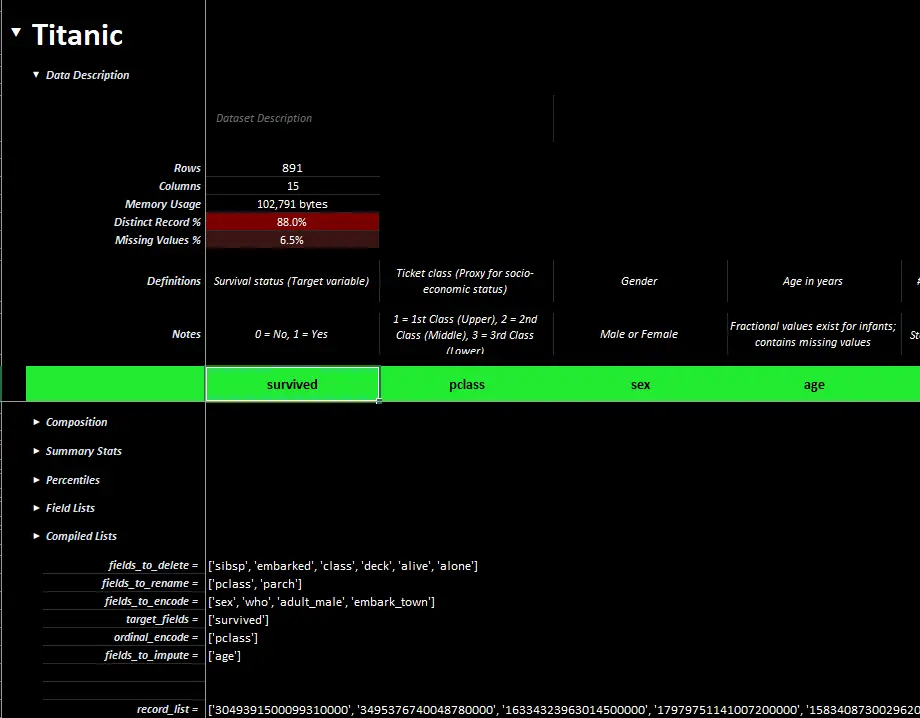
  • The xleda workbook pictured here is used in for the export code example below .

  • It can be found here..

Completed Field Analysis
A completed xleda workbook showing definitions, notes, lists, etc.


from xleda import wb
import seaborn as sns

# < your dataframe goes here >
df = sns.load_dataset("titanic")

# < your completed workbook goes here >
edited_workbook_path = "https://github.com/InfoDesigner/xleda/raw/refs/heads/main/examples/Titanic%20Completed.xlsm"

# Performs a full export from "Titanic Completed.xlsm"
export_dicts = wb(data={"Titanic": df},
                  wb_path=edited_workbook_path,
                  export=True).export_dicts

# Returns ['description', 'definitions', 'notes', 'lists', 'field_overview', 'df_overview', 'source_data']
print(export_dicts[0].keys())


Usage Notes


Field and Record Lists


The Field Lists section includes placeholders to create 8 custom lists of fields

  • Use these to organize fields into groups such as "fields_to_delete", "fields_from_system_a", "fields_to_fix", or whatever your workflow needs

  • The Record List works similarly though it tags individual records instead of lists

List Details


  • Anything not marked as False will be included in each list

  • You can rename any list to Anything You Want and the list will be renamed to anything_you_want

  • The Record List field added to your source data works the same way except it creates a list of all tagged records instead of a list of fields

  • The Compiled Lists section formats your lists as python lists

  • VBA workbooks also include an Excel function, PythonList, that creates Python formatted lists out of cell values

Field Lists
Easily create lists of fields in your data.


Large Data Sets

On an average machine, xleda creates workbooks for most data sets less than 20 seconds on Windows/1-2 minutes on MacOS

  • To ensure workbooks are created quickly, each dataframe is by default subsampled to only include the first 50 columns and a random sample of 25,000 records.

  • You can optionally override default limits to use Excel's limits of 16,000 columns, 1,000,000 rows by using large_report=True

Performance Details


  • Performance is largely dependent on how powerful of a machine you have and how many/how large/how complex your dataframes are

  • You'll see a warning banner on Field Analysis worksheets of affected dataframes if they've exceeded a limit

  • Warning Banner

  • The debug section of the Overview worksheet has a breakdown of how the time spent to produce your workbook was allocated.

Exporting Metadata
Accessing your notes/lists/defintions from Python is easy

  • Metadata from all xleda.wb() objects is collected into a list of dictionary objects, one for each dataframe, accessible through xleda.wb().export_dicts

  • You can also access expanded metadata, sourced from the workbook by using export=True

Default Metadata


The default metadata is the same field and dataframe metadata that is added to the workbooks and is available without using export=True

  • df_overview: Dataframe level metadata

  • field_overview: Field-level metadata

  • field_metadata: A basic metadata dataframe, combining information from pandas info/describe/quantile

  • source_data: A copy of the source data that also includes Record Hash/Record List/HasBlank/index columns


Expanded Metadata:


Using export=True also provides the default metadata though it is sourced from the workbook instead.

This includes your notes, lists, definitions, etc. and will reflect any changes you've made in Excel such as renaming fields/deleting values/etc.

Includes the following for each provided dataframe:

  • description: Dataframe description if you've added one

  • definitions: Any field definitions you've added

  • notes: Any field notes you've added

  • lists: Any lists showing in the compiled lists section

  • lists: Note that data types will likely change in the round-trip translation


MacOS Support
xleda will create the same workbooks in MacOS

  • Creating them is significantly slower and you may get two different types of prompts that require your attention

  • Look for the bouncing Excel icon

MacOS Details


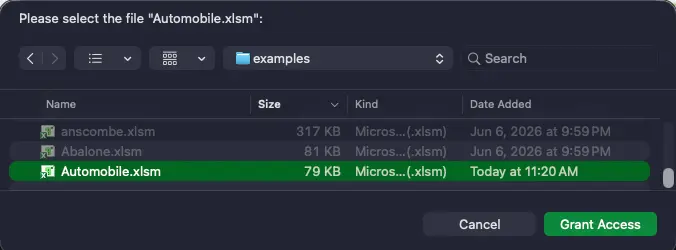
To Access Files To Enable Macros
Source MacOS Excel
Details Prompts to Allow Excel to access the file it's creating.

If you get these prompts, you'll potentially get one for each unique file you create.
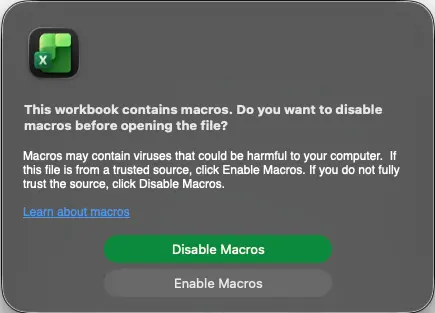
Prompts to "Enable Macros".

If you get these prompts, you'll get two when creating a workbook:

1. When opening the blank template

2. When opening your created workbook.

Example Grant file access prompt Enable macros prompt
Remedy There's not a reliable remedy to this.

MacOS doesn't permit applications like Microsoft Excel real access to the file system, even after explicitly granting Excel Full Disk Access under

Settings > Privacy & Security > Full Disk Access.
You can either:

1. Create a VBA free workbook (see the next section for details).

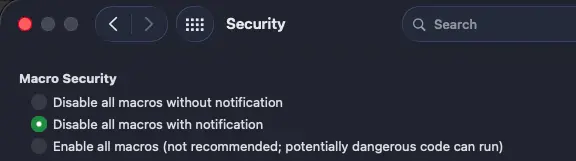
2. Change Excel's default macro settings (shown) to one of the other two options.

Excel MacOS macro settings


VBA Code

The included VBA code is short and easy to understand

  • You can create a VBA-free, xlsx workbook by either setting no_vba=True or providing a wb_path ending in .xlsx

  • Providing the no_vba flag will change the default so that the setting will persist. Using wb_path doesn't work this way.

What the VBA Code Does


  1. Makes the sections expand/collapse when you select them as pictured on the left which can also be performed by using row groupings as pictured on the right

Row Groupings
Use headings like web pages to navigate with VBA.
Row Groupings
Use row groupings to navigate without VBA.

The Annoyance Cost

Besides Enable Macros prompts, using VBA also includes one annoying side effect:

  • Every time a macro is used, it clears your undo history


Troubleshooting

xleda is slow


  • Try reducing the amount of data you're sending to it, and let it finish.

  • After production, refer to the `debug` section of the `Overview` worksheet for how the time to produce your workbook is being spent.

  • Note that on MacOS, `xleda` is much slower by default and the timings in the debug section may be inflated from missed permission prompts during production.


"Error: The workbook cannot be overwritten while open!" and you don't see any open workbooks


  • You may have a hidden Excel instance that needs to be closed.

  • Guidance on closing hidden Excel windows for MacOS and Windows


If you receive the "Exception: Could not activate App!" or "The RPC server is unavailable". errors:


  • The Excel app may have crashed or is otherwise disconnected from Python.

  • Close all Excel windows and try running the command again.


xleda won't run at all and are using Windows/MacOS with a full Office Installation


  • If you can get the script below to run successfully using xlwings (not xlwings-lite), xleda has a good chance of working reliably.

  • All it does is open Excel and create a new workbook.

  • You should be able to `pip install xlwings` and run the script successfully.

  • If that doesn't work, see their installation instructions for details on how to get it set up.

  • Be aware that xlwings has a ton of functionality and that for xleda to work, it only requires communication with Excel and not the addin, xlwings lite, udfs, or many of the other things xlwings can potentially do.

  • If you can't get it to work and you're on Windows, this may help.


import xlwings as xw
app = xw.App()


Changelog


Version 0.8.185

New simplified API, simplified export, general polish


Simplified basic usage to make it quicker to use and easier to memorize.

  • Changed the default entry point to xleda.wb() from xleda.FieldAnalysis()
  • xleda.wb() now creates and automatically opens workbooks
  • The only argument needed to create a workbook is now a dataframe: wb(df)
  • Workbook name now defaults to xleda if no name is given
  • Protected backwards compatibility while providing guidance to use the new API
  • Subclassed the new API to create plugs for the old one

Simplified export functionality
  • Changed export_analysis functionality from a class method to a class argument wb(df, export=True)
  • All wb() objects now include a export_dict metadata collection that is accessible using dot notation
  • Added field_metadata and overview_metadata to export_dict
  • Using wb(export=True) reads a workbook instead of creating one and adds the metadata from the workbooks to export_dict
  • Added file exists checks for export=True with messaging that the export will be limited if the file isn't found

Template updates
  • Recreated the template, moved formatting to cell styles for simplicity/consistency in maintenance where appropriate
  • Pivot was removed and Blanks was renamed Pivot
  • % of Records field was added to the new Pivot
  • Added dataframe index to source data by default
  • Added dataframe level metadata to the Data Description section
  • Added two UDFs to the template, PythonList/PythonDict, to create Python formatted strings from cell values
  • Adjusted the named range to support deleting almost any column without affecting lists or navigation
  • General polish

Other updates
  • Default limits were reduced to 25,000 rows/50 columns
  • Good deal of refactoring to support the new entry point, minimize errors, reduce redundancy
  • Removed clipboard usage in all except one place, where it is used for formatting instead of data
  • Added open_wb argument to prevent automatically opening the workbook, useful when creating many workbooks
  • Replaced rich progress bars with TQDM for better support in notebooks/vs code notebook/console environments
  • When using overwrite=True, overwritten files now go to the recycle bin/trash.
  • Console output includes messaging about these files
  • Clarified/organized readme to support the new API/template
  • Added production logging metrics so you can see how the time required to create a workbook was utilized.


Version 0.8.186

Add multiple dataframes, module refactoring into classes, added logging


Implemented add_dfs
  • Adds Field Analysis/Overview reports for each additional dataframe
  • Pivot is only provided for the primary dataframe
  • Useful for supporting or related data
  • Worksheet names now include the dataframe name
  • Each dataframe's worksheet set gets a greyscale gradient so they can be visually distinguished among worksheet tabs
Export adjustments
  • Implemented an ExportDict class to add structure to export functionalities
  • To support the additional dataframes from add_dfs functionality, export_dict has been renamed to export_dicts and now provides a list of ExportDict objects, one for each provided dataframe
  • ExportDict allows access to metadata through both dot notation and dict[key]
  • Reinforced handling of modified export workbooks
  • If a workbook is found but the expected worksheets aren't found (for example, if they've been deleted or renamed), it will export what it can and return a list of what wasn't found
Reinforced wb_path/name handling
  • wb_path now accepts strings or pathlib Path objects
  • Also accepts full/partial paths with/without correct extensions.
  • Providing a path ending in .xlsx or .xlsm will set no_vba to True/False respectively.
  • Illegal characters are now properly stripped from provided names before use.
Added production logging/debug worksheet
  • The debug worksheet details how the time it took to produce the workbook was allocated on both field and workbook levels
  • Also includes configuration and system details
Other Updates
  • Tests, examples, readme updated to reflect new functionality
  • In the template, the Field Notes section of the Field Analysis worksheet was merged into the Data Description section
  • Refactored the primary module into more specialized classes
  • Configuration/environment/plotting/logging/theme all have their own classes
  • Also implemented a new Blueprint class
  • Workbooks are now constructed from a config object that includes a list of Blueprints
  • Each provided dataframe gets its own Blueprint
  • Improved handling of datatypes that are unsupported in Excel/xlwings such as TimeDelta
  • Reinforced system configuration checks with more informative offramps for:
    • Unsupported system configurations
    • Situations where necessary template components have been removed or renamed
  • Adjusted Github Action script to remove all but last changelog and convert the details/summary to standard markdown


Version 0.8.193

Added MacOS support


  • Used xlwings when possible, appscript/AppleScript/subprocess otherwise.
  • Reduced OS branching when possible.
  • Documentation/test/tools/examples updated to be cross platform.

Other Updates
  • Removed field logging from logging/template.
  • Simplified some of the pivot configuration where possible.
  • Added multi-threading for the progress bar which keeps the time elapsed ticking during longer iterations.

Template Adjustments
  • Moved the xlsx conversion to a pre-commit hook instead of an on-demand end-user task.
  • Adjusted expand/collapse icons to use a more reliable cross-platform character.
  • Removed navigation shapes from the xlsx template.


Version 0.8.197

Readme/pyproject.toml polish/minor fixes


  • Moved code examples/troubleshooting/usage notes into details/summary blocks to reduce clutter in README
  • Fixed a cross-platform formatting issue with the debug worksheet
  • Updated a few older screenshots to use the current template
  • Adjusted type: ignore lines where possible
  • Organized pyproject.toml, added required-environments section


Version 0.9.009

Simplified API, Expanded Input Options/Interfaces, Significantly improved experience with multiple dataframes


Simplified API
  • 'input_df' was changed to 'data'
  • 'add_plots' was changed to 'plots'
  • 'name' was changed to 'file_name'
  • 'theme_color' was changed to 'theme'
Expanded Input Options
  • Changed the 'input_df' argument to 'data' and opened it up to accept dataframes, dictionaries of dataframes, and data files that are either local or http/https
  • Enabled support for csv, feather, parquet, excel, duckdb, sqlite, rdata, xml, json, and pickle files
  • A file that represents a tabular object, such as parquet/csv files, will create a dataframe and then create a workbook from that dataframe
  • Complex files, such as duckdb, RData, or sqlite files, will create dataframes from all tabular objects within each file and create a workbook with those dataframes
  • Created an input_df placeholder API for backwards compatibility.
Expanded Interfaces
  • Added a CLI interface which replicates most of the Python API
  • Includes structured help and is consistent with the Python API in almost every way
  • CLI also includes install/uninstall commands which install right-click on supported files functionality on MacOS/Windows
  • Added vba toggle and theme setting to cli
Significantly overhauled the experience when using multiple dataframes
  • Converted the Overview worksheet to a landing page which:
    • Includes a dataframe-level table that tracks how many of each dataframe's fields have definitions
    • Includes a field-level table that collates metadata, notes, and definitions from all fields across all dataframes in one table
    • Has links to each dataframe's worksheet and to each field within each worksheet
    • Each worksheet includes links back to the Overview.
Persistent Settings
  • Most xleda settings depend on the provided data except for two: no_vba and theme.
  • Changing these settings will change the default so that you can set them and forget about it.
  • Set favorite/company color or decide whether to use vba or not once and for all.
  • Added vba toggle and theme setting to cli to affect these settings without creating workbooks
Other Updates
  • Changed the add_plots argument to plots.
  • Simplified/updated documentation where possible/necessary.
  • Removed the pivot worksheet/functionality.
  • Corrected the matplotlib headless backend again.
  • Moved the PythonList UDF to a named lambda function
  • Removed the PythonDict UDF
  • Updated, reorganized tests to be more robust and concise. They now create/test the examples included in the documentation and were expanded to include the new functionality and more of the potential error paths
  • Added CLI/xleda for Non-Developers sections on readme


Download files

Download the file for your platform. If you're not sure which to choose, learn more about installing packages.

Source Distribution

xleda-0.9.9.tar.gz (457.6 kB view details)

Uploaded Source

Built Distribution

If you're not sure about the file name format, learn more about wheel file names.

xleda-0.9.9-py3-none-any.whl (445.4 kB view details)

Uploaded Python 3

File details

Details for the file xleda-0.9.9.tar.gz.

File metadata

  • Download URL: xleda-0.9.9.tar.gz
  • Upload date:
  • Size: 457.6 kB
  • Tags: Source
  • Uploaded using Trusted Publishing? Yes
  • Uploaded via: uv/0.11.28 {"installer":{"name":"uv","version":"0.11.28","subcommand":["publish"]},"python":null,"implementation":{"name":null,"version":null},"distro":{"name":"Ubuntu","version":"24.04","id":"noble","libc":null},"system":{"name":null,"release":null},"cpu":null,"openssl_version":null,"setuptools_version":null,"rustc_version":null,"ci":true}

File hashes

Hashes for xleda-0.9.9.tar.gz
Algorithm Hash digest
SHA256 c61a74c64e8e771b8247c4c036dc4fbea9e1ab2e81ce9afe34b04f1dacde4ad8
MD5 890eb11d3fdcbc7ef763cc2de1662142
BLAKE2b-256 6f87a54762a5f49e03d1779b67035a2333adbc76bb6ef570bbdee9d0906018b9

See more details on using hashes here.

File details

Details for the file xleda-0.9.9-py3-none-any.whl.

File metadata

  • Download URL: xleda-0.9.9-py3-none-any.whl
  • Upload date:
  • Size: 445.4 kB
  • Tags: Python 3
  • Uploaded using Trusted Publishing? Yes
  • Uploaded via: uv/0.11.28 {"installer":{"name":"uv","version":"0.11.28","subcommand":["publish"]},"python":null,"implementation":{"name":null,"version":null},"distro":{"name":"Ubuntu","version":"24.04","id":"noble","libc":null},"system":{"name":null,"release":null},"cpu":null,"openssl_version":null,"setuptools_version":null,"rustc_version":null,"ci":true}

File hashes

Hashes for xleda-0.9.9-py3-none-any.whl
Algorithm Hash digest
SHA256 34050352e4b469a346e0bfc852603825c2fe7be0d5860def04015b0e91c232d9
MD5 def5e39922eb2685073333ed3f6dd96e
BLAKE2b-256 6651682c887f15e8adf20bb4ec3cd06e03f62980aed3701e735cae2f62c0c11f

See more details on using hashes here.

Release history Release notifications | RSS feed

0.9.24

2 files

0.9.23

2 files

0.9.22

2 files

0.9.21

2 files

0.9.20

2 files

0.9.16

2 files

0.9.15

2 files

0.9.14

2 files

0.9.13

2 files

0.9.11

2 files

0.9.10

2 files

This release

0.9.9 This release

2 files

0.9.8

2 files

0.9.7

2 files

0.9.6

2 files

0.9.5

2 files

0.9.4

2 files

0.9.3

2 files

0.9.2

2 files

0.9.1

2 files

0.8.202

2 files

0.8.201

2 files

0.8.200

2 files

0.8.199

2 files

0.8.198

2 files

0.8.197

2 files

0.8.196

2 files

0.8.195

2 files

0.8.194

2 files

0.8.193

2 files

0.8.192

2 files

0.8.191

2 files

0.8.190

2 files

0.8.189

2 files

0.8.188

2 files

0.8.187

2 files

0.8.186

2 files

0.8.185

2 files

0.8.184

2 files

0.8.183

2 files

0.8.182

2 files

0.8.181

2 files

0.8.180

2 files

0.8.179

2 files

0.8.178

2 files

0.8.176

2 files

0.8.172

2 files

0.8.171

2 files

0.8.168

2 files

0.8.7

2 files

0.8.6

2 files

Anthropic, PBC Visionary sponsor Bloomberg Visionary sponsor Hudson River Trading Visionary sponsor Meta Visionary sponsor NVIDIA Visionary sponsor Microsoft Sustainability sponsor Depot Continuous Integration AWS Cloud computing and Security Sponsor Datadog Monitoring Fastly CDN Google Download Analytics Sentry Error logging StatusPage Status page