
PyFigures
Effortless creation of high-quality scientific figures in Python.
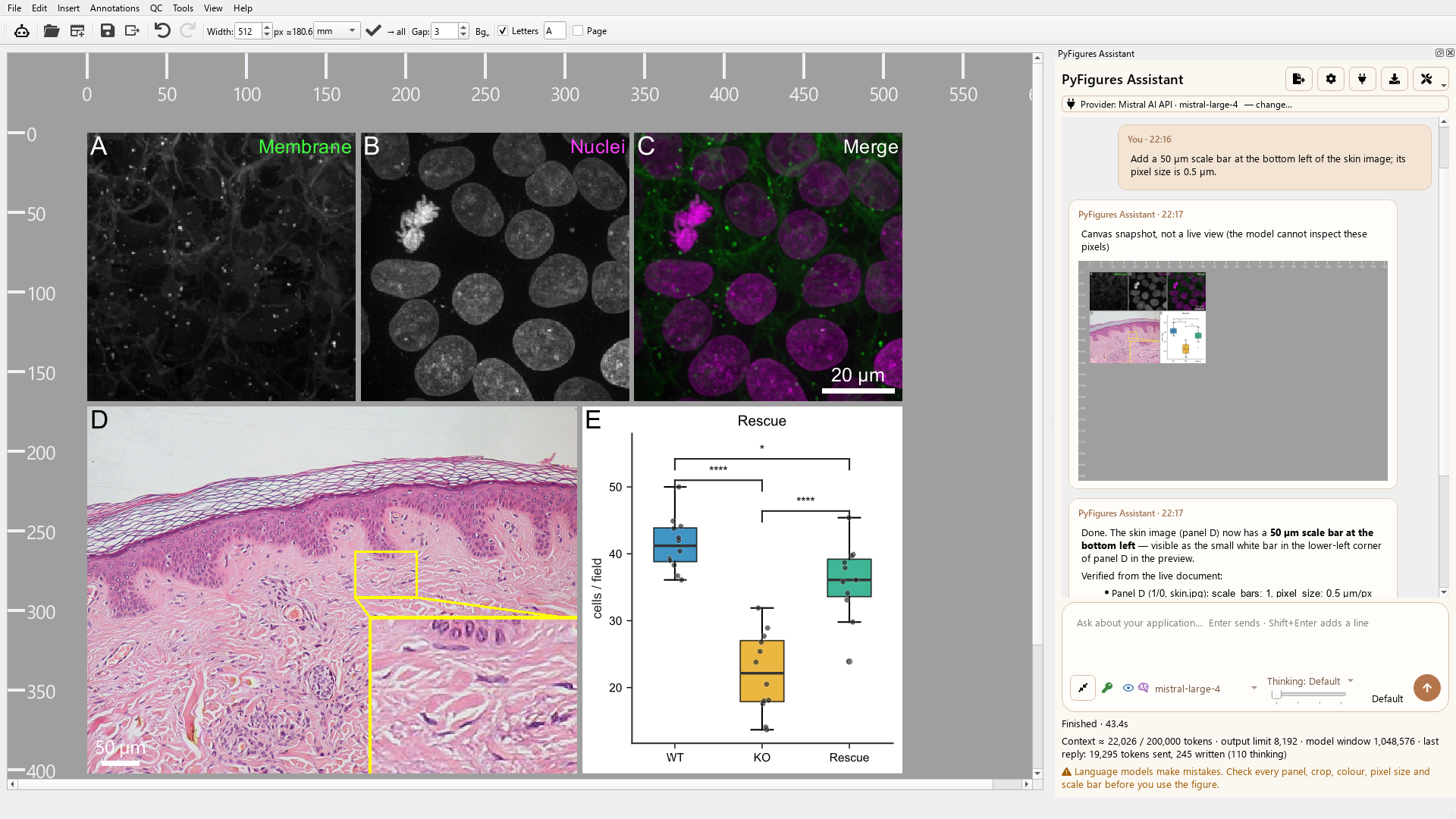
A figure built from a recipe, with the chat sidebar docked on the right: asked in plain words, a language model (here Mistral Large 4) has just added the scale bar to panel D, one undo step. Sample images from scikit-image (public domain, CC0).
A demo video and the complete demo playlist show the interface at work (recorded with an earlier version; most images in them are public domain, from the Cell Image Library).
AI / MCP Integration
PyFigures ships an MCP server that lets AI assistants (Claude Code, Claude Desktop,
LM Studio with local models, and any other MCP-compatible client) read and edit .pyf
figure files through natural language.
➜ See docs/MCP_SERVER.md for setup instructions and a full tool reference.
Image search
Find your image files by what they show ("confocal gut with DAPI", "western blot", "brightfield embryo") instead of by file name. Ask the chat sidebar, e.g. "index my folder ~/data/2024" and then "find the gut images stained with DAPI": it shows the best matches as numbered thumbnails and can add the one you pick to the figure. From a terminal:
python -m pyfigures.image_search index ~/data/2024
python -m pyfigures.image_search search ~/data/2024 "gut stained with DAPI"
It needs the chat sidebar's optional embeddings: in the chat panel, tools menu >
Embeddings (optional)…, choose Mistral AI API (uses the Mistral key you already stored
for the chat) or a local server. Each image is described in a few sentences by a vision model
(Mistral: mistral-small-latest, the dialog's Image descriptions field), then its file name,
folder, size, channels and description are embedded (mistral-embed). Describing sends a
512 px thumbnail of each image to Mistral; --describe off (or describe="off" in the chat)
indexes names and metadata only and sends no pixels. With a local server nothing leaves the
computer, and images are described only if that server serves a vision model you name.
The index is kept in the folder (.pyfigures_image_index/), covers its subfolders and is
incremental: re-indexing reads only new or changed images. Searching a subfolder uses its
parent's index. Changing the embedding model means indexing again (the descriptions are kept,
only the texts are re-embedded). In the chat, one indexing call works for about 100 s and then
continues on the next call; use the terminal command for folders of thousands of images.
Poster / collage designer
Alongside the main figure editor, PyFigures includes a separate Poster /
collage designer (Tools > Poster / collage designer…) for posters and
decorative photo-album pages: images can be freely rotated without being
cropped, dragged anywhere with smart alignment guides, and placed over a
full-page background image. It's a distinct tool with its own .pyfposter
file format — it doesn't touch or share files with the scientific figure
editor. Photo albums (front cover, two-page spreads, back cover) have their own
Photo album designer (Tools > Photo album designer…, or
python -m pyfigures.album).
➜ See docs/poster.md for the full guide.
Installation
1. Conda Installation (Advanced Users)
For advanced users, we recommend installing the software using Conda. This will offer unlimited scripting capabilities.
Prerequisites
- Install Miniconda if it is not already installed on your system.
Installation Steps
Perform the following steps only once to set up your environment:
-
Open a Command Prompt or Terminal.
- To open a command prompt on Windows, press Windows+R then type cmd.
- To open a command prompt on MacOS, press Command+Space then type Terminal.
- To open a command prompt on Ubuntu, press Ctrl+Alt+T.
-
Create and activate a new Conda environment (Python 3.11 recommended):
conda create -y -n PyFigures python=3.11
conda activate PyFigures
Python 3.10 to 3.13 work, but 3.11 is the tested default; some optional extras need 3.11 or newer (OME-Zarr).
-
Upgrade pip:
pip install -U pip
-
Install the
pyfigurespackage:pip install -U pyfigures
This includes the chat sidebar, which opens beside the figure at start-up (untick View → Open the chat at start-up to stop that). Without any AI: install
pyfigures-noaiinstead (not both): the same program without the chat sidebar package and with no chat or MCP entries.pip install -U pyfigures-noai
The standalone apps on the releases page come in the same two kinds: PyFigures (with the chat sidebar) and PyFigures NoAI.
-
Optional: Install openjdk8 if you plan to use bioformats
pip install install-jdk
python -c "import os; import jdk; jdk_path = os.path.join(os.path.expanduser('~'), '.jdk/jdk8'); jre_path = os.path.join(os.path.expanduser('~'), '.jre/jdk8'); os.makedirs(jdk_path, exist_ok=True); os.makedirs(jre_path, exist_ok=True); jdk.install('8', path=jdk_path); jdk.install('8', path=jre_path, jre=True)"
Note: this step needs to be done only once, if you already did it you can skip this step.
-
Optional: Install Fiji support (Bio-Formats microscopy formats):
pip install -U pyfigures[fiji]
This installs pyimagej, which opens microscopy formats (.czi, .nd2, .lif, ...) through Fiji / Bio-Formats. To get every optional feature at once (Bio-Formats, video, OME-Zarr and vector PDF panels), use
pip install -U pyfigures[all]instead. The chat sidebar (qtpy-ai-sidecar) and the MCP server are installed by default. -
Optional: Install video support (reading movies, exporting H.264 videos):
pip install -U pyfigures[video]
This installs PyAV (
av), which ships its own copy of ffmpeg for Windows, macOS and Linux — there is nothing else to install, no system ffmpeg is needed — and OpenCV (opencv-python-headless), which reads.mp4/.avi/.mkvfiles as image stacks.Video support is optional, so a plain
pip install pyfiguresdoes not include it:- Without PyAV, PyFigures reads movies only if OpenCV (
opencv-python) happens to be installed, and exports videos with OpenCV's old MPEG-4 codec, which QuickTime, Safari and PowerPoint on a Mac cannot play (a warning says so). - With PyAV,
.mp4,.movand.mkvexports are H.264;.mp4and.movplay everywhere, including QuickTime, Safari, Keynote and PowerPoint on a Mac (QuickTime does not open.mkvfiles, use VLC)..webmexports are VP9, for web pages (QuickTime does not open.webmeither)..aviexports stay Motion-JPEG. For a Mac, choose.mp4. - The GUI offers to run
pip install avfor you (once per session) the first time you add a movie or export a video without it. The standalone executables already include it. - A movie too long to fit in memory (more than a quarter of the free RAM, at most 4 GB) is loaded keeping every k-th frame; its frame rate is divided by k so time stamps stay right.
- Without PyAV, PyFigures reads movies only if OpenCV (
-
Optional: Install OME-Zarr support (images from OME-Zarr servers or local
.zarrfolders; needs Python 3.11 or newer):pip install -U pyfigures[zarr]
Then use Insert → Add image from URL / OME-Zarr… (or give the URL to
add_image/ a recipe), e.g. an image from the IDR such ashttps://uk1s3.embassy.ebi.ac.uk/idr/zarr/v0.4/idr0062A/6001240.zarr. The pyramid level, pixel size (for scale bars) and channel colours come from the image; only the chosen level is downloaded. Remote images are read withrequests, so no extra network library is needed. Plain image URLs (https://…/image.tif) work without this extra.OMERO needs nothing extra: paste an image's OMERO.web link (
https://…/webclient/img_detail/1234/) in the same dialog, or give it toadd_image/ a recipe. PyFigures reads it through OMERO.web (no omero-py / Ice install), asks for a login on private servers (kept in memory only; scripts and the MCP server useOMERO_USERNAME/OMERO_PASSWORD), and gets the pixel size and channels from OMERO. Pixels come from OMERO.web's renderer: 256 levels per channel over its data range, exact for 8-bit images and ample for display. The figure stays a desktop file; nothing is stored on the server.Raw 16-bit / float pixels from OMERO (optional): install omero-py, and once you are logged in the planes are read raw, in the image's own data type, through OMERO's own API (the server's Ice port 4064,
OMERO_HOST/OMERO_PORTif different, or its websocket endpoint). Anything that fails there falls back to OMERO.web. omero-py needs zeroc-ice, which has no PyPI wheel for Windows: on Windows install Glencoe Software's zeroc-ice wheel for your Python first (https://github.com/glencoesoftware/zeroc-ice-py-win-x86_64/releases), thenpip install -U pyfigures[omero]
(Linux and macOS: Glencoe also publishes zeroc-ice wheels; otherwise pip compiles it.) Not included in the standalone apps.
-
Optional: vector PDF panels (plots made with Matplotlib, pgfplots, gnuplot, R…):
pip install -U pyfigures[pdf]
A PDF dropped onto the canvas becomes a panel, laid out like an image. For a multi-page PDF you pick the page (like a series in a .lif file;
page:in recipes,page=inadd_image). Out of the box (and in the standalone apps), the page is rendered with pypdfium2 as a 600 dpi image. With this extra (PyMuPDF, AGPL v3) it stays a vector panel, like an SVG file, clipping included, in PDF and SVG exports. The GUI offers to install it for you (one click, downloaded from PyPI only if you accept; also Tools → Vector PDF panels) the first time you add a PDF or export a figure holding PDF panels — in the standalone apps too, where it goes into a per-user folder.
LaTeX mathematics:
- In any label or poster text,
$…$is typeset as maths (e.g.$\Delta F/F_0$,$t = 12\,\mathrm{min}$;\$is a literal dollar), on screen and in every export, as vectors. With TeX Live, MiKTeX or MacTeX installed, each formula is typeset by LaTeX itself (full LaTeX:\SI{0.12}{\micro\metre\squared\per\second},\bm, any amsmath construct) in the label's own font when XeLaTeX is there (letters, digits, Greek and units in Arial for an Arial label; symbols from Latin Modern Math; else Latin Modern, sans-serif for sans-serif labels) and kept in anequations/labelsfolder next to the figure, so it opens identically on computers without TeX. Without TeX, Matplotlib's built-in maths is used, in the label's own font. (PYFIGURES_LABEL_MATH=mathtextforces the built-in engine.) - LaTeX documents as panels: drop a
.texfile with a figure, a TikZ / pgfplots picture or a table (oradd_image("plot.tex"),image: plot.texin a recipe). Its first figure/table environment (else its first TikZ picture, else its body) is compiled with its own preamble, in its own folder (relative\includegraphicspaths work), cropped, and added as a vector PDF panel; captions are left out. A document with several figures, tables or pictures asks which one (page=inadd_image,page:in recipes). When the.texchanges, PyFigures offers to recompile on opening; right-click → Recompile from .tex does it any time (update_latex_panels). A.texfile holding only maths becomes an editable equation panel. - LaTeX code panels: Insert → Add LaTeX code panel… (or
add_latex_code, atex:recipe panel): write a TikZ / pgfplots picture, a table or a whole document; it is compiled into a vector panel that stays editable (right-click → Edit LaTeX code…). A panel script can be LaTeX code itself, and a Python panel script can calllatex(code), e.g. to build a table from data. The compiled PDF is kept next to the figure, so it opens on computers without TeX. - Data plots typeset by LaTeX: tick "Typeset the text with LaTeX" (or
latex=Trueinadd_data_plot,latex: trueon aplot:recipe panel): axis labels, ticks and title in sans-serif LaTeX, so$D$ (\si{\micro\metre\squared\per\second})works. - Equation panels: Insert → Add equation (LaTeX)… (or
add_equation, or anequation:recipe panel), or drop a.texfile. Typeset by Matplotlib with no TeX installation, or, if TeX Live, MiKTeX or MacTeX is installed, with full LaTeX ("Full LaTeX" in the dialog,engine="latex"): any environment (align*,cases,pmatrix…) and any package (siunitx,physics,bm…), in Latin Modern or in any installed font to match the figure (font="Arial", XeLaTeX). The result is saved as an SVG, so the figure opens anywhere; right-click → Edit equation… to change it. - No LaTeX on the computer? Help → Install LaTeX for PyFigures… (also offered when a LaTeX feature needs it; MCP
install_latex;python -m pyfigures.gui.headless_ops install-latex) downloads TinyTeX, a small TeX Live (about 75 MB to download, 400 MB on disk), into your user folder, with no administrator rights and without changing the PATH, plus every package PyFigures uses. Packages a.texdocument needs later are installed automatically. It works in the standalone apps too: TeX is not bundled inside them, it is downloaded only by those who want it. - PDF + LaTeX export: labels are typeset by LaTeX itself, in your document's font.
Run
Note: The following steps need to be performed only after the software has been installed.
Open a command prompt and type:
conda activate PyFigures
python -m pyfigures
Optional: After running the software, you may deactivate the Conda environment if you wish:
conda deactivate
2. Standalone Executable Installation (Easy)
Alternatively, you can install the software as a standalone executable. This does not require Conda and can be run on any system without the need for additional dependencies, but scripting capabilities will be limited to the bundled dependencies.
Download them from the latest release. They are portable: nothing is installed and no administrator rights are needed.
- Windows:
PyFigures-Windows.zip. Unzip it anywhere you can write (Documents, Desktop, a USB stick) and runPyFigures.exe(alsoPyFigures Album.exeandPyFigures Poster.exe). If SmartScreen warns about an unknown publisher, click More info → Run anyway. To remove it, delete the folder. - macOS:
PyFigures-macOS-AppleSilicon.dmg(M1 and newer) orPyFigures-macOS-Intel.dmg. Open it and drag the apps to Applications, or, without administrator rights, to the Applications folder inside your home folder (or any folder). - Linux (x86-64):
PyFigures-Linux-x86_64.AppImage, one file: make it executable (chmod +x PyFigures-Linux-x86_64.AppImage, or Properties → Allow executing) and double-click it;--album/--posteropen the photo album / poster designers. If it does not start because FUSE is missing, run it with--appimage-extract-and-run, or usePyFigures-Linux-x86_64.tar.gzinstead: unpack it anywhere and runPyFigures/PyFigures. Both need a Linux at least as recent as Ubuntu 22.04 (Debian 12, Fedora 36). The chat saves API keys in the desktop's key store (GNOME Keyring, KWallet).
Supported Macs: the macOS executables include video support, which needs macOS 14 (Sonoma) or newer on Apple Silicon Macs and macOS 11 or newer on Intel Macs. On older Apple Silicon systems the app still opens, but movies cannot be read or exported; older systems are not supported (install with Conda/pip instead, see above).
Three kinds of app, each for Windows and macOS (Linux: PyFigures and PyFigures NoAI): PyFigures (opens with the AI chat sidebar; untick View → Open the chat at start-up to stop that), PyFigures NoAI (PyFigures-NoAI-*: no AI at all; with the album and poster designers too) and PyFigures Web Chat (PyFigures-WebChat-*: opens with a chat web page docked; experimental, a last resort, see the web chat tutorial). From a pip install, python -m pyfigures --chat opens with the chat sidebar, --share shares the figure with the MCP server and --web-chat docks the chat web page.
First launch on a Mac: the apps are not signed by Apple, so macOS refuses to open them the first time. Go to System Settings → Privacy & Security and click Open Anyway (needed only once). On macOS 14 or older, right-click the app → Open → Open also works.
If macOS says the app "is damaged and can't be opened" (or Open Anyway does not help), it is not damaged: macOS blocks unsigned apps downloaded from the internet. Remove the download mark in Terminal, with the app's real place and name, then open it again:
xattr -cr /Applications/PyFigures.app
xattr -cr "/Applications/PyFigures NoAI.app"
xattr -cr "/Applications/PyFigures Web Chat.app"
(Only the line for the app you installed is needed. If you put it in the Applications folder of your home folder, write ~/Applications/… instead.)
Third party libraries
Below is a list of the 3rd party libraries used by PyFigures.
IMPORTANTLY: if you disagree with any license below, please uninstall PyFigures.
| Library name | Use | Link | License |
|---|---|---|---|
| Markdown | Python implementation of Markdown | https://pypi.org/project/Markdown/ | BSD |
| PyYAML | Reads YAML figure recipes | https://pypi.org/project/PyYAML/ | MIT |
| matplotlib | Plots images and graphs | https://pypi.org/project/matplotlib/ | PSF |
| numpy | Array/Image computing | https://pypi.org/project/numpy/ | BSD |
| Pillow | Reads 'basic' images (.bmp, .png, .pnm, ...) | https://pypi.org/project/Pillow/ | HPND |
| PyQt6 | Graphical user interface (GUI) | https://pypi.org/project/PyQt6/ | GPL v3 |
| QtPy | An abstraction layer for PyQt and PySide | https://pypi.org/project/QtPy/ | MIT |
| read-lif | Reads Leica .lif files | https://pypi.org/project/read-lif/ | GPL v3 |
| czifile | Reads Zeiss .czi files | https://pypi.org/project/czifile/ | BSD (BSD-3-Clause) |
| tifffile | Reads .tiff files (also reads Zeiss .lsm files) | https://pypi.org/project/tifffile/ | BSD |
| scikit-image | Image processing | https://pypi.org/project/scikit-image/ | BSD (Modified BSD) |
| scipy | Great library to work with numpy arrays | https://pypi.org/project/scipy/ | BSD |
| scikit-learn | Great library for machine learning | https://pypi.org/project/scikit-learn/ | BSD |
| tqdm | Command line progress | https://pypi.org/project/tqdm/ | MIT, MPL 2.0 |
| natsort | 'Human' like sorting of strings | https://pypi.org/project/natsort/ | MIT |
| numexpr | Speeds up image math | https://pypi.org/project/numexpr/ | MIT |
| urllib3 | Model architecture and trained models download | https://pypi.org/project/urllib3/ | MIT |
| qtawesome | Elegant icons for PyQT/PySide | https://pypi.org/project/QtAwesome/ | MIT |
| pandas | Data analysis toolkit | https://pypi.org/project/pandas/ | BSD (BSD-3-Clause) |
| roifile | A library to read ImageJ ROIs | https://pypi.org/project/roifile/ | BSD 3-Clause |
| Qt (PyQt6-Qt6) | The Qt libraries under PyQt6 | https://www.qt.io/ | LGPL v3 |
| staplot | Data-plot panels and statistics (same author) | https://pypi.org/project/staplot/ | BSD |
| batoolset | Image I/O and tools (same author) | https://pypi.org/project/batoolset/ | BSD |
| qtpy-ai-sidecar (with keyring, httpx, platformdirs) | Chat sidebar (same author) | https://pypi.org/project/qtpy-ai-sidecar/ | BSD 2-Clause (keyring MIT, httpx BSD, platformdirs MIT) |
| batoolset-gui | Qt drawing layer of batoolset (same author) | https://pypi.org/project/batoolset-gui/ | BSD |
| elasticdeform | Image deformation (via batoolset, Python < 3.13) | https://pypi.org/project/elasticdeform/ | BSD |
| imagecodecs | Image compression codecs (TIFF, ...) | https://pypi.org/project/imagecodecs/ | BSD 3-Clause |
| prettytable | Text tables | https://pypi.org/project/prettytable/ | BSD 3-Clause |
| pyperclip | Clipboard | https://pypi.org/project/pyperclip/ | BSD |
| pyautogui | Screen helpers | https://pypi.org/project/PyAutoGUI/ | BSD |
| psutil | Memory checks | https://pypi.org/project/psutil/ | BSD 3-Clause |
| Deprecated | Deprecation warnings | https://pypi.org/project/Deprecated/ | MIT |
| Requests | Downloads | https://pypi.org/project/requests/ | Apache 2.0 |
| python-pptx | Editable PowerPoint export (with lxml and XlsxWriter) | https://pypi.org/project/python-pptx/ | MIT |
| latex2mathml, mathml2omml | Label maths as native PowerPoint equations | https://pypi.org/project/latex2mathml/ | MIT |
| pylatexenc | Label maths as Unicode text in the Illustrator export | https://pypi.org/project/pylatexenc/ | MIT |
| pypdfium2 (with PDFium) | PDF files as panels, rendered as images | https://pypi.org/project/pypdfium2/ | Apache 2.0 / BSD 3-Clause |
Optional (installed only if you ask for them):
| Library name | Use | Link | License |
|---|---|---|---|
PyAV (av, pyfigures[video]) |
Reads videos, writes H.264 / VP9 videos | https://pypi.org/project/av/ | BSD 3-Clause |
| FFmpeg (inside PyAV) | Video codecs; this build includes x264 and x265 (GPL v2+) and LGPL/BSD codec libraries | https://ffmpeg.org/ | GPL v3 as built |
| mcp | MCP server, and the chat sidebar's MCP client | https://pypi.org/project/mcp/ | MIT |
zarr (pyfigures[zarr]) |
OME-Zarr images (with numcodecs) | https://pypi.org/project/zarr/ | MIT |
PyMuPDF (pyfigures[pdf]) |
PDF files as vector panels (not bundled; the GUI offers to install it) | https://pypi.org/project/PyMuPDF/ | AGPL v3 |
omero-py + zeroc-ice (pyfigures[omero]) |
Raw pixels from OMERO servers (not in the standalone apps) | https://pypi.org/project/omero-py/ | GPL v2+ (omero-py) / GPL v2 or commercial (Ice) |
| PyYAML | YAML recipes (JSON recipes need nothing) | https://pypi.org/project/PyYAML/ | MIT |
opencv-python(-headless) (pyfigures[video]) |
Video files as image stacks, alternative video reader | https://pypi.org/project/opencv-python-headless/ | Apache 2.0 |
pyimagej / scyjava / JPype (pyfigures[fiji]) |
Fiji / Bio-Formats image reading | https://pypi.org/project/pyimagej/ | Apache 2.0 / Unlicense / Apache 2.0 |
Licence of PyFigures and of the standalone executables
- PyFigures' own source code is BSD 2-Clause (see LICENSE). Installed with pip, it uses the libraries above under their own licences; note that PyQt6 and read-lif are GPL v3, so if you redistribute PyFigures together with them, that combination falls under the GPL v3.
- The standalone executables (Windows / macOS / Linux) are distributed under the GNU GPL v3 as a whole, because they include PyQt6 and FFmpeg built with x264/x265. Qt is used under the LGPL v3 and is dynamically linked, so it can be replaced. They read PDFs with pypdfium2 (Apache/BSD); PyMuPDF (AGPL) is not included. Each executable contains the licence texts of everything inside it (Help → About → Third-party licences, or
THIRD_PARTY_LICENSES.txtnext to the Windows and Linux executables), and the complete corresponding source code of every bundled component is attached to the same GitHub release as the executables (corresponding-source-*.tar). This is generated automatically bypackaging/collect_licenses.pywhen the executables are built. docs/LICENSING.md explains the reasoning.
Other Figure-Making Software
1 maintainer

Metadata
1 maintainer
Release files for pyfigures 0.2.10
For a detailed explanation of source distributions (sdists) and built distributions (wheels), please see the package formats documentation.
Source distribution (sdist)
| File | Size | Uploaded | Provenance | Actions |
|---|---|---|---|---|
| pyfigures-0.2.10.tar.gz | 1.7 MB | Without provenance | Details for pyfigures-0.2.10.tar.gz |
Built distribution (wheel)
| File | Interpreter | ABI | Platform | Actions Reset |
|---|---|---|---|---|
| pyfigures-0.2.10-py3-none-any.whl | Python 3 | none | any | Details for pyfigures-0.2.10-py3-none-any.whl |
Total release size: 2.9 MB
Release files / pyfigures-0.2.10.tar.gz
| Download URL | pyfigures-0.2.10.tar.gz |
|---|---|
| Size | 1.7 MB |
| Tags | Source |
|
SHA-256 checksum How to use checksums |
5ce6174590a6586b74b2525e5923a556b5372417a087d0122694ee69878fd915
|
|
BLAKE2b-256 checksum How to use checksums |
e7386691ab6c2ce2c9ff32b7d5c852ee0805f14c1b39b0ee713677fa5b19e9c3
|
| Upload date | |
|
Uploaded using Trusted Publishing? What is trusted publishing? |
No |
| Uploaded via |
twine/7.0.0 CPython/3.11.15
|
Release files / pyfigures-0.2.10-py3-none-any.whl
| Download URL | pyfigures-0.2.10-py3-none-any.whl |
|---|---|
| Size | 1.3 MB |
| Tags | Python 3 |
|
SHA-256 checksum How to use checksums |
e9d86390d40af8484ce288dcb2b9ddffde27507702c36f977c016b0ecf63dae2
|
|
BLAKE2b-256 checksum How to use checksums |
510f04e32c9c9194b8350608e4e761b9b2821f182082fcef0efbbe48251df2c5
|
| Upload date | |
|
Uploaded using Trusted Publishing? What is trusted publishing? |
No |
| Uploaded via |
twine/7.0.0 CPython/3.11.15
|
Security for pyfigures 0.2.10
Provenance
Provenance describes where a file came from. On PyPI, provenance is shared via attestations, which provide a verifiable record of the build or publishing details. View details, limitations and caveats.
No provenance found
None of the files in this release were uploaded with provenance metadata.
A note on package security
PyPI is a repository for distributing packages, not a service for auditing them. While third-party security researchers and our staff do their best to detect and remove malicious packages, PyPI cannot guarantee the quality, security or suitability of any given package.
To learn more about protecting yourself from malicious actors, visit our package security documentation.














