
v_ase




Documentation · PyPI · Changelog · Issues
v_ase 0.4.6 — live atom styling and stable camera framing · Changes
An ASE-native workspace for building, editing and visualizing atomic structures, trajectories and volumetric data.

Trajectory navigation retains double-precision coordinates and committed edits through frame switches, animation output and scientific project exports. Animation export restores the current frame and selection; an empty colorscale target maps no atoms and does not block export. GUI and agent project saves both retain the document's mode and presentation. Agent revision snapshots wait for pending change notifications to finish. Renderer scale and atom radius remain independent.
Installation And Launch
macOS and Windows users can install the self-contained
desktop app from
GitHub Releases.
It runs the same GUI with native Command/Ctrl shortcuts and file dialogs;
Python installation is not required. Python and Jupyter remain available
independently. Drag a desktop tab out to detach it into another window.
Help → About this runtime shows the installed desktop version.
Dropped structures offer trajectory, new-tab and new-window destinations. Saved
.vase projects open immediately in their saved Edit/View mode and presentation,
using a new tab when the current document has content. Each
window closes independently; Windows Alt+F4 closes the active window, while
explicit Quit checks all windows. The app icon now features the full atomic-bead
castle with its small Pinocchio detail and no projecting red foundation board.
| Desktop download (0.4.6) | Install and launch |
|---|---|
| Mac, Apple silicon | macOS 15+: open the DMG, drag v_ase to Applications, eject the disk image, then launch the Applications copy. |
| Mac, Intel | Same steps; choose Intel when About This Mac shows an Intel processor. |
| Windows, Intel/AMD x64 | Windows 10/11, 64-bit: run the EXE installer, complete installation, then launch v_ase from Start. |
The Mac downloads are Developer ID signed and Apple-notarized, with stapled tickets for the app and DMG. macOS may show its normal first-open confirmation for an internet download. The Windows build is not yet publisher-signed; after verifying its source and checksum, a SmartScreen prompt may offer More info → Run anyway. Do not disable OS protection. Step-by-step installation, ZIPs, checksums and troubleshooting. Maintainer build, signing and notarization steps are in the desktop build guide.
.vase is registered as a project type. To make double-click use v_ase, choose
Get Info → Open with → v_ase → Change All on Mac, or Open with → Choose
another app → v_ase → Always on Windows. You can also select v_ase for
.vasp, .xyz and .cif; browse to the installed application if it is not
listed. Extensionless POSCAR/CONTCAR can be opened using File → Open.
Complete file-association instructions.
For the Python/browser/Jupyter installation:
python -m pip install v_ase-gui
v_ase gui POSCAR
Use v_ase gui for an empty workspace or --interactive to edit a file.
Installation · First session ·
Supported formats · Troubleshooting
Explore
| Work with | Guide |
|---|---|
| Atoms and molecules | Move · Rotate · Build |
| Periodic interfaces | Cells, matching, registry |
| Trajectories and fields | Analysis · Volumetric data |
| Figures and projects | Appearance · Export |
| AI agents | MCP setup · GUI/MCP comparison |
| Numerical methods | Validation · Source audit |
Save And Share
One HTML file for offline viewing and project recovery. Project HTML · Export HTML View
The editor keeps the atomic viewport wide, with no permanent left navigator.
The optional Objects drawer overlays the scene, while the right workbench
has Style / Build / Analyze / Render tabs. An icon bookmark strip sits above
the selected section title; hover or keyboard-focus an icon to see its name.
Each section has its own symbol, including selection Transform, Cell matrix and
energy-minimization Relax. Search in the header finds existing controls.
The left icon toolbar separates selection/measurement, transforms of selected
objects, camera orbit and object creation. Move/Rotate/Scale require an editable
selection; click one and drag in the viewport, or enter an axis and value.
Apply/Enter confirms, Cancel/Escape restores the original, and switching tools
cancels a provisional transform. Keyboard G/R/S retains its modal workflow.
Saved per-atom colorscales are applied before a reopened project is ready to render.
Atom appearance uses compact per-label rows with horizontal scrolling, distinct
scope headings, and explicit property/range/target controls. Scrollable tables
keep their headers flush with the top border, including Relaxation cutoffs. Apply to → Selected atoms captures colorscale targets until you choose
Use current selection; label choices capture the indices belonging to that label.
Later selection, element changes and shorter trajectory frames never redirect or
clear these targets. Indices absent from a frame resume their mapping when present
again. Property menus are preloaded without fetching unused scalar arrays.
Trajectory coordinates, colors and radii are presented together.
Selected appearance is live: committing a new label separates the selection;
changing color, material, opacity or size first creates an unused Element_2
label (Element_3, etc.). The label table immediately shows the same settings,
including the resulting radius in Å. Undo restores the initial split and its
first adjustment together. Reusing an existing label asks to merge and inherit
its settings. Surface materials live only in the per-label table.
Render → Render area & scale → Show render area draws a crop guide over the
editable canvas. Lock camera to → World keeps the camera at its coordinates;
Viewport keeps the render area on screen while navigation changes the
composition. Switching locks preserves output framing. The camera-view icon
beside the axis presets indicates Look through camera; orbiting away in
World mode turns it off, while pan/zoom keep it on. Clicking it returns to the
saved camera without changing locks. Align camera to current view is a
separate action that deliberately replaces the output pose.
Select the outlined Camera badge or the oriented wire camera for G move,
R rotation about the render center and S area scaling. Enter applies and
Escape cancels. In Viewport lock the area stays still and the scene moves;
X/Y/Z retain the area immediately. Initial framing accounts for the right panel,
without recentering when panels open or overriding saved/user framing.
Objects controls visible guides and scientific overlays in both the viewport
and output. Constraints hides constraint marks without disabling ASE
constraints. Flat 2D uses crisp fixed-atom crosses and disables materials and
lighting controls. Both Renderer and Viewport offer 2D/3D. Image and video use
the same saved render area; video supports inclusive frame ranges, MOV/AVI and
GIF with Loop forever or Play once. Analysis and property mapping show
activity while asynchronous work is pending.
Desktop project and structure files have paper-shaped document icons bearing
the castle; the application keeps its full castle icon. Only .vase is registered
as the native default type. Structure formats including .extxyz, .xyz, .vasp
and .cif remain optional handlers: select v_ase explicitly in Open With / Get
Info. macOS never automatically chooses it for these secondary types. Generic
.json, .xml, .html, .md and .log associations are not registered;
project HTML and specialized files are still importable through File → Open.
An empty workspace opens its first file without replacement/append choices.
The right panel overlays the scene without shifting the camera and expands up
to 900 px when the window permits. Bonds opens editable pair specifications by
default; Reset to suggested cutoffs restores radius-derived suggestions.
Ctrl+A selects the entire number in an input on Mac as well as Windows; Tab and
Shift+Tab move through successive bond cutoffs. The visible Reset menu offers
coordinates-only and full reset. Open uses Command+O on Mac / Ctrl+O on Windows. Fit view or F frames the structure when the viewport has focus.
Save
reuses an approved writable project target; Save As chooses a new one. When
the browser only supports downloads, v_ase labels the result a copy rather
than implying it can overwrite the original. Closing a changed document
offers Save, Discard and Cancel. On desktop, Command/Ctrl+W closes the active
tab, or its window when it is the last tab; closing the last window quits.
An empty desktop window also closes. Native shutdown issues a single quit
request after its save/cancel checks. Browser/notebook editors retain a blank
internal tab and never intentionally close the host browser tab. Direct and notebook editors adopt tabs in place without
reloading the original document. Pending physical edits settle before Save,
Close or Replace can discard anything; invalid scientific inputs block Save
before a file destination is chosen. Uploaded project tabs retain their
format and writable target after an internal-tab reload, including after
Save As. Clean saved appearance and the latest unsaved visual edits survive
child-tab reloads. Exact delivered Command shortcuts on macOS and Ctrl
shortcuts on Windows/Linux are listed in
Keyboard shortcuts.
Plain arrow keys orbit or tilt the structure view; Option+Left/Right on macOS
or Alt+Left/Right on Windows/Linux steps the selected trajectory. A single selected atom's footer shows its current label, Cartesian X/Y/Z, custom
properties (including existence) and stored forces. It omits chemical-element,
mass and fractional-coordinate boilerplate; no floating note covers the canvas.
The Supercell shortcut selects the first value so 2 Tab 2 enters 2 × 2 directly.
Navigation shortcuts discard an invalid draft and retain the last valid value;
invalid edits still cannot be committed with Enter, Tab or Save.
Analysis plots open in a resizable dock below the canvas, with a full-work-area
Back view on short windows.
Render → Renderer exposes lighting, quality, output dimensions and an independent physical output scale (px/Å); changing that scale does not zoom the live viewport or resize atom glyphs. Image, Video and Interactive HTML each have format-specific settings next to their export action; changing an export draft and canceling its dialog leaves the project profile unchanged. Saved GUI image/video guide choices synchronize with Objects; hidden objects cannot be reintroduced by export settings. Enabling stored force vectors through a scene preset also loads the current frame before reporting the scene ready. Objects lists loaded field objects and opens their actual isosurface and plane property controls; Analyze retains field import, processing and combinations. Objects also links vector layers and their live style controls, while Build separates selection transforms from periodic-cell matching and rigid translation from Analyze's translation map. Command search can reveal a matching control directly. Replacing a dirty tab asks Save, Discard or Cancel; uploaded HTML projects keep their HTML save profile when opened in a new tab. Fullscreen editing requests Keyboard Lock where the browser permits it; the status distinguishes active, denied and unsupported capture. File-menu controls remain available when reserved keys cannot be captured.
Work With An AI Agent
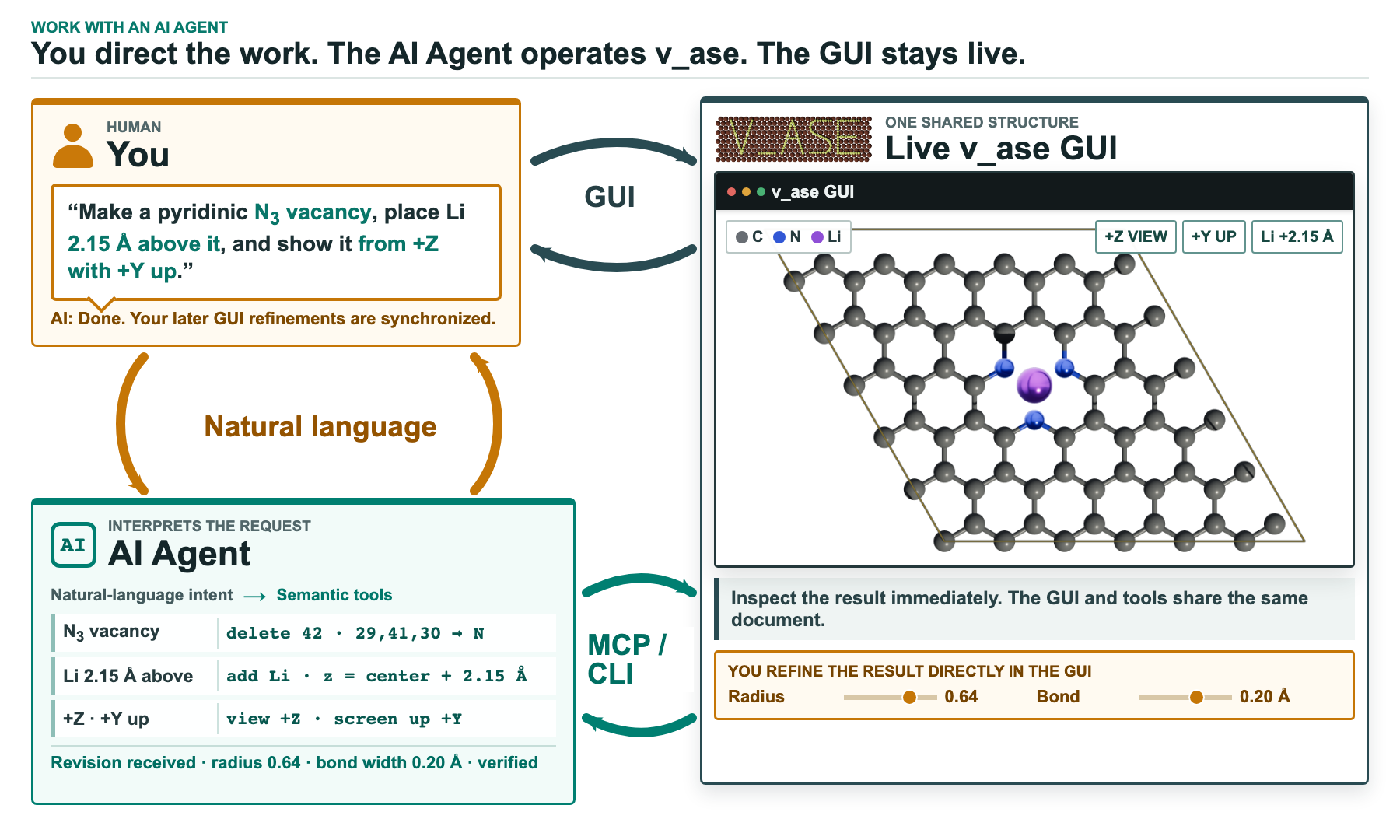
You and an external agent edit the same live document. Connect MCP · Scene workflow · CLI compatibility
ChatGPT Chat setup · personal connection.
python -m pip install "v_ase-gui[mcp]"
v_ase mcp
60-run comparison: MCP completed 30/30 strict targets; GUI completed 24/30. Images, token usage and success criteria
Cu₈O₄ extension: both completed 10/10; MCP used 90.9% fewer median tokens. Images and methods
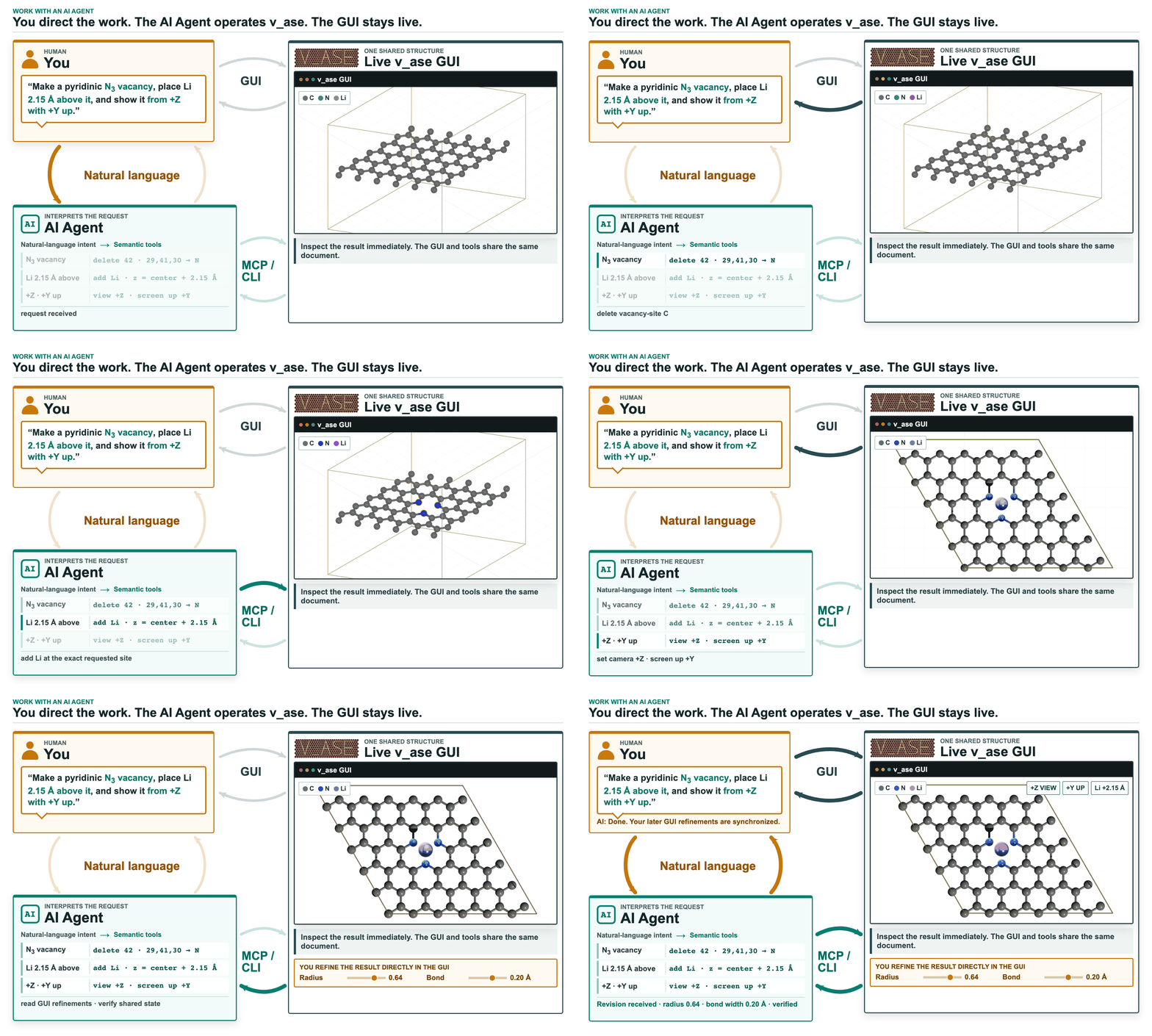
Exact atom edits from a natural-language request. Agent workflow · Bundled Skill
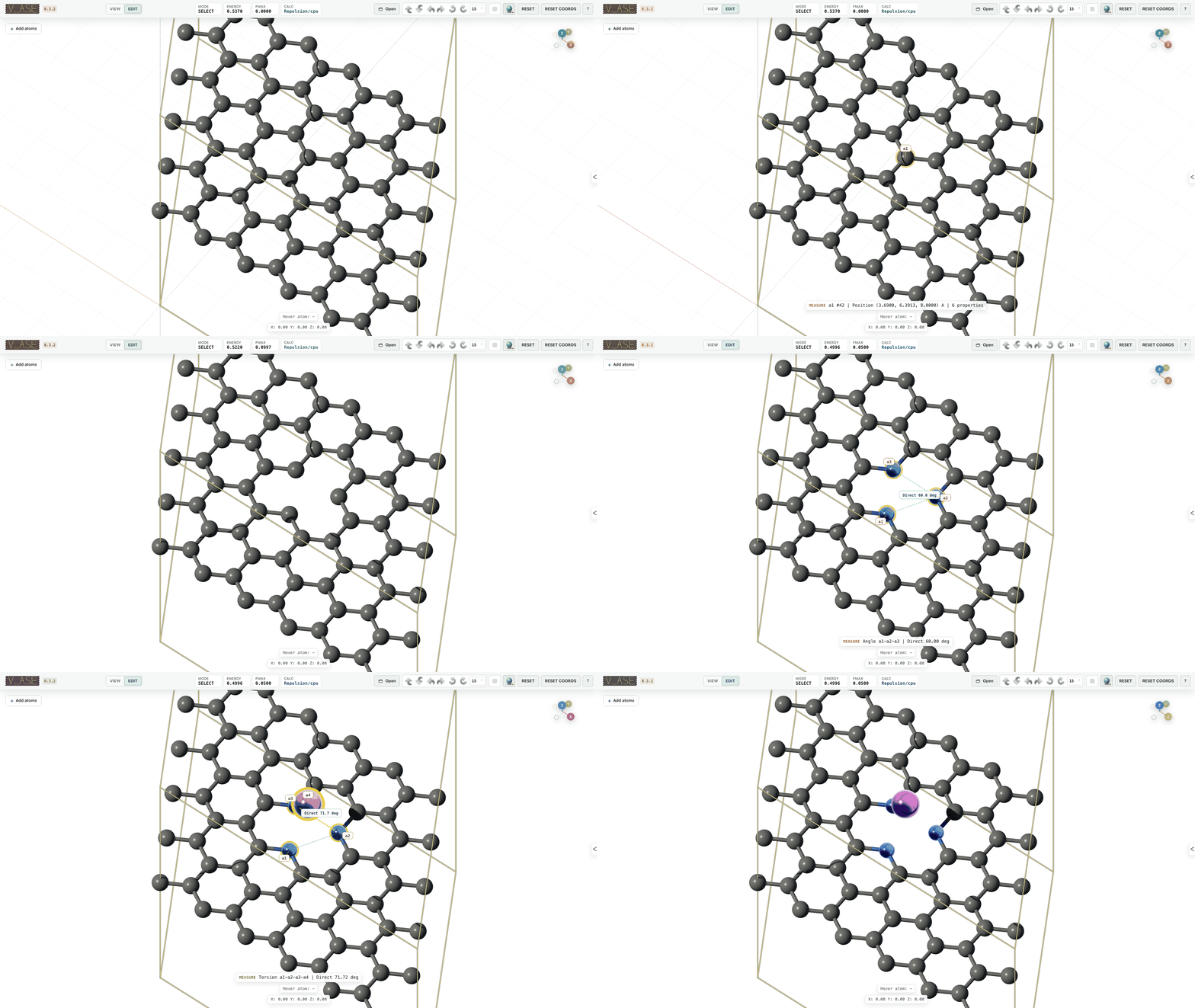
Edit Structures
Select atoms, then use G to move, R to rotate and S to scale coordinates.
Editing guide · Controls
Build From Scratch
Define a cell and distribute atoms; refine overlaps with repulsion. Atomic distributions · ASE crystal builder

Add Atoms
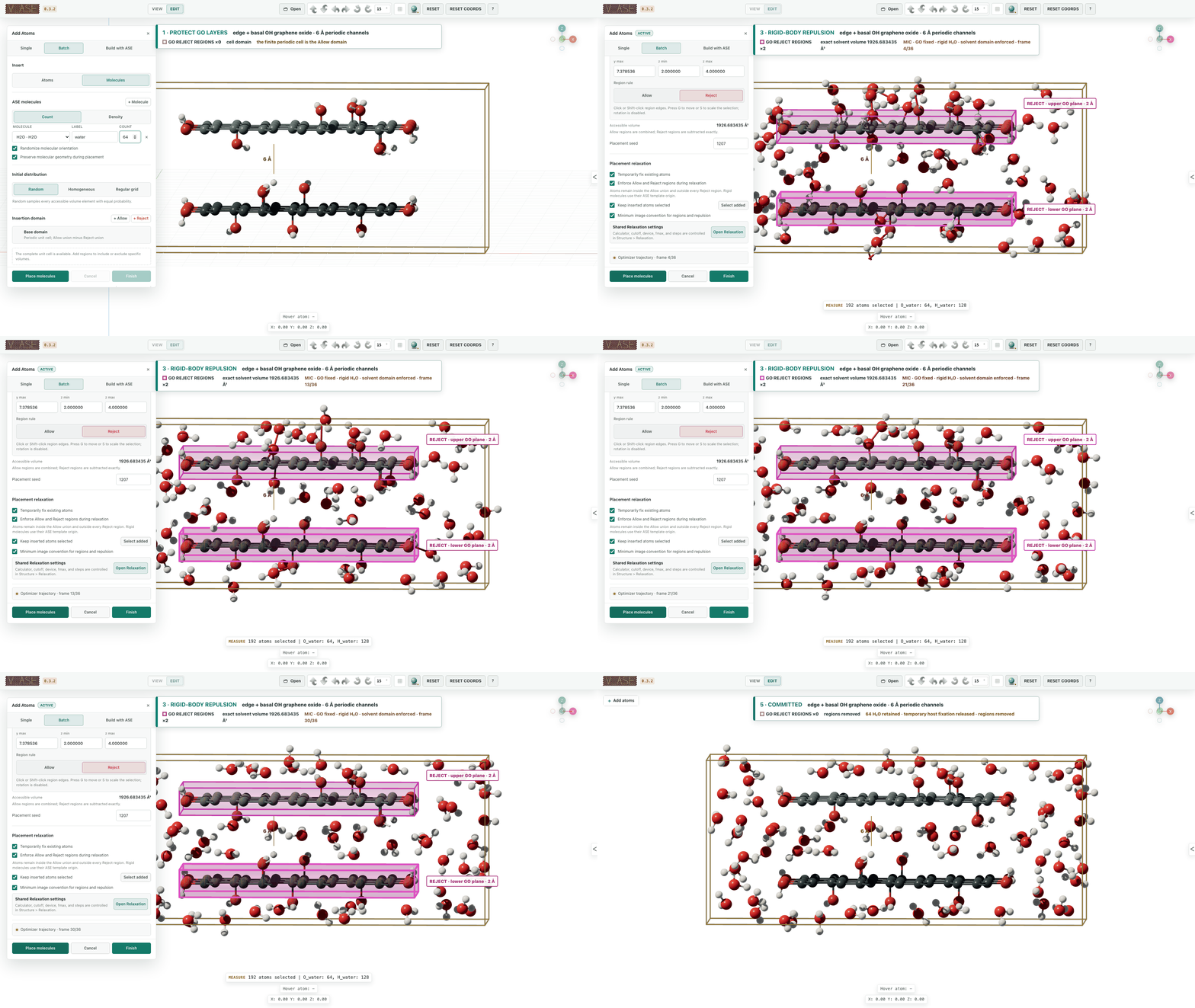
Set composition, density, placement and allowed regions. Insertion workflow

Add Molecules
Place rigid molecules around an existing structure. Molecular insertion
Rotate Selected Atoms
Rotate around an active atom, center of mass or explicit pivot. Pivot controls

Build a phosphorene twist through successive selections and rotations. Worked examples
Periodic Cells And Interfaces
Commensurate Cells
Find compatible 2D cells within declared strain and search limits. Same-lattice matching
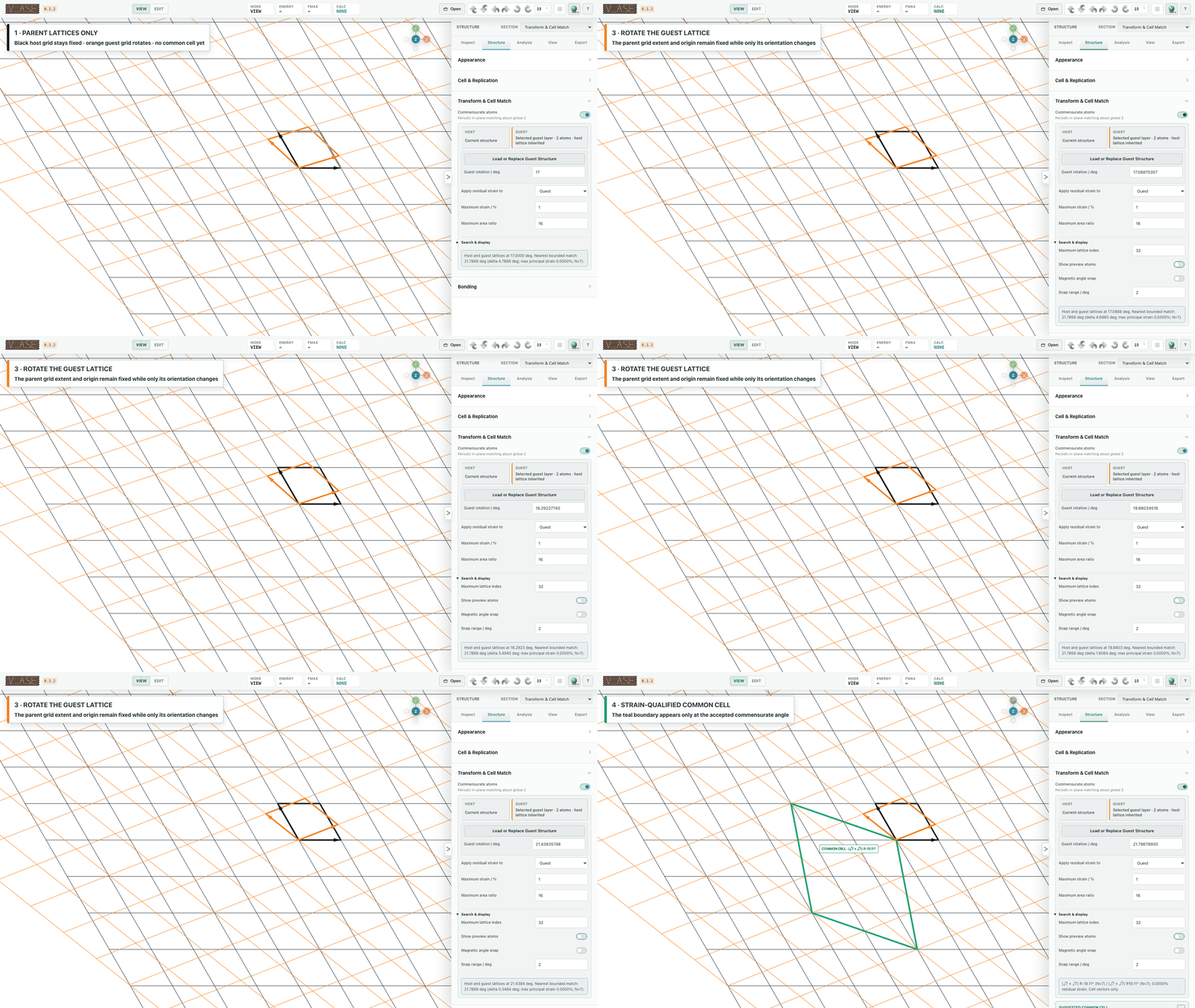
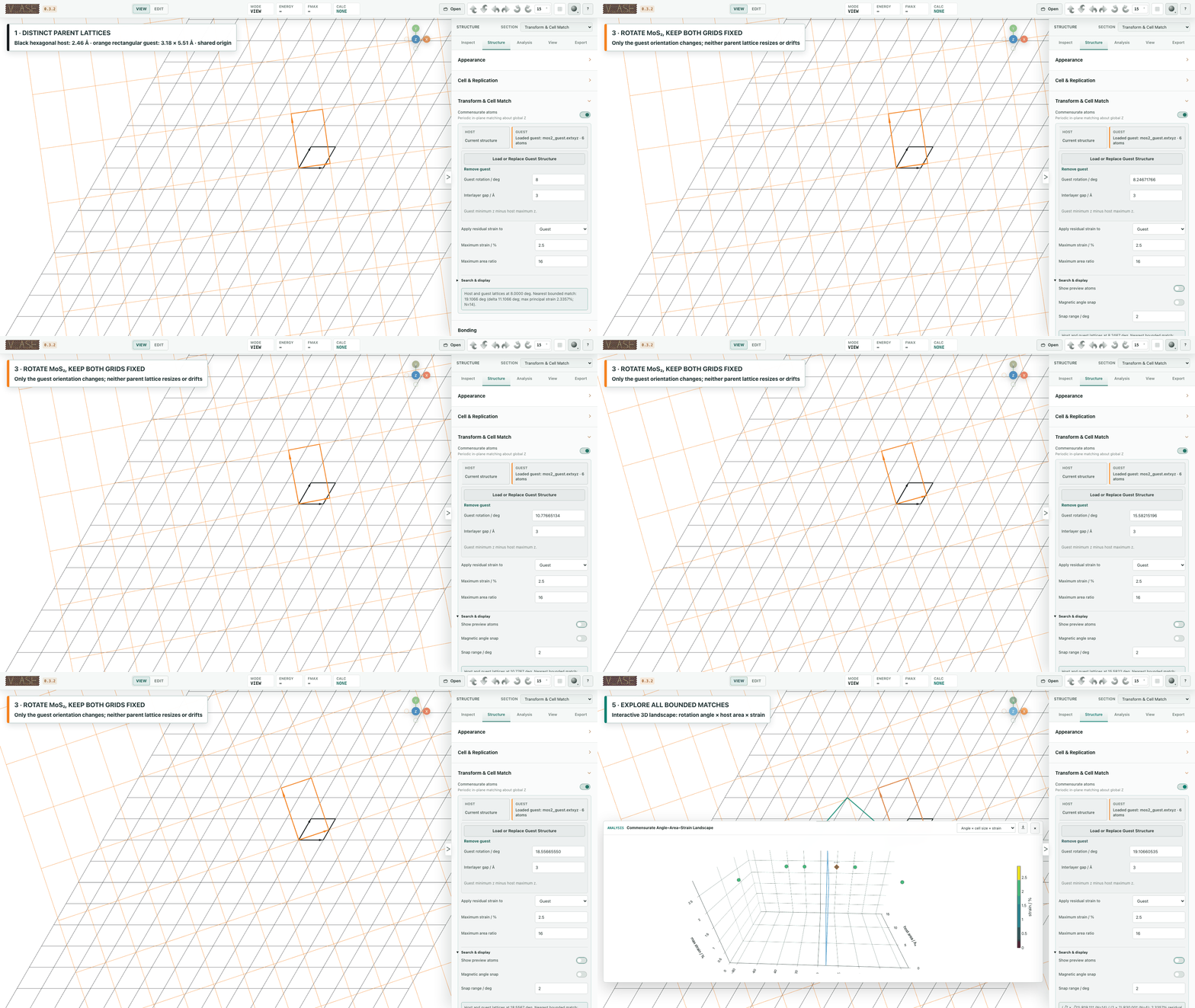
Match separate host and guest lattices. Host/guest workflow
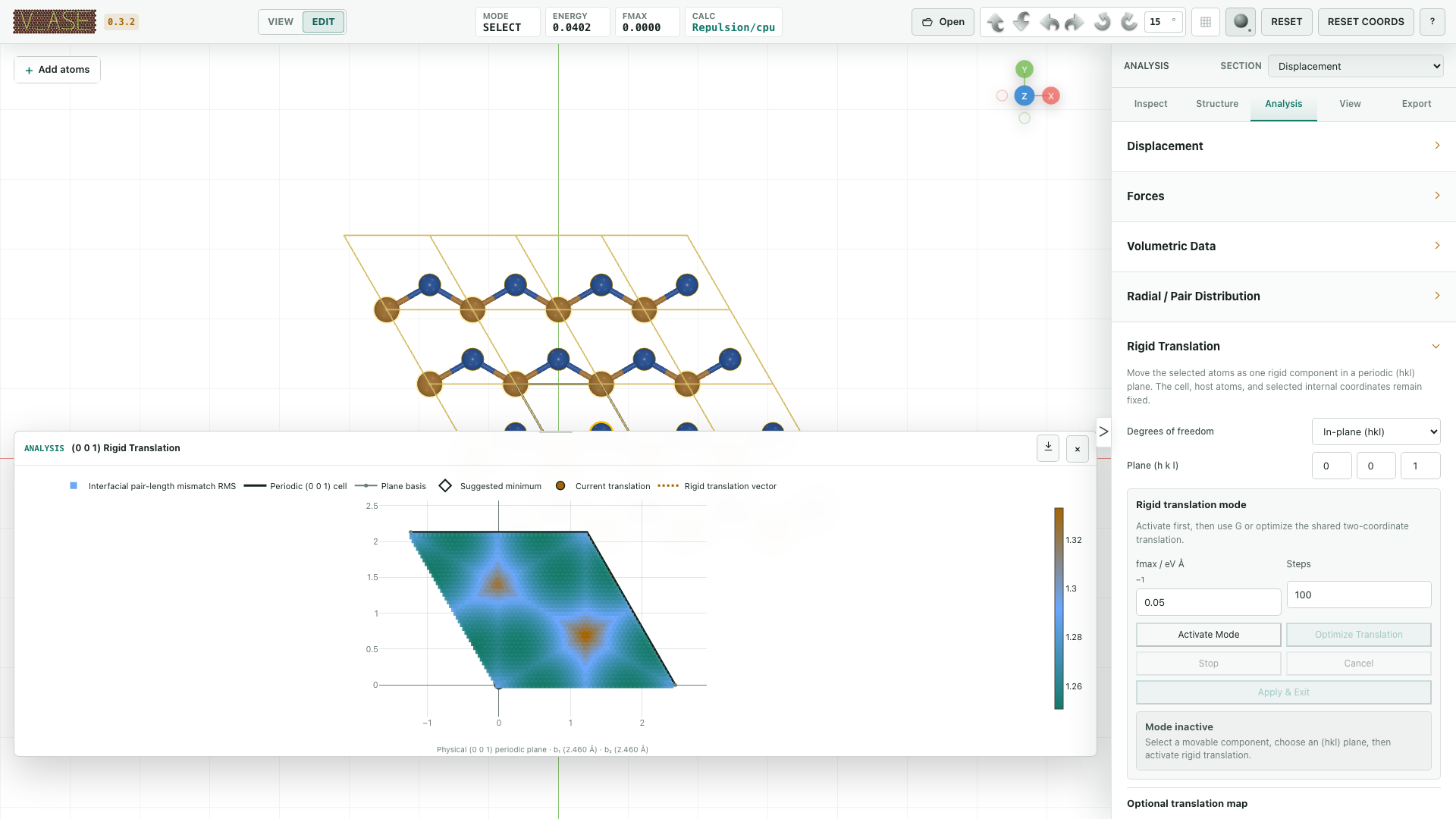
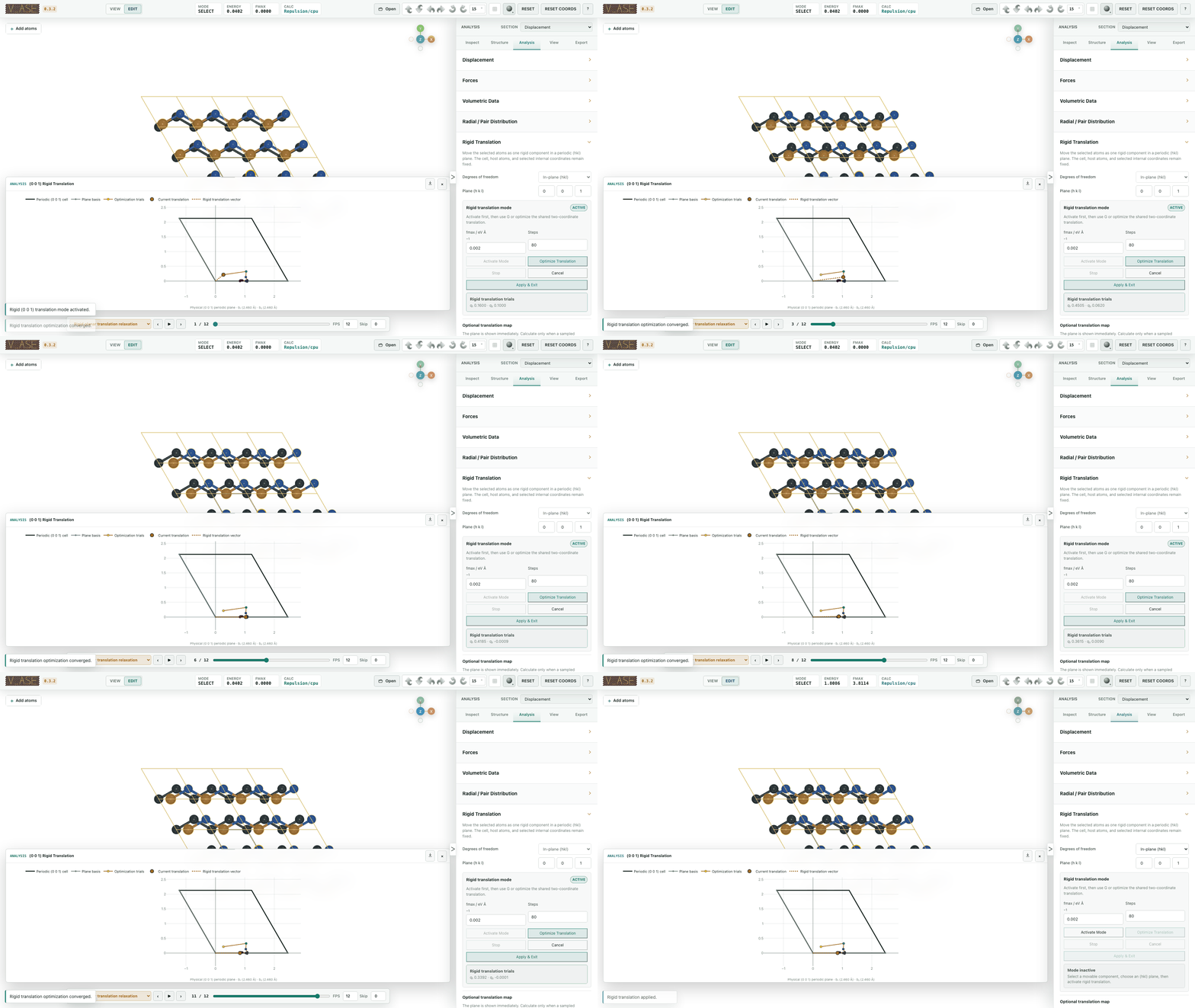
Rigid Translation
Map registry or relax a selected rigid component. Registry maps · Rigid relaxation
Analyze Structures And Fields
Ordered Geometry
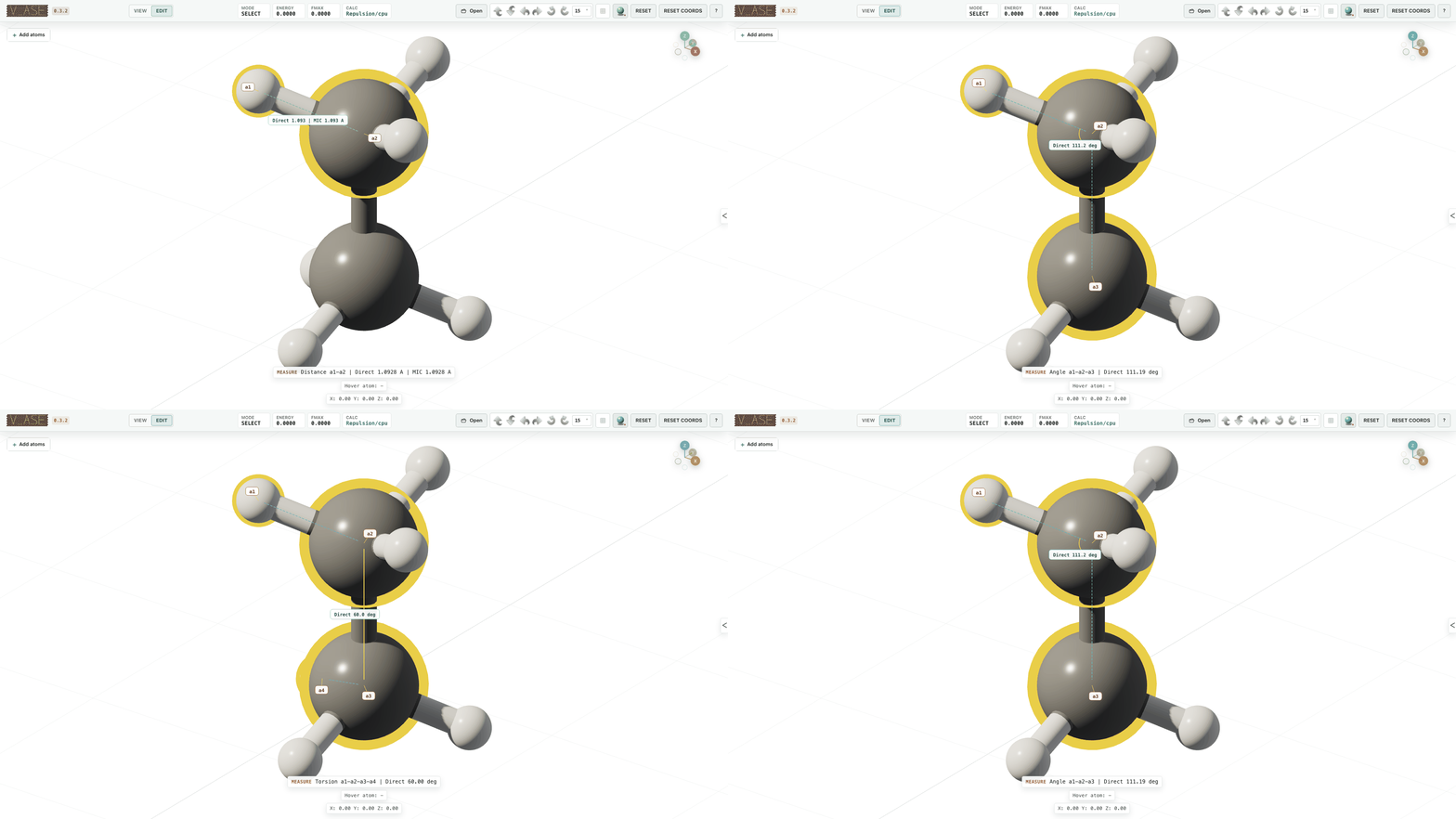
Click 2, 3 or 4 atoms deliberately in order for distance, angle or torsion. Marquee, label and Select all selections show a count without incidental geometry. Measurements
Property-based atom size
The Atom appearance controls include a global-size slider with a numeric input and an independent per-atom property radius mapping. Select an available numeric field, input range, minimum/maximum size multipliers and exponent. Enabling the mapping first reveals the field picker; it does not apply a placeholder property. Custom and charge presets fit the displayed frame's finite values, including signed data and the frozen atom scope. The mapping multiplies existing label and selected-atom sizing; a zero factor hides the glyph, not its scientific atom or bonds. Current and trajectory fits lock their resulting limits until fitted again. Field, scope, fit and export details.
Trajectories And Displacement
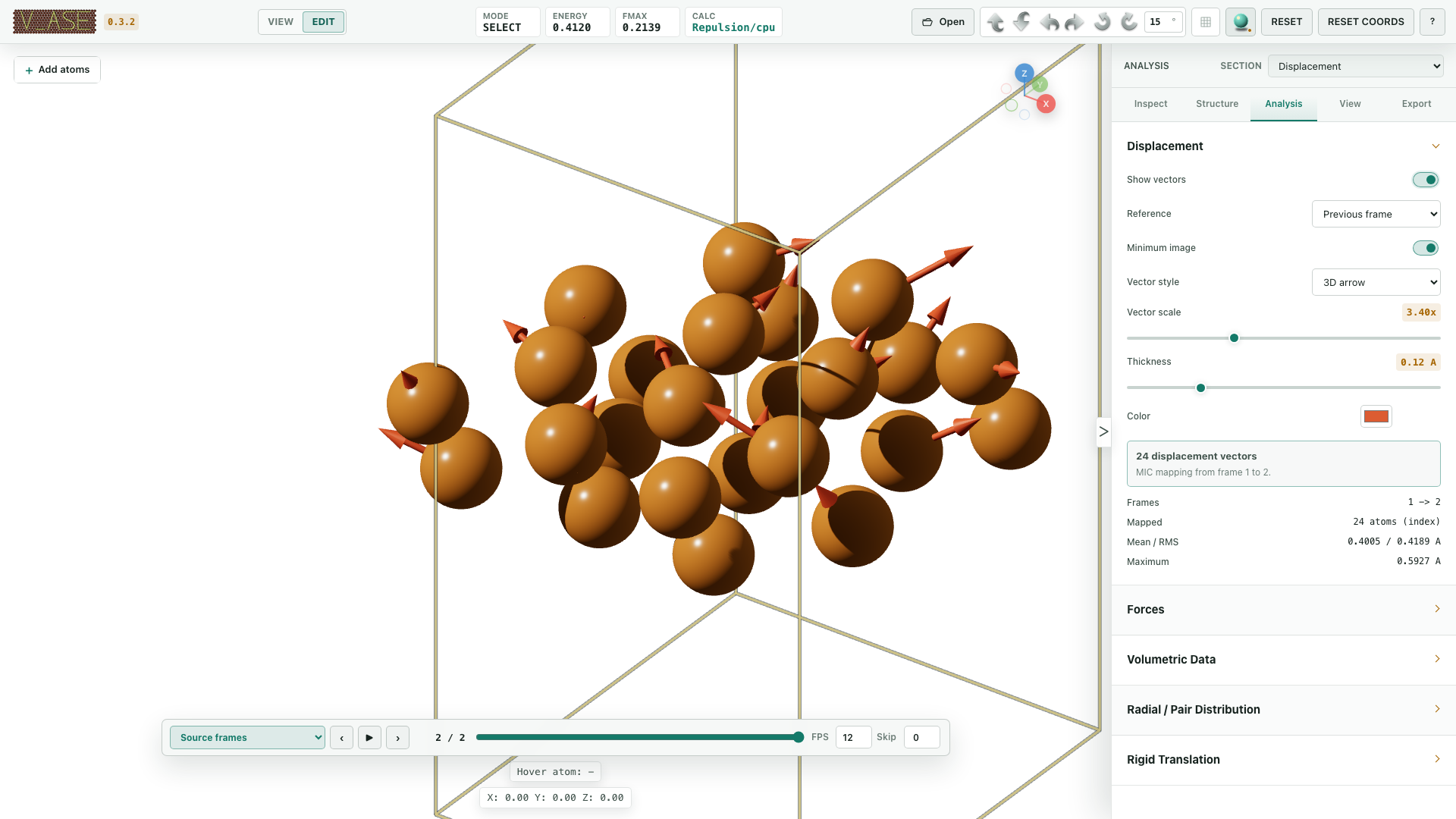
Scrub frames and inspect displacement against a reference. Trajectory analysis
Map Per-Atom Data
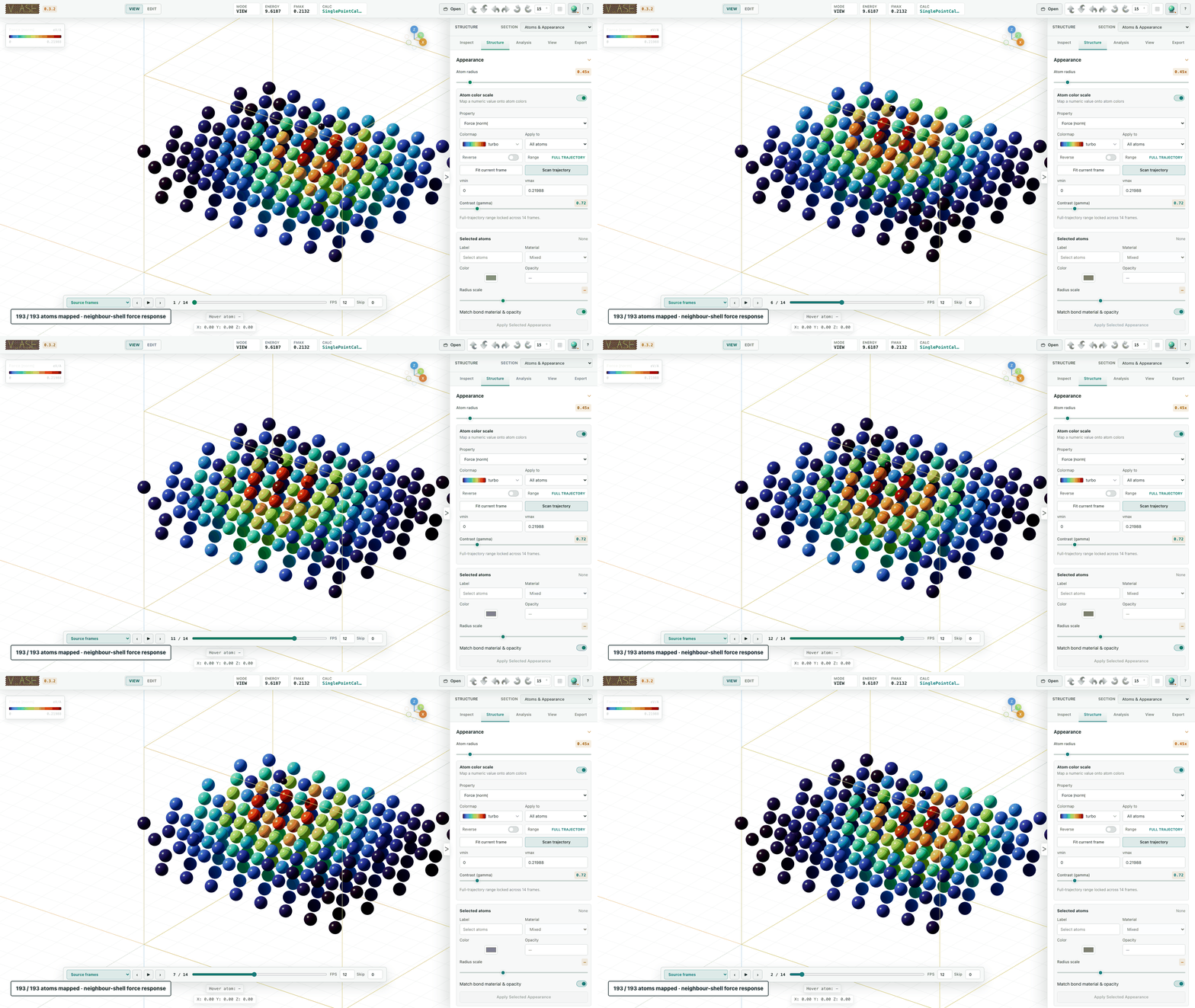
Color atoms by stored properties and display force vectors. Colorscales · Forces
Volumetric Fields
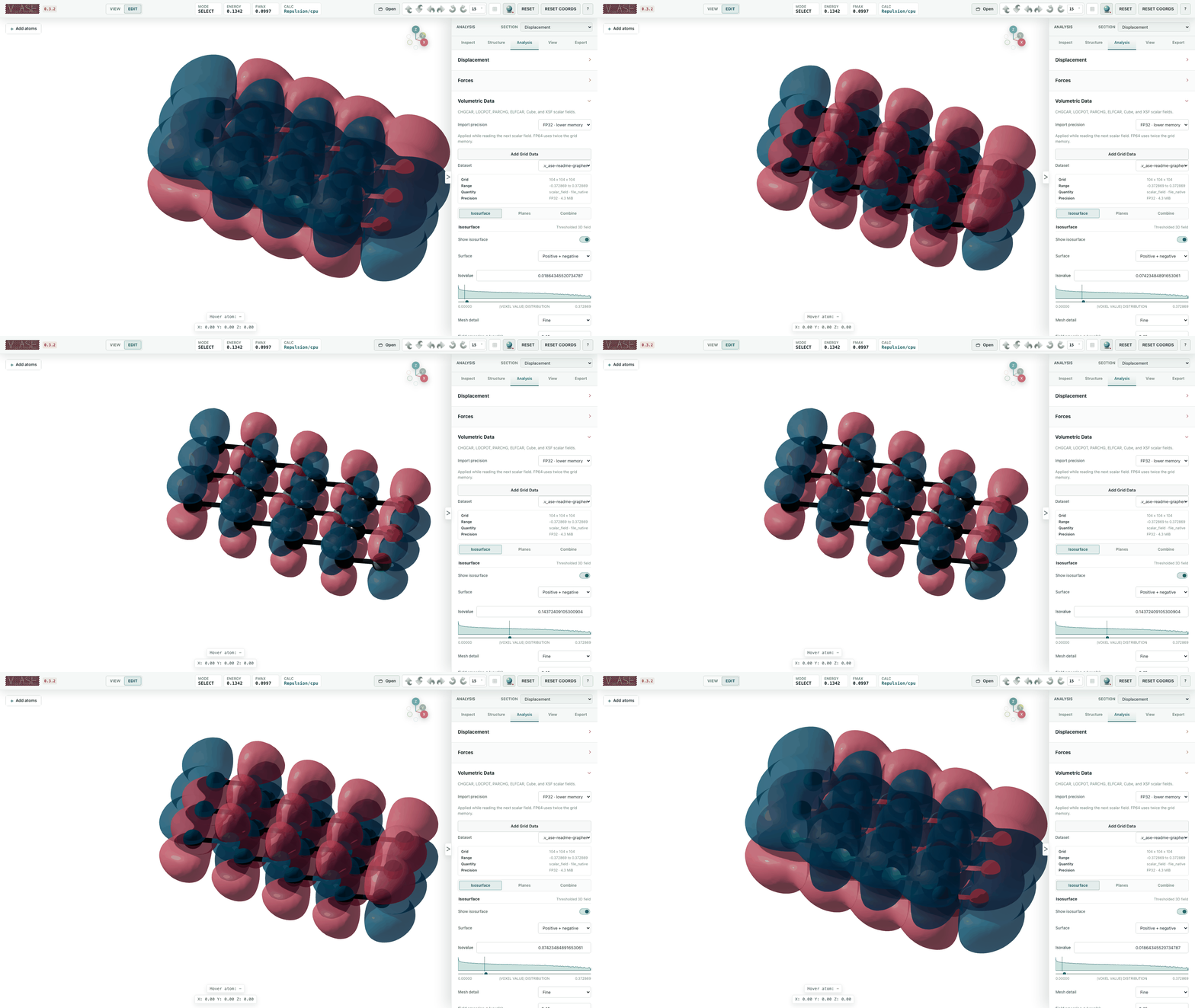
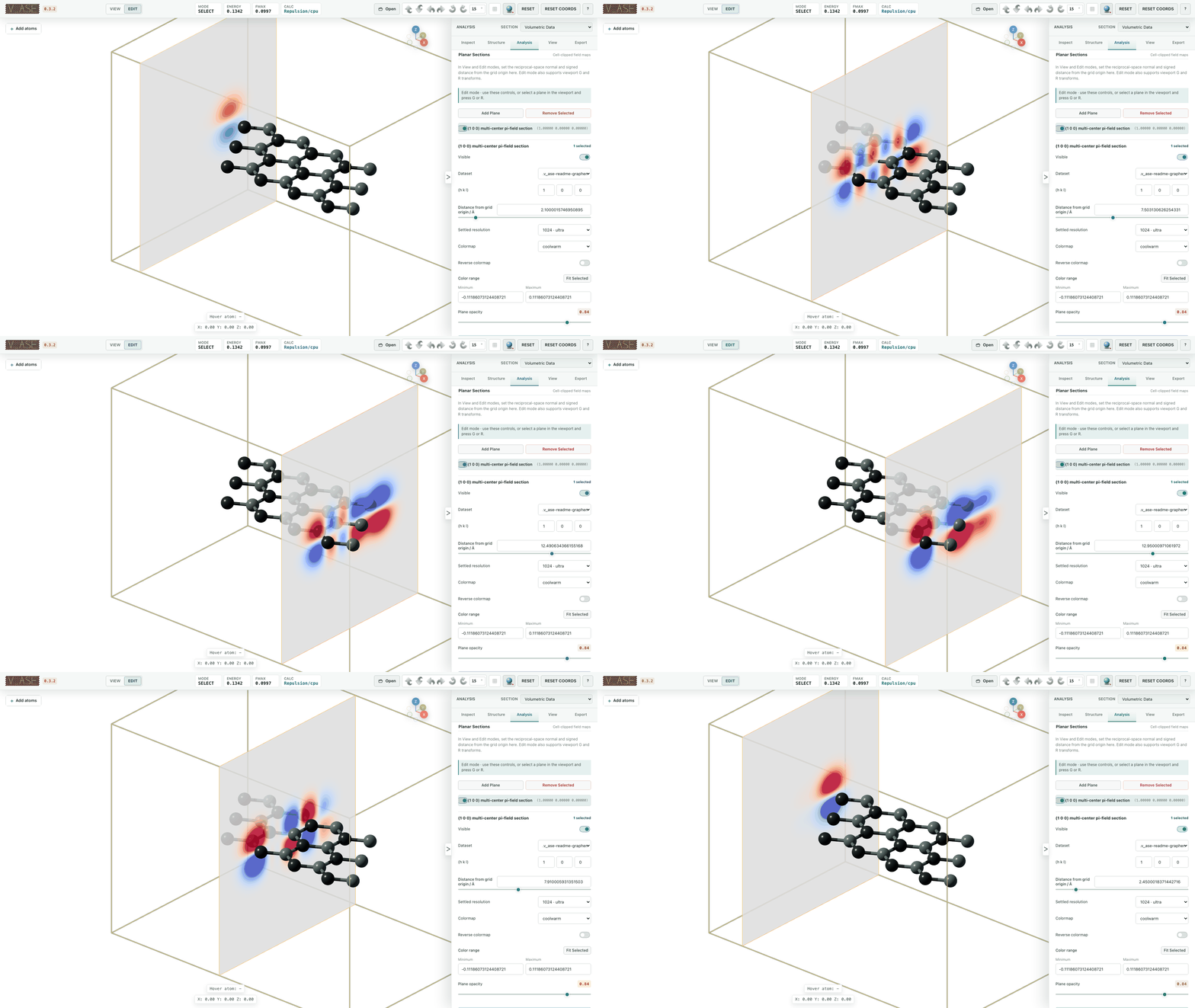
Inspect charge, potential and orbital grids as isosurfaces or planar sections. Isosurfaces · Planes · Combine fields
Radial And Pair-distribution Functions
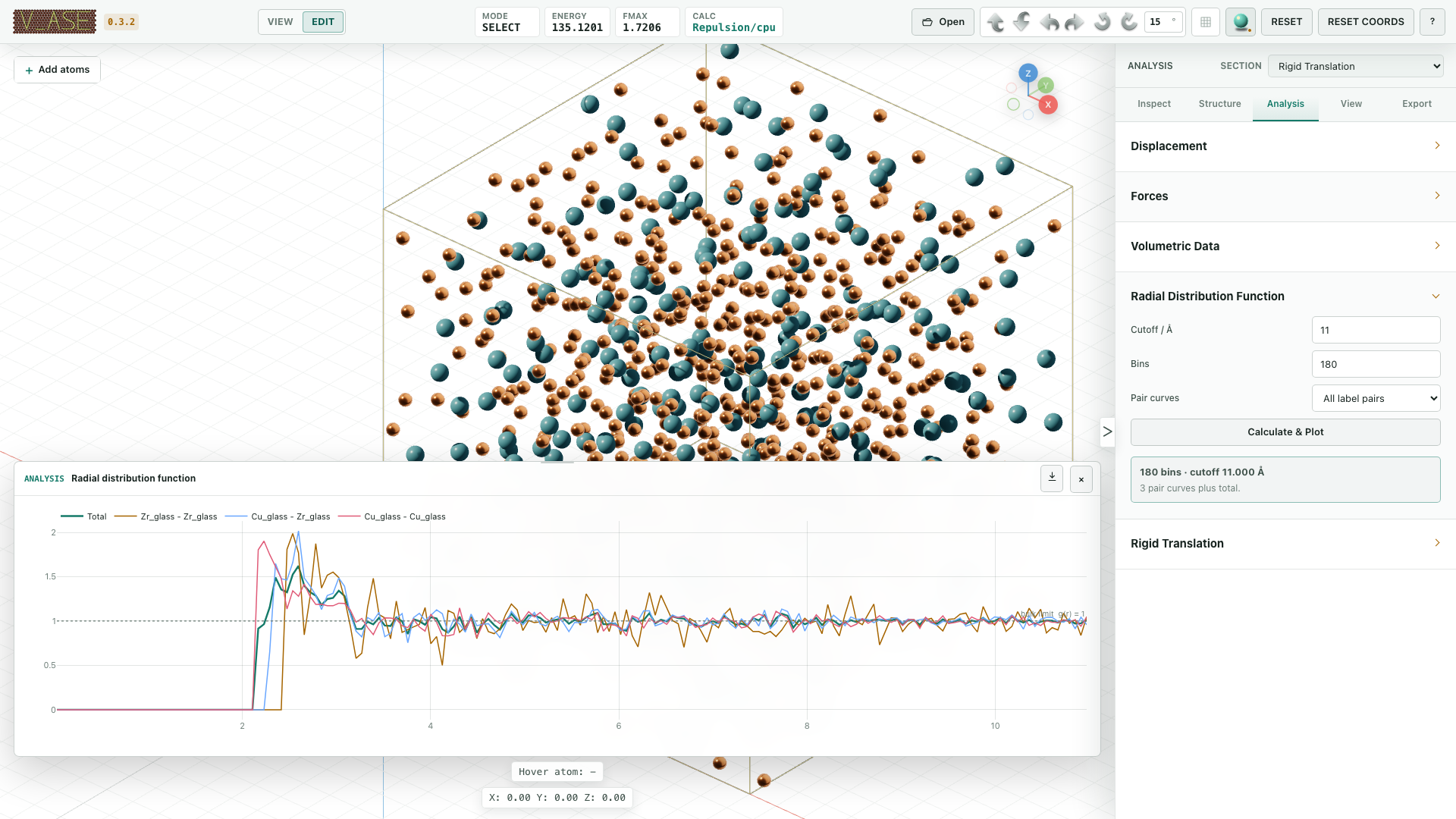
Plot periodic RDFs or finite pair distributions with the appropriate normalization. RDF guide
Constraints And Relaxation
Constrain physical motion using ASE constraints. Constraint guide
FixedLine
Restrict motion to a line. Details

FixedPlane And FixScaled
Restrict motion in Cartesian or fractional directions. FixedPlane · FixScaled

Hookean
Apply spring-like restraints. Details

Relaxation
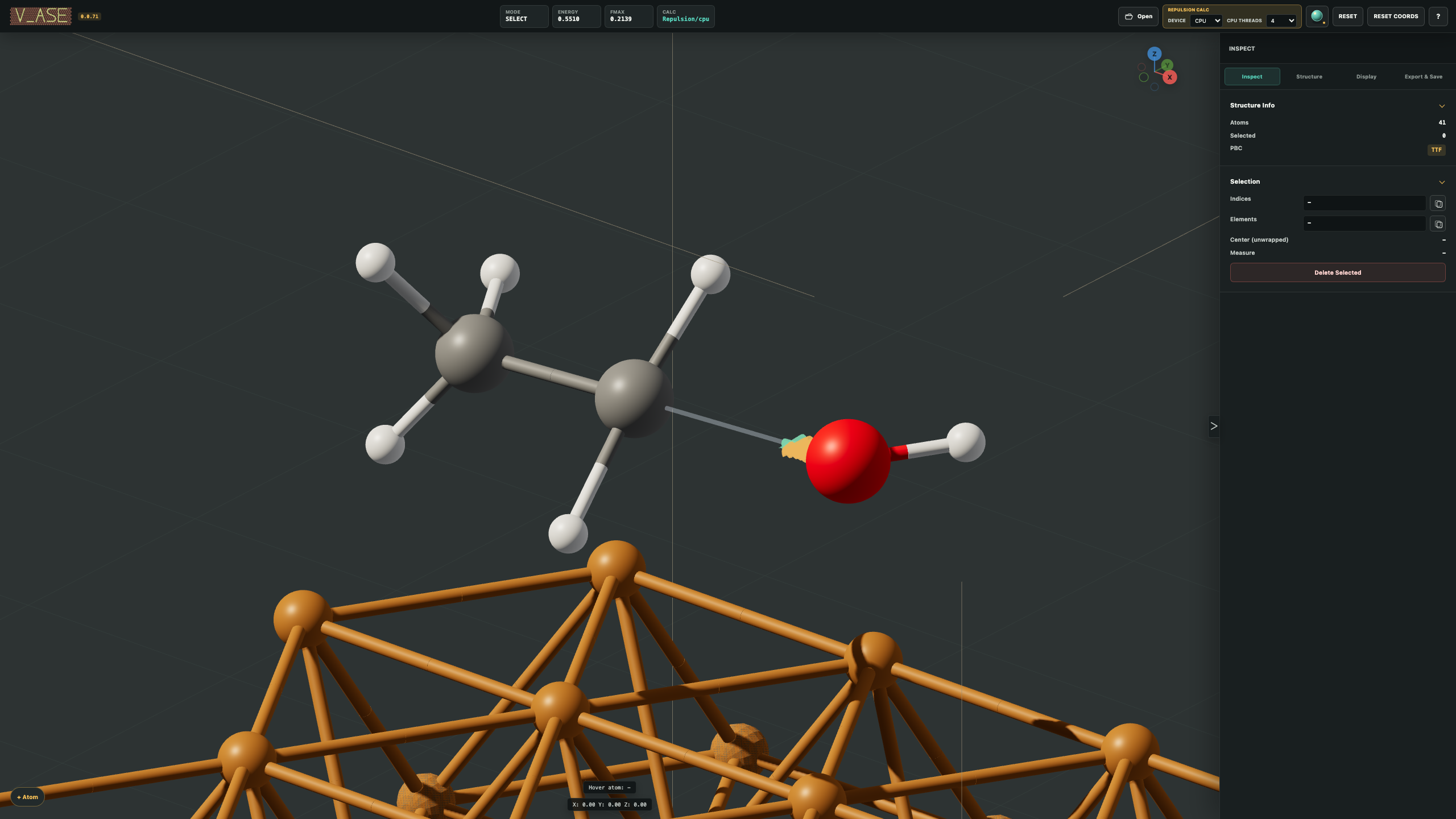
Reduce overlaps or optimize with a configured calculator. Repulsion · Run relaxation

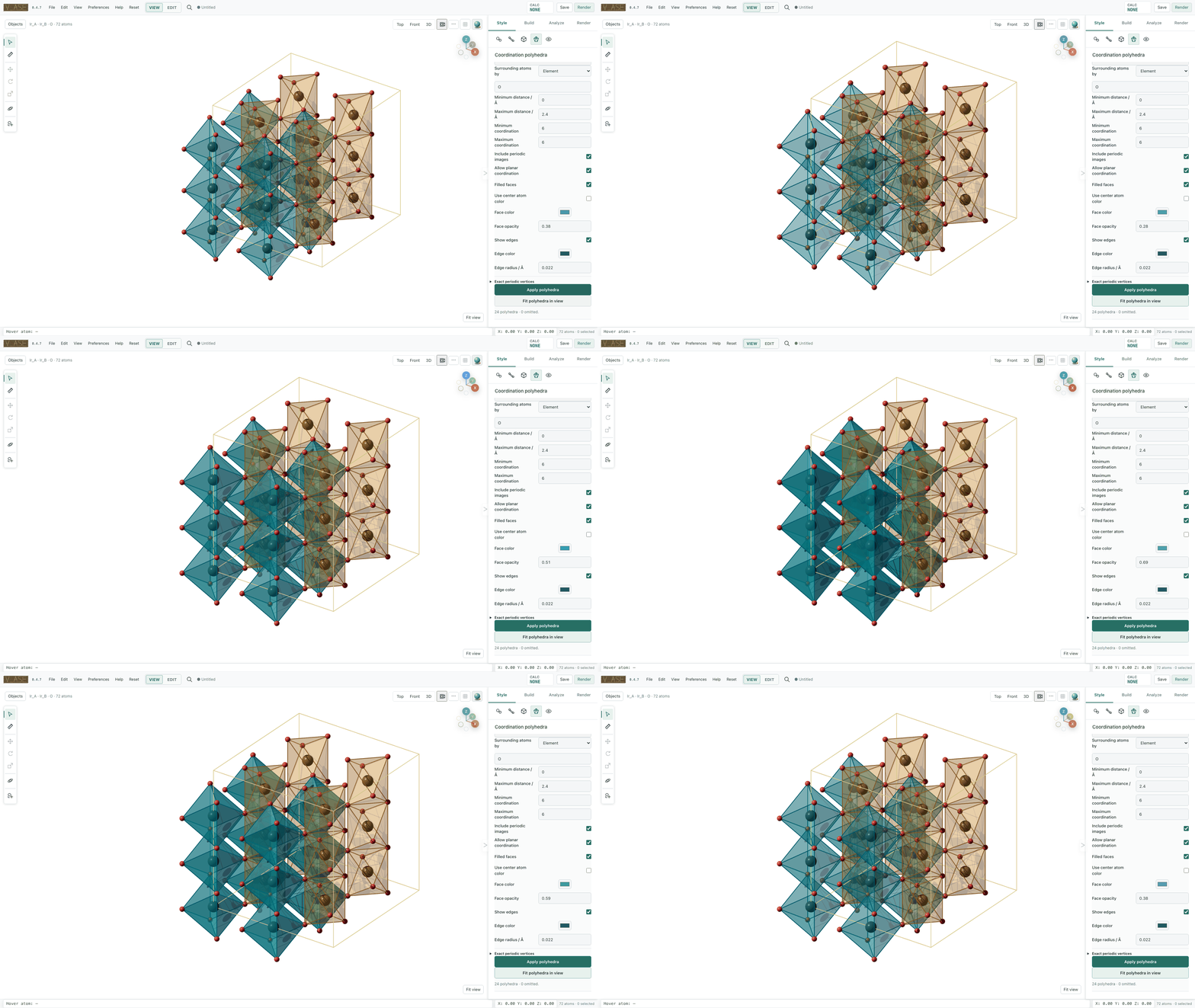
Coordination Polyhedra
Show coordination faces, ligand atoms and connectors in 2D/3D, with per-group color and opacity. Polyhedra guide
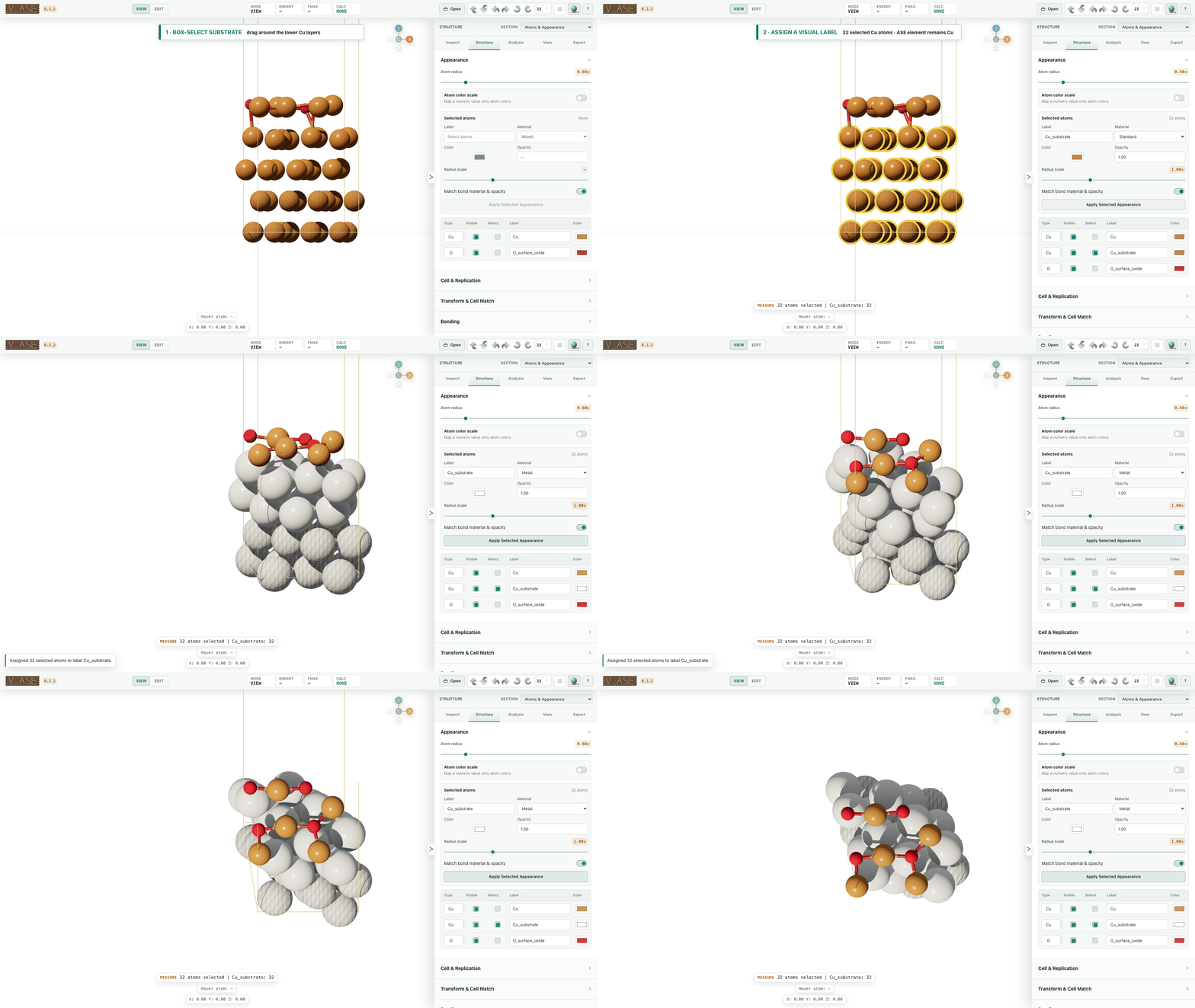
Style Atoms, Bonds, And Rendering
Control colors, radii and visibility by label or atom index. Appearance
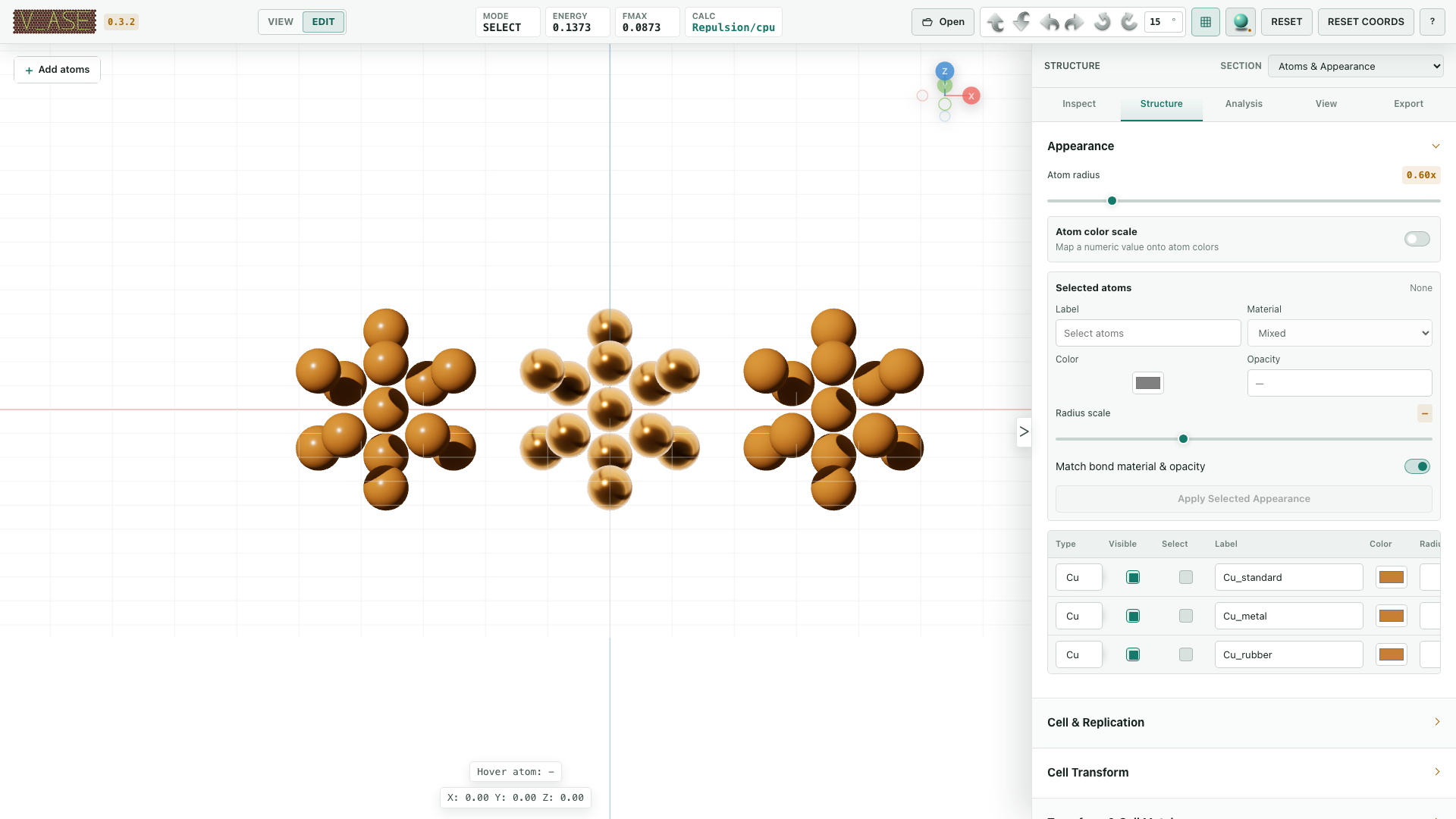
Choose Standard, Metal, Rubber or flat 2D rendering. Materials and rendering
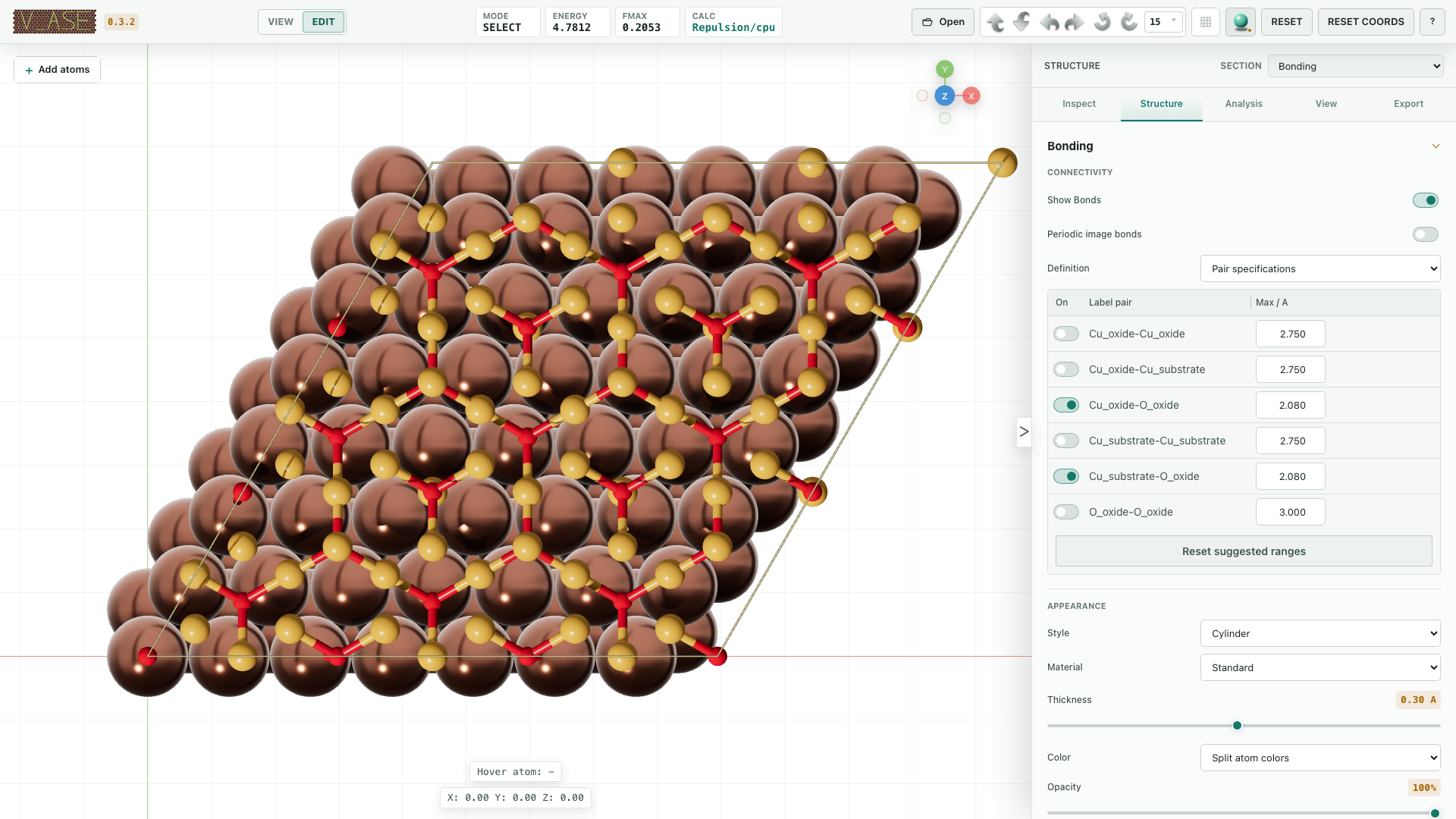
Set bond topology and appearance by pair or exact atom indices. Bond controls
Export And Save
Images and video · Render Area · Blender / OBJ / Rhino · Projects and presets
Python And Remote Systems
from ase.build import molecule
from v_ase import view

view(molecule("H2O"))
Python API · Jupyter · SSH / remote files
License And Citation
1 maintainer

Release files for v-ase-gui 0.4.6
For a detailed explanation of source distributions (sdists) and built distributions (wheels), please see the package formats documentation.
Source distribution (sdist)
| File | Size | Uploaded | |
|---|---|---|---|
| v_ase_gui-0.4.6.tar.gz | 32.8 MB | Details |
Built distribution (wheel)
| File | Interpreter | ABI | Platform | Reset |
|---|---|---|---|---|
| v_ase_gui-0.4.6-py3-none-any.whl | Python 3 | none | any | Details |
Total release size: 39.4 MB
Release files / v_ase_gui-0.4.6.tar.gz
| Download URL | v_ase_gui-0.4.6.tar.gz |
|---|---|
| Size | 32.8 MB |
| Tags | Source |
|
SHA-256 checksum How to use checksums |
d96f3b551eb2dc9e70b585ecdcc4b5adc1e3135cd6fc42cdb02f0c606371b2b5
|
|
BLAKE2b-256 checksum How to use checksums |
5304fb85fd76d01a8cd20ef0bb2979fcdf5cf4676233797f29b630a7d44cd43b
|
| Upload date | |
|
Uploaded using Trusted Publishing? What is trusted publishing? |
No |
| Uploaded via |
twine/6.2.0 CPython/3.13.5
|
Release files / v_ase_gui-0.4.6-py3-none-any.whl
| Download URL | v_ase_gui-0.4.6-py3-none-any.whl |
|---|---|
| Size | 6.6 MB |
| Tags | Python 3 |
|
SHA-256 checksum How to use checksums |
ce0dc2935f1f9499f34f93b0c5856ff8ba62fdc3718a88d2f4a6adc304c4a436
|
|
BLAKE2b-256 checksum How to use checksums |
5af9bb2ec6ed688fbe61e99bd3f90dc2c32b6f86d4cbee2c7e7f64469d3eec60
|
| Upload date | |
|
Uploaded using Trusted Publishing? What is trusted publishing? |
No |
| Uploaded via |
twine/6.2.0 CPython/3.13.5
|














