
v_ase
Build structures. Explore simulations. Make figures. v_ase is an ASE-native workspace for atomic structures, trajectories and volumetric data, available as a desktop app, in your browser and in Jupyter.



Download for Mac or Windows · Install with Python · User guide · Example files
Shape a structure directly in the viewport. Select successive parts of a phosphorene ribbon and rotate them into a twist. These are coordinate edits, with the camera kept in place.

Build and edit · Water and fields · Periodic interfaces · Appearance · Trajectories and analysis · Constraints and relaxation · AI collaboration · Rendering · Save and share
Build and edit
Start from an empty cell
Create a cell, choose a composition and populate it with atoms. Build a crystal with ASE, or prepare a disordered starting structure and remove close contacts.

Atomic distributions · Crystal and atom builders
Add atoms where you need them
Define an insertion region and control composition, density and allowed space. Here, oxygen is added around an existing copper structure while the host remains in place.

Insertion regions and placement
Fill pores and surround surfaces with molecules
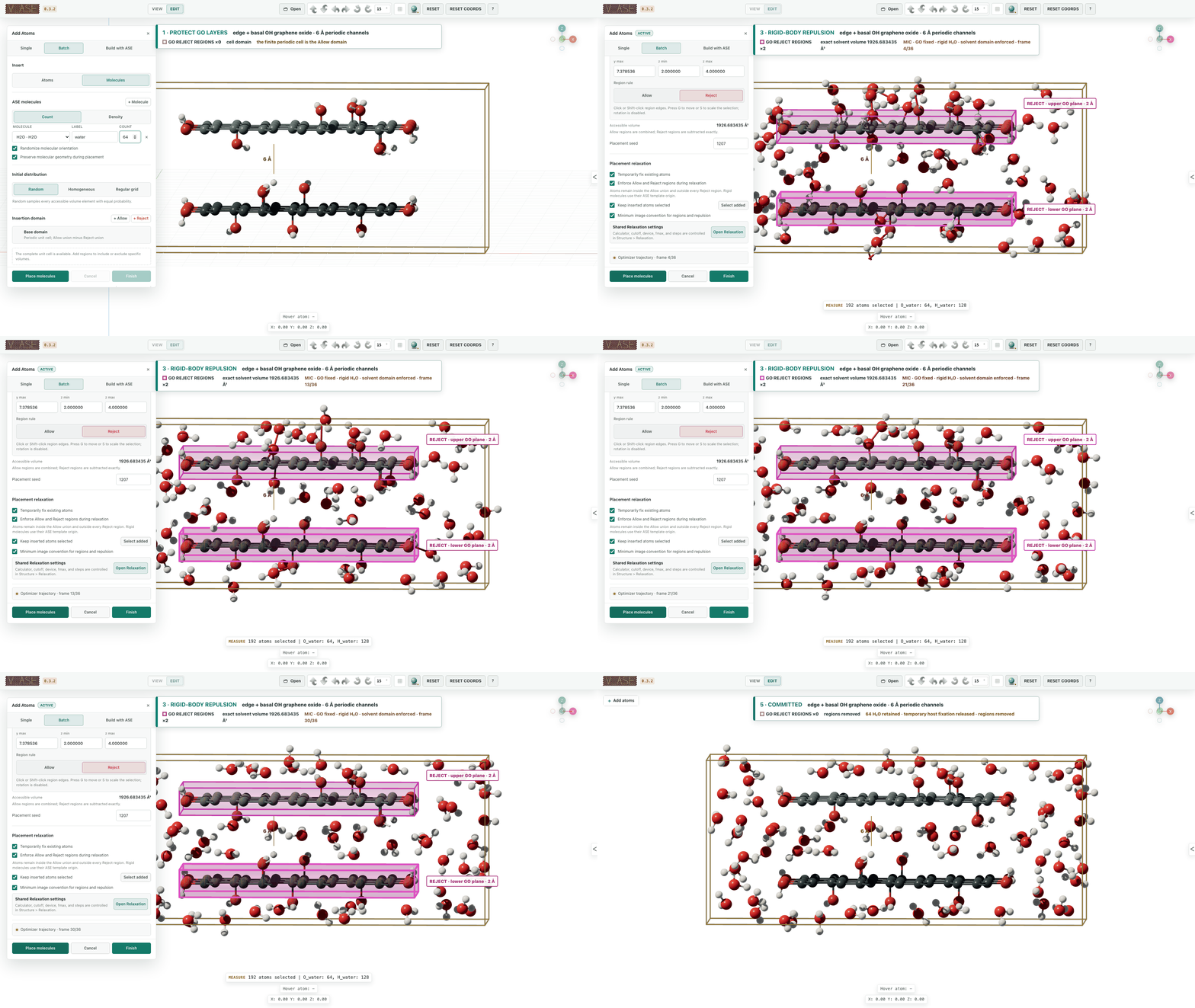
Insert rigid molecules into a selected region, set their number or density, and relax close contacts before keeping the result. This example places water around hydroxylated graphene-oxide layers.
Move, rotate and scale selected atoms
Use G, R and S for direct manipulation, or enter exact values. Rotate a
fragment about its center, an active atom or a chosen pivot; undo an edit when
trying another arrangement. Build → Rigid translation also moves coordinates
in Cartesian Å or fractional cell units without running relaxation, for selected
or all atoms in the current frame or every frame.

Move · Rotate and choose a pivot · Scale · Keyboard controls
Water and volumetric fields
Show water as a continuous surface
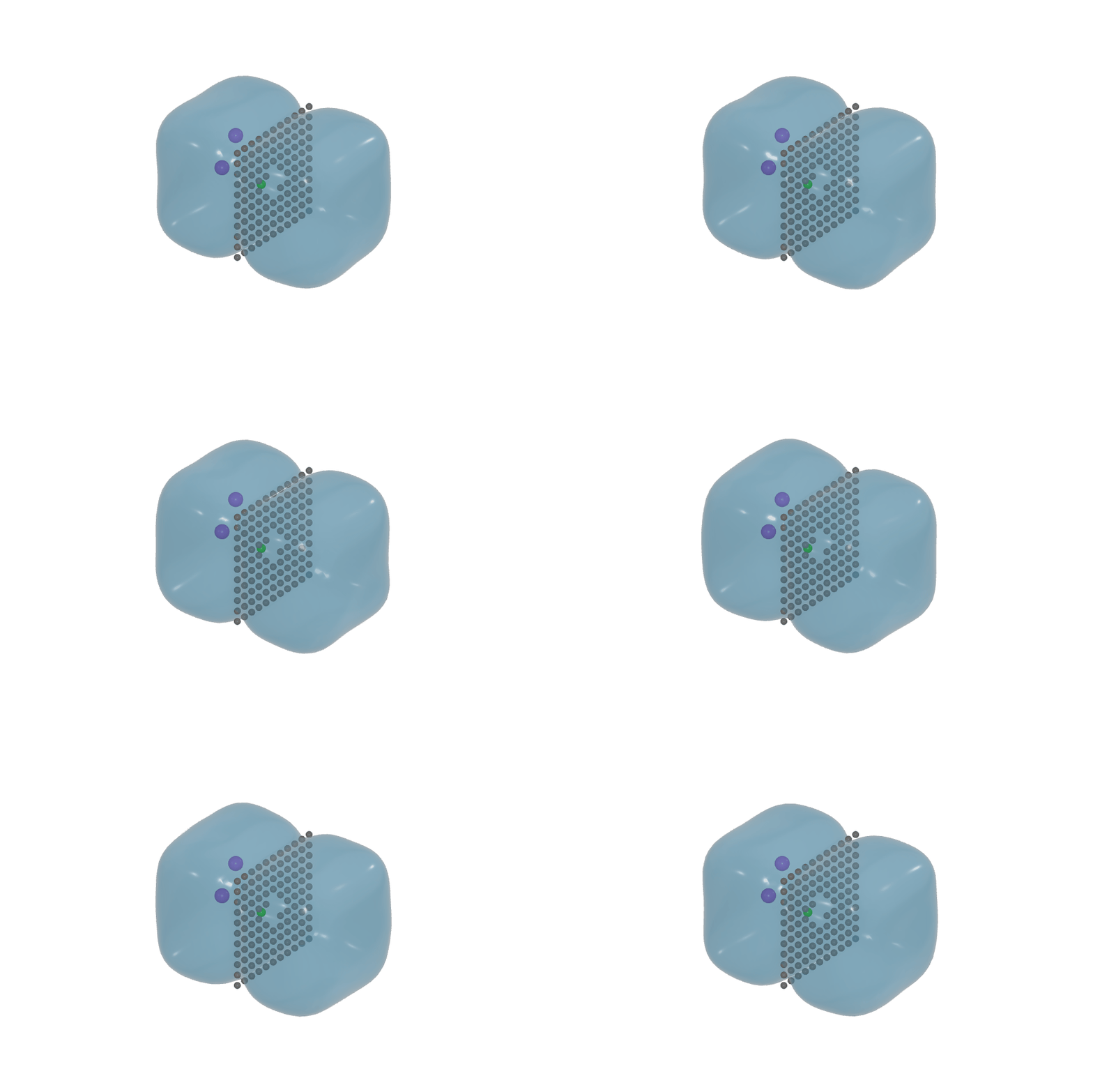
Turn H₂O coordinates into a translucent water envelope while keeping ions and solids visible. Adjust color, opacity, smoothing and lighting, and follow the surface through a trajectory. This visualizes supplied coordinates; it does not run a fluid simulation.
Explore charge, potential and orbital fields
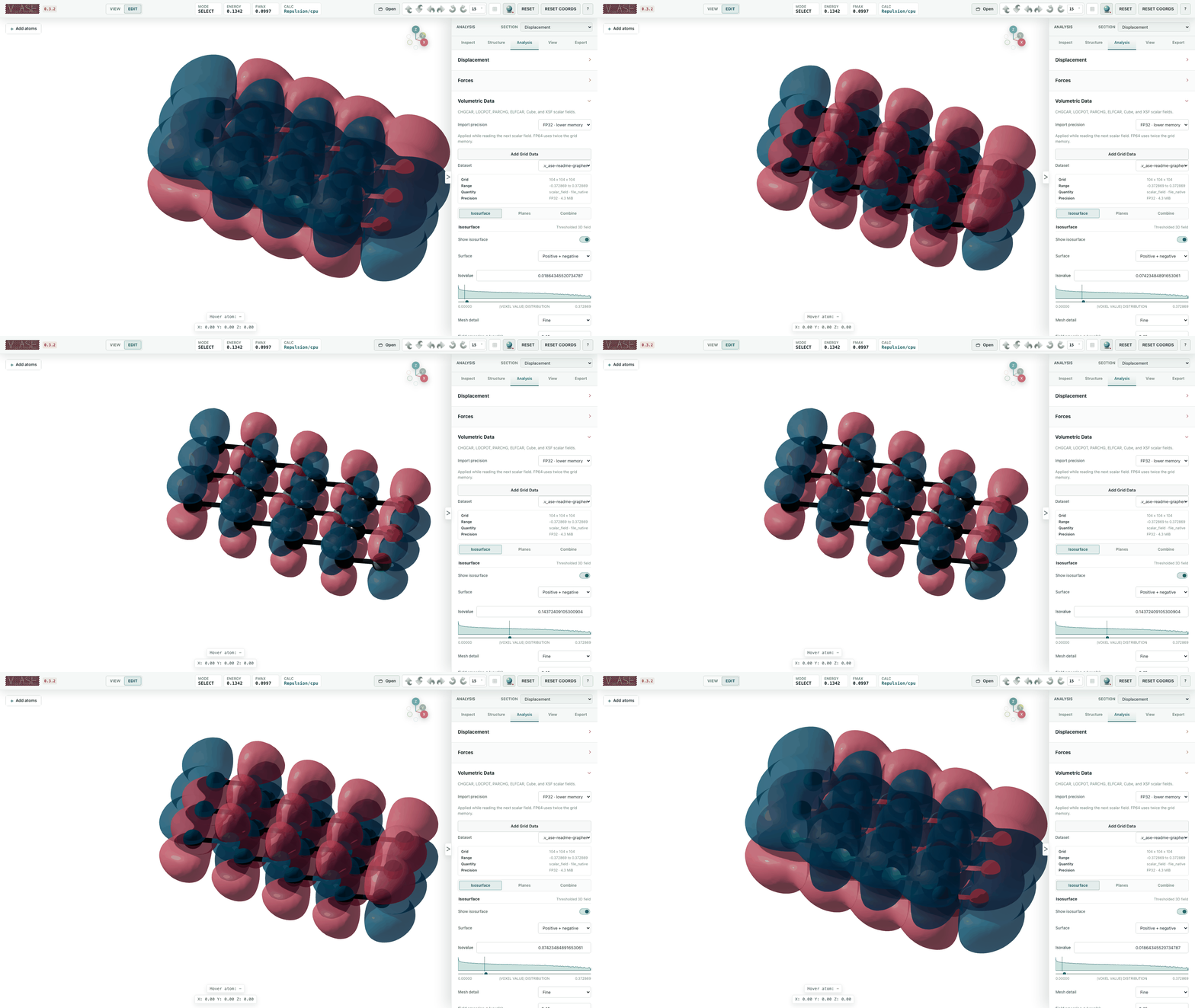
Display positive and negative isosurfaces, change the threshold, and control color and transparency. The example below changes the isovalue of a fixed signed field around a carbon structure.
Isosurfaces · Import and combine fields
Slice through a scalar field
Move a colored section through the data to inspect what lies inside. Choose Cartesian or crystallographic planes and keep the atomic structure in view.
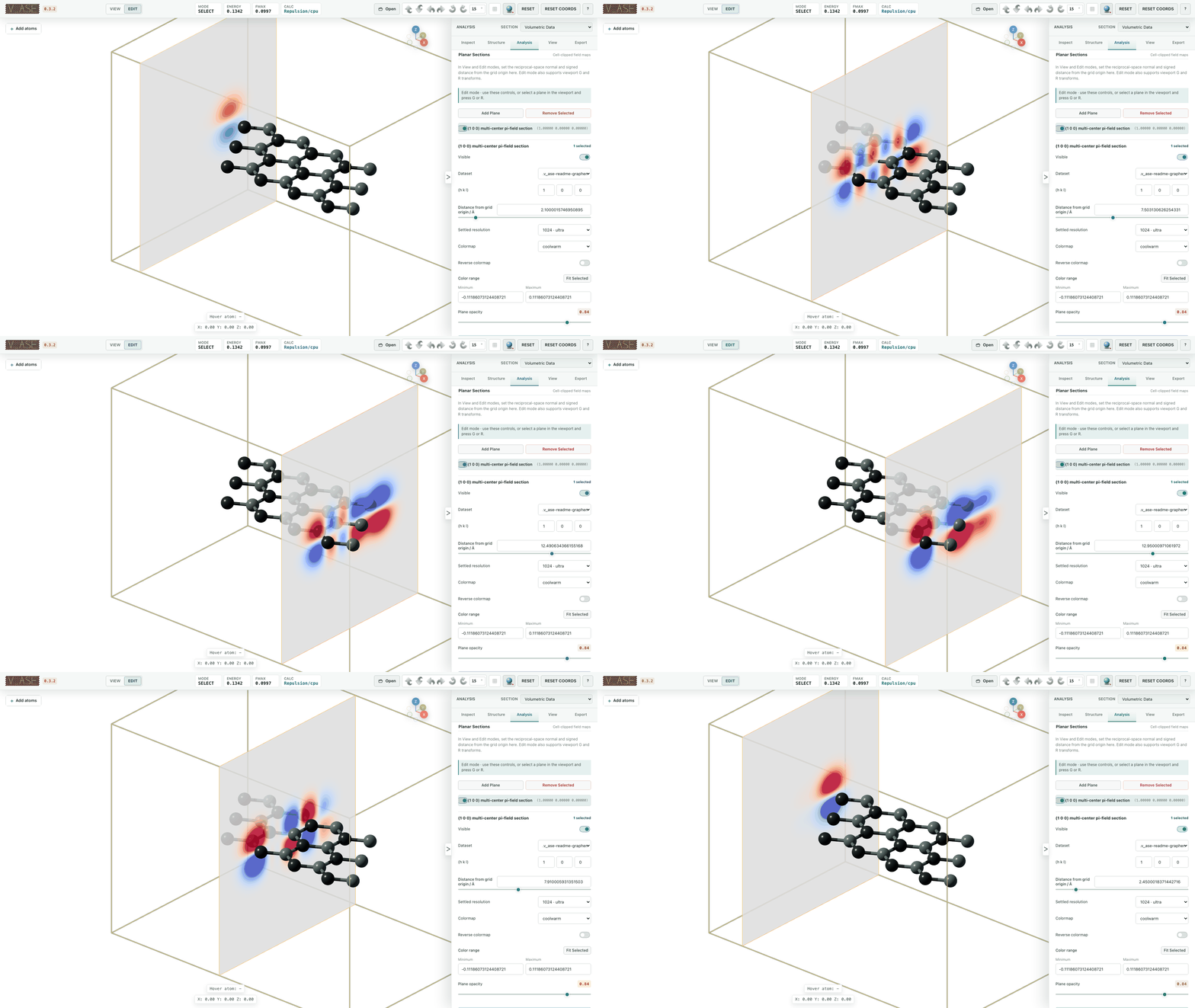
Field planes and cross-sections
Periodic cells and interfaces
Find a common cell for rotated layers
Explore relative rotations and compatible periodic cells within your strain
and size limits. Preview candidates before creating the matched structure.
Cell tools also provide supercells, wrapping and cell transformations.
Press A, B or C for an upright view along that lattice vector; repeat for
the opposite side.
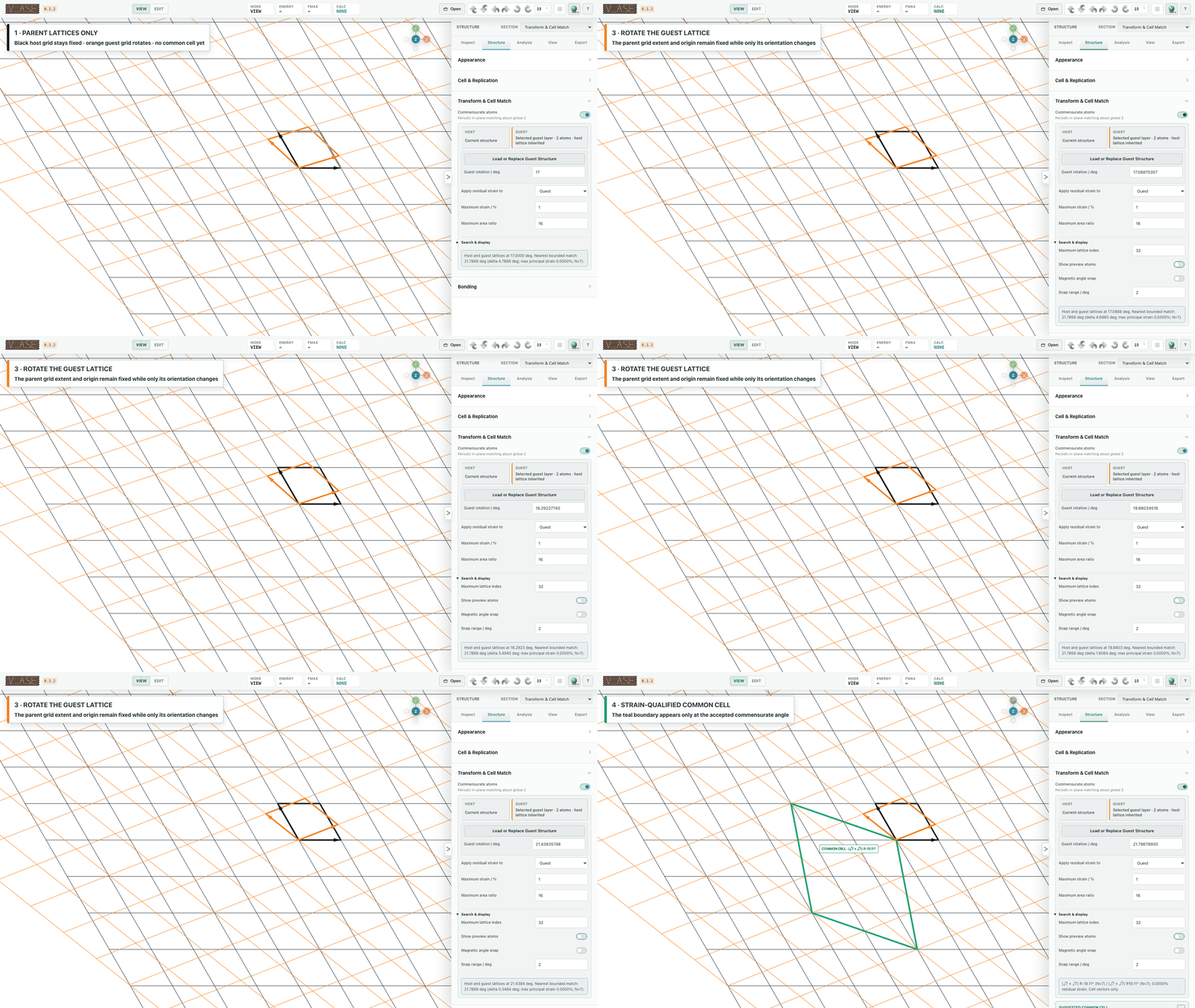
Commensurate rotation · Cells and supercells
Match different host and guest lattices
Load a second material, search possible common cells and compare the required strain. Here, graphene and MoS₂ are matched as separate host and guest structures.
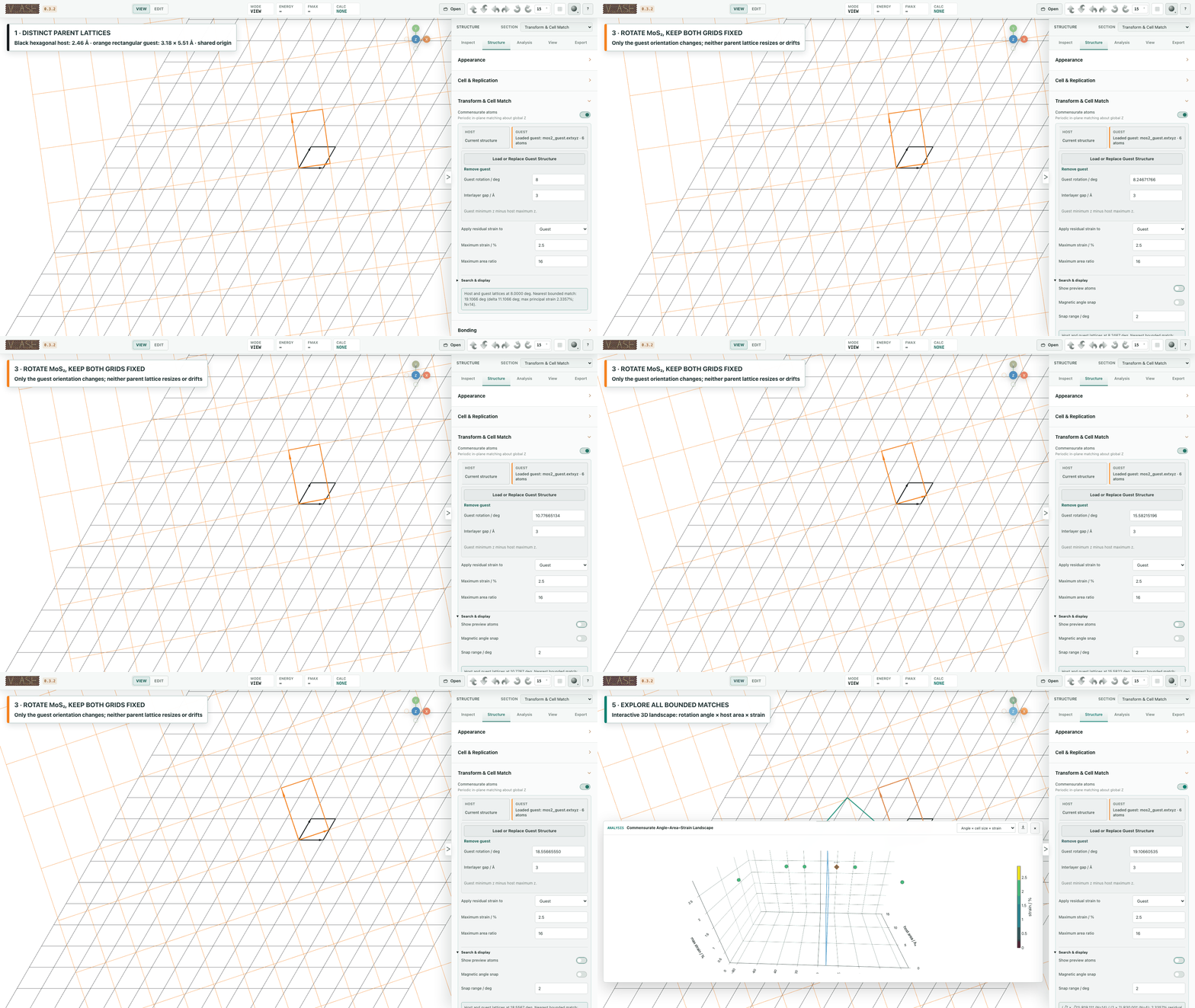
Rigid translation relaxation keeps its progress and completion state synchronized.
Explore interfacial registry
Scan lateral alignments or relax a whole selected fragment as one rigid body. Registry maps compare geometric contact or bond-strain scores while preserving the fragment's internal structure; they are not potential-energy maps.
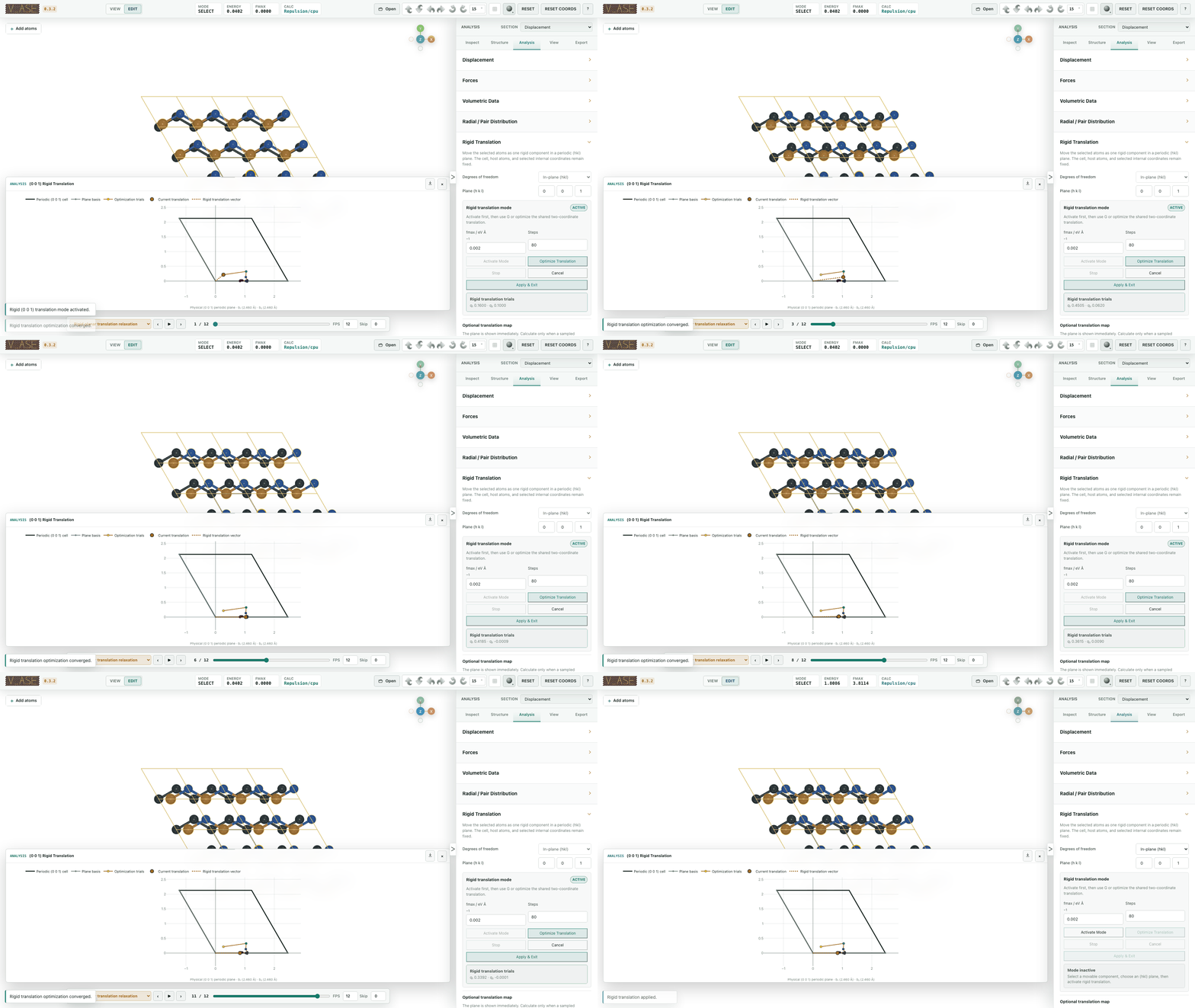
Registry maps and rigid translation
Desktop document shortcuts switch tabs without changing trajectory frames: Command+Option+←/→ on Mac, Ctrl+Alt+←/→ on Windows, and Command/Ctrl+1–9 for numbered tabs (9 is last). In Edit, deleting a trajectory selection asks whether to change the current frame or the same indices in every frame; the complete change is undoable.
Atoms, bonds and coordination
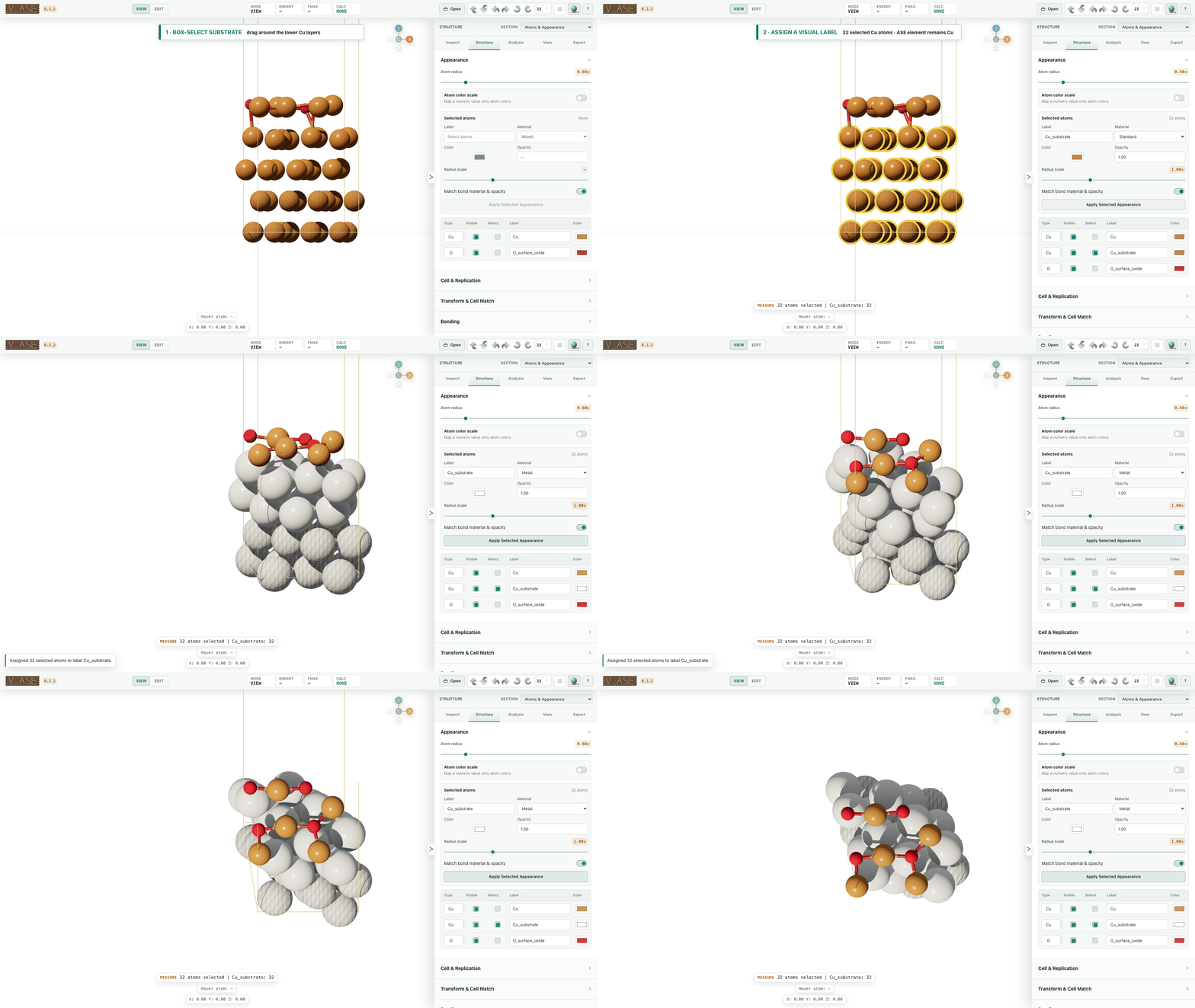
Give scientific groups their own appearance
Separate substrate, surface and adsorbate atoms with labels—even when they share an element. Set each group's color, radius, opacity and material, and choose which atom pairs form visible bonds.
Atom appearance · Pair-specific bonds
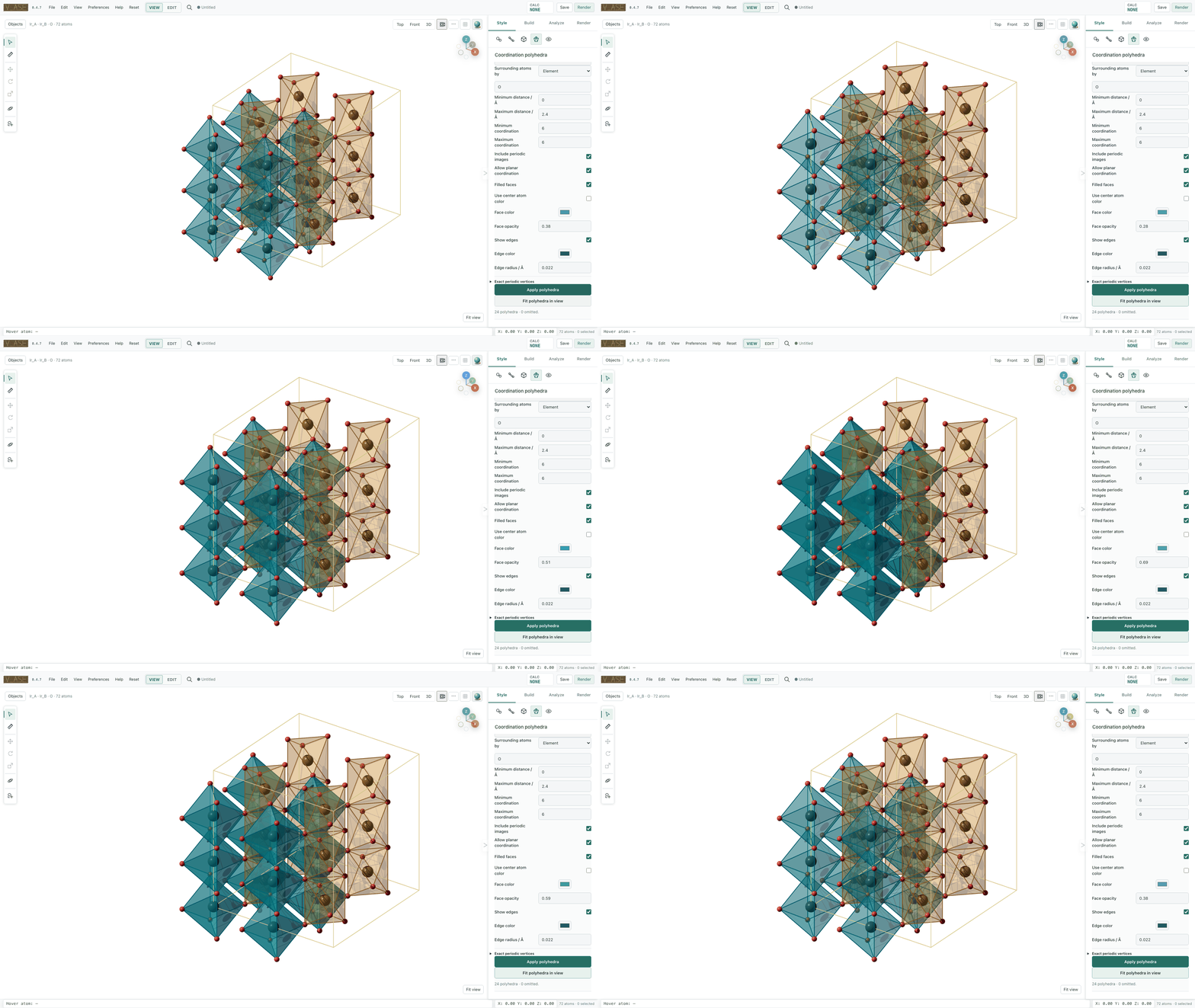
Reveal coordination polyhedra
Show local coordination as faces, edges and ligand connectors. Give different center groups their own colors and transparency, in both 3D and flat 2D views.
Trajectories and analysis
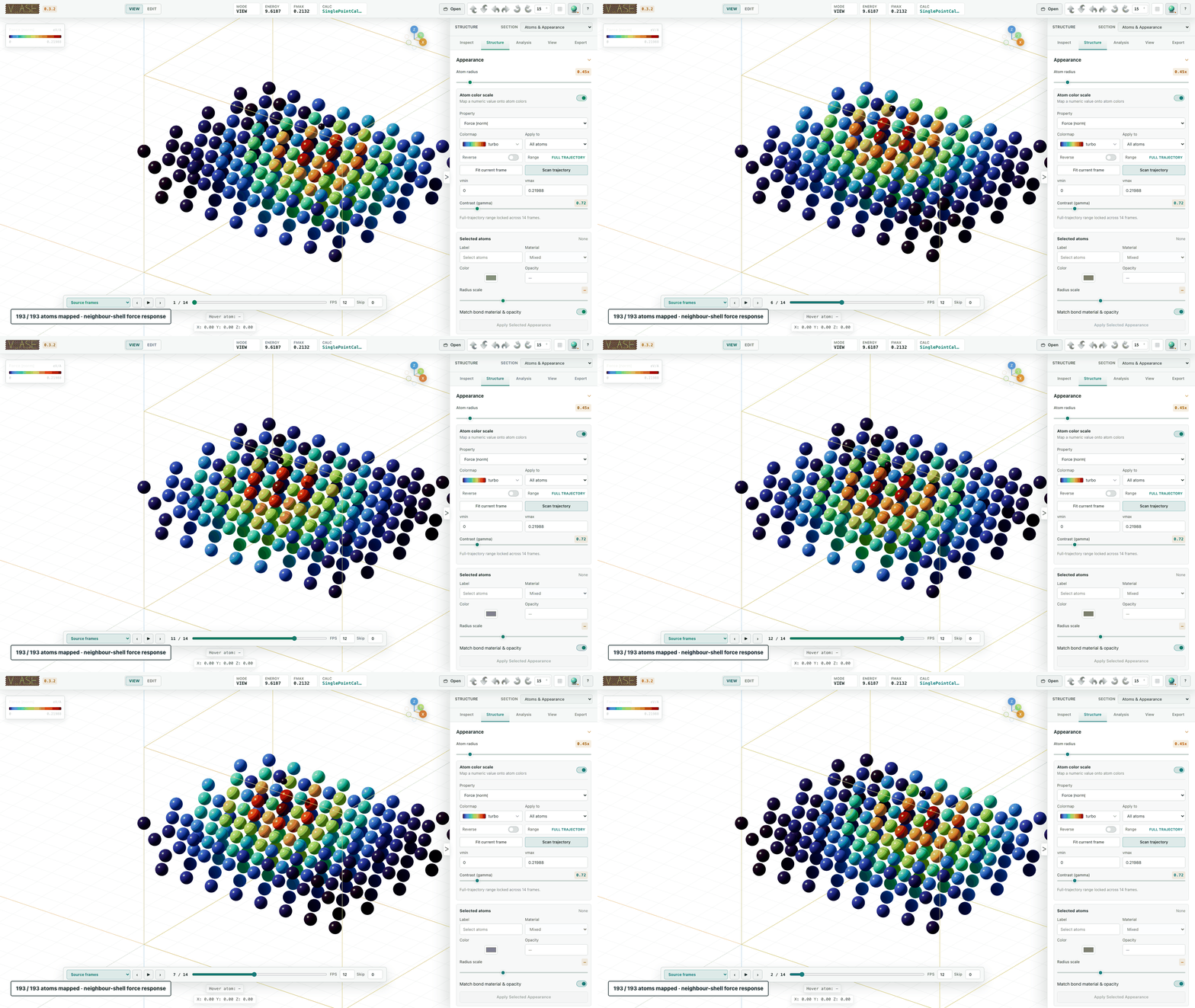
Follow motion and map per-atom properties
Scrub or play a trajectory, color atoms by stored scalar data, and display force or displacement vectors. Keep a shared colorscale across frames for comparison. Atom radii can also follow a scalar such as charge or fractional existence.
Trajectories · Colorscales · Property-based radii · Forces and displacement
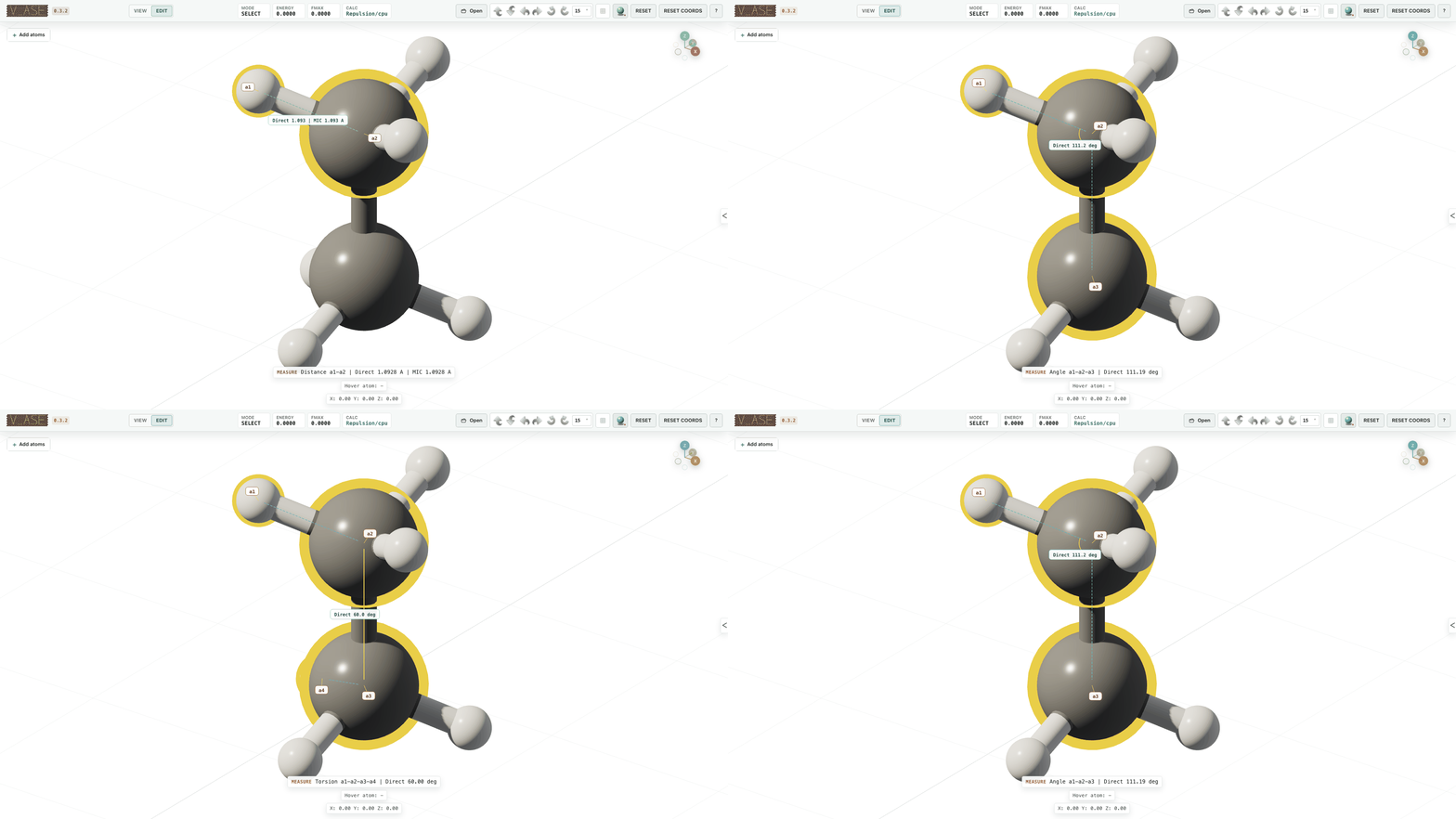
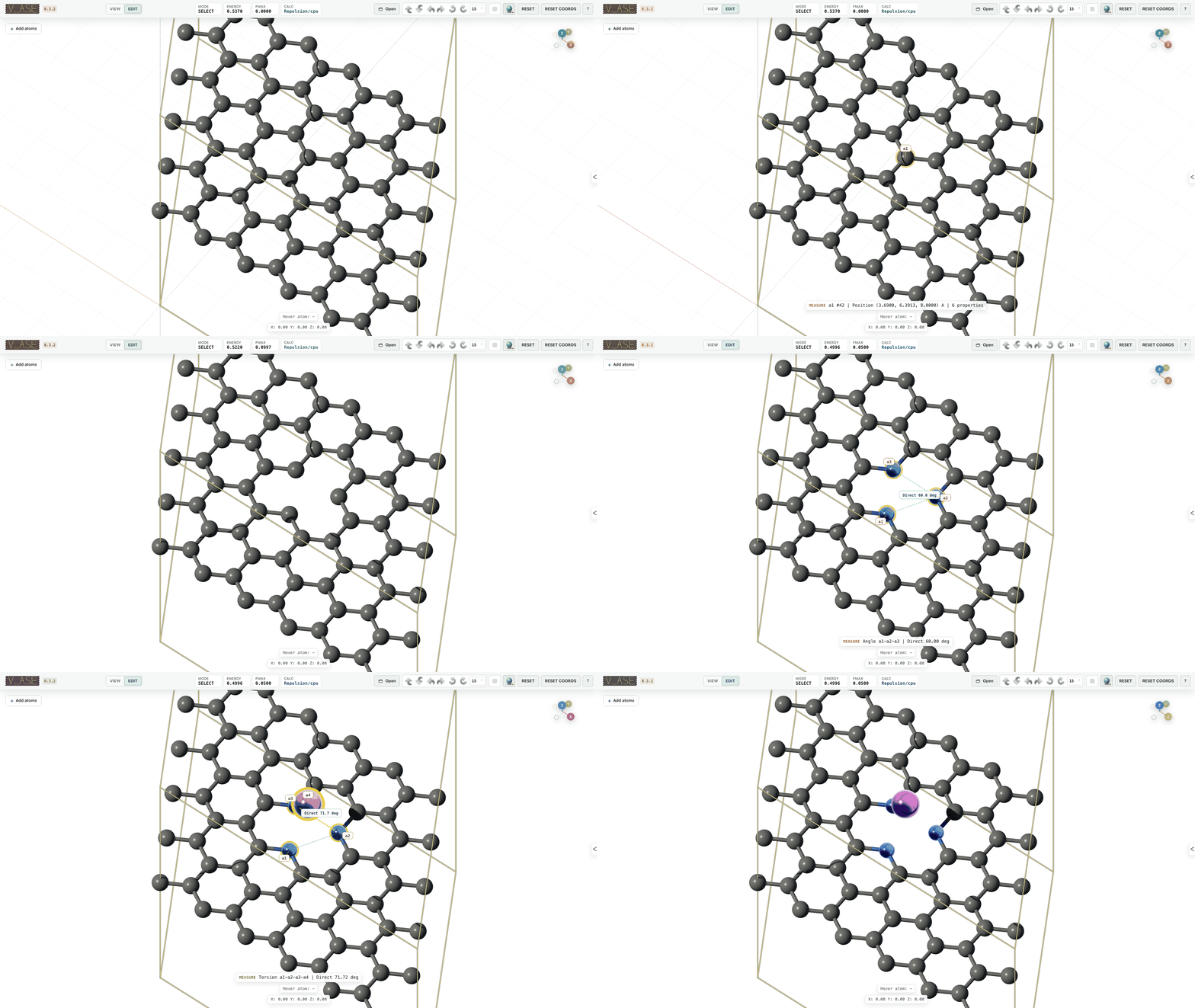
Measure distances, angles and torsions
Pick atoms in order to inspect their geometry. Drag selections remain useful for editing groups without creating unintended measurements.
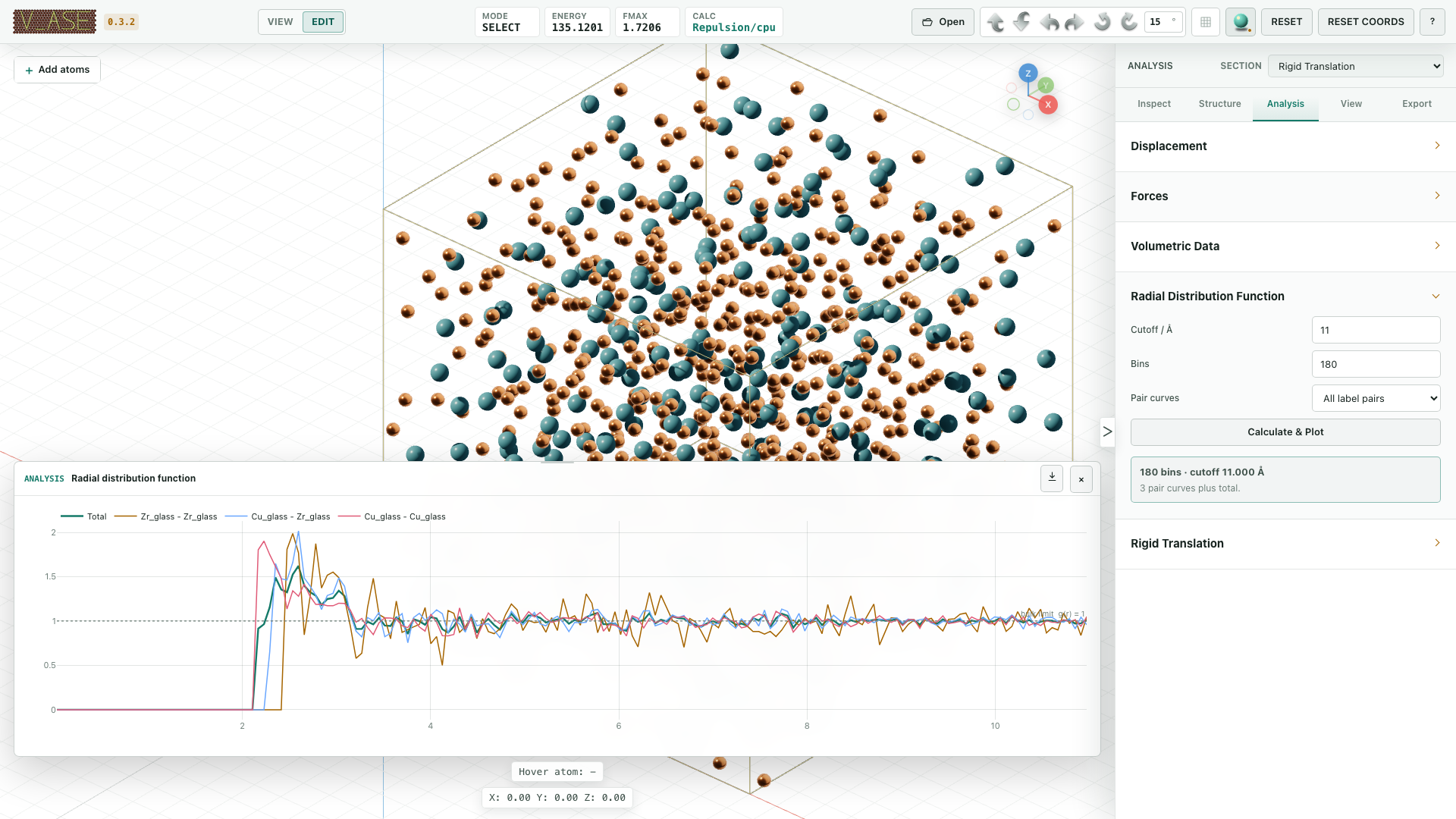
Compare local structure with pair distributions
Plot total and label-resolved radial distributions for periodic systems, or pair-distance distributions for finite structures. Export the curves as CSV.
Constraints and relaxation
Control which directions atoms can move
Keep atoms fixed, restrict motion to a line or plane, or constrain selected Cartesian or fractional directions. Visible guides make the allowed motion clear.
Along a line: the selected atoms move only in their permitted direction.

Within a plane: move an adsorbate while holding its height above a surface. A translucent pale cyan face fills each allowed plane, framed by narrow, darker inner and outer rims. Selecting or hovering reveals the blocked normal with a dashed line and X ends. Selection expands the ring around the yellow outline while preserving its face width. The ring and atom occlude one another at their actual 3D depth. Use the Orbit tool and drag to inspect the plane from any angle; Shift-drag pans.

Fixed atoms, lines, planes and fractional constraints
Add spring-like restraints
Use Hookean restraints between atoms or relative to a point or plane. The spring guide shows the relationship as the structure changes.

Relax and inspect the path
Remove close contacts with built-in repulsion, or optimize using a configured ASE calculator. Play the relaxation trajectory, keep a chosen frame, or restore the starting structure. The example shows repulsive overlap removal.

Work with an AI agent
Ask an MCP-capable agent to prepare a structure or figure in the same document you have open. Watch its edits, inspect the result, and continue refining it by hand. The same bundled Skill works across compatible clients; install it in your client's documented local Skill directory.
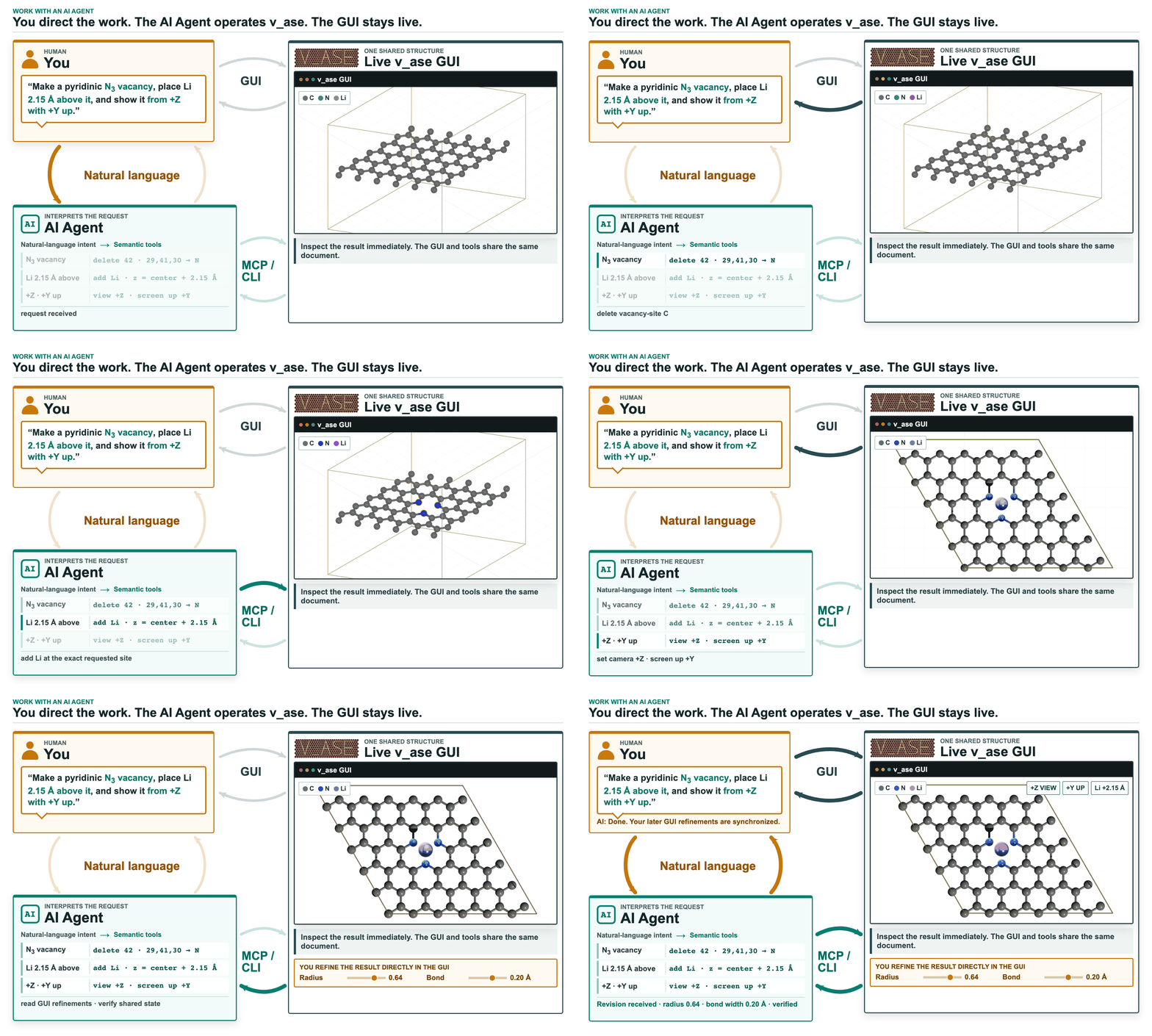
For example, turn a selected graphene site into a pyridinic N₃ vacancy and place a Li atom above it. The resulting atoms remain editable in the GUI.
Commensurate rotation tools use global Z and keep the guest layer selected, so its preview remains available while adjusting appearance or the camera.
MCP setup · Shared-document workflow · ChatGPT connection
Render and export
Stored force vectors stay synchronized after edits and trajectory frame changes. Missing displacement comparisons do not block image rendering.
Choose flat 2D with crisp, uniformly colored bonds or shaded 3D, tune materials and lighting, and compose a render area independently of your editing view. Set output resolution and physical scale for figures, or export a selected trajectory range as a movie or GIF.
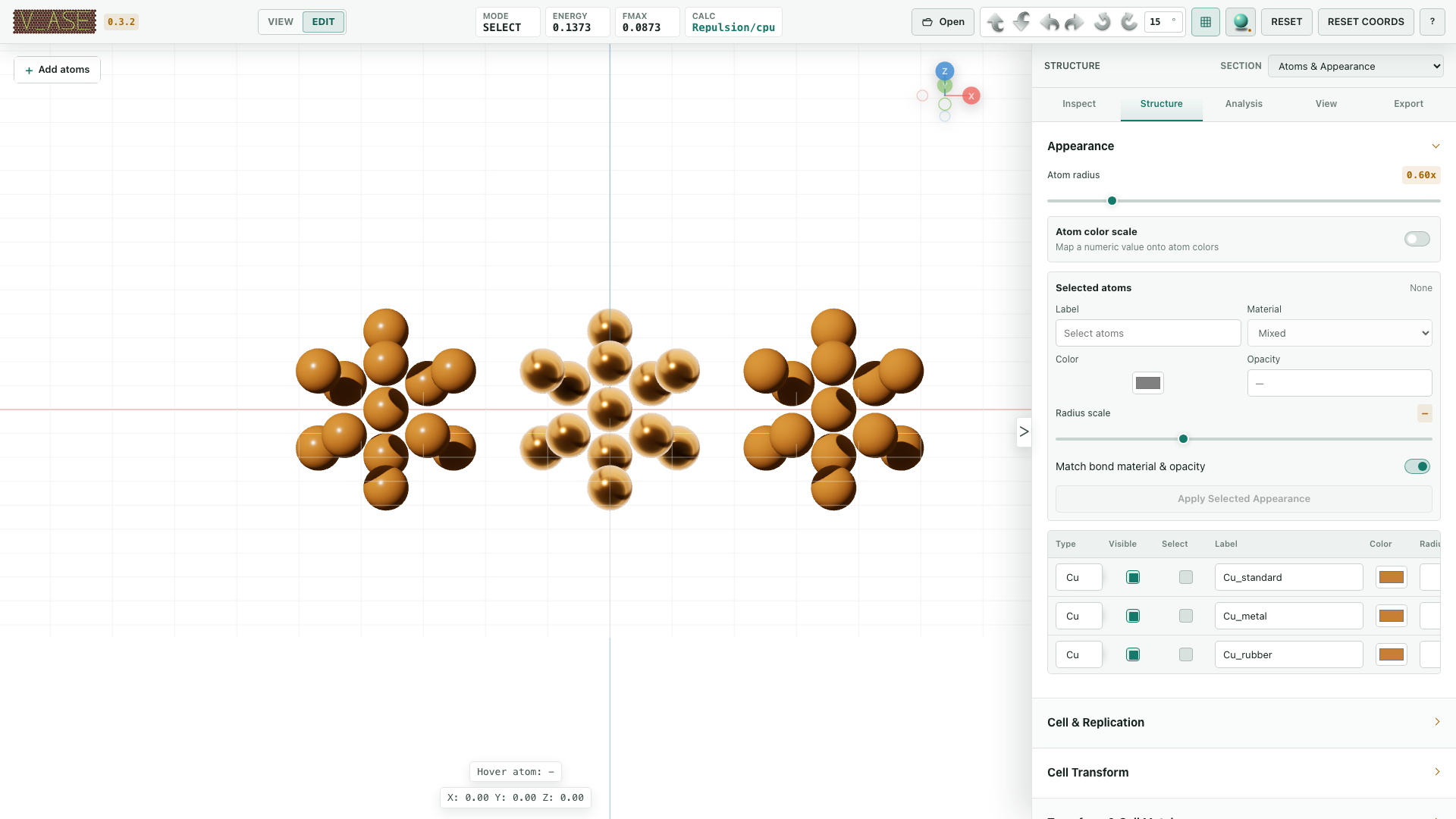
Continue working in Blender with editable atoms, bonds and water-surface meshes, including trajectory animation. OBJ/MTL and Rhino 3DM provide additional geometry exports; ASE structure formats keep the scientific data usable elsewhere.
Camera and image output · Movies and GIFs · Blender and geometry export
Save and share
| You want to… | Use |
|---|---|
| Continue editing later | Save a .vase project. |
| Share an interactive view that opens in a browser | Export HTML View. |
| Share a browser view that can also reopen for editing | In Project save settings, enable Include interactive rendered view and save as HTML. |
| Publish a figure or animation | Export an image, movie or GIF from Render. |
Projects restore their saved appearance, including when replacing a commensurate-cell preview. Saving projects
Get v_ase
Desktop app
Python is included. Download the installer for your computer:
| Computer | Download | Install |
|---|---|---|
| Mac with Apple silicon, macOS 15+ | Apple silicon DMG | Open the DMG and drag v_ase into Applications. |
| Mac with Intel, macOS 15+ | Intel DMG | Open the DMG and drag v_ase into Applications. |
| Windows 10/11, Intel or AMD 64-bit | Windows installer | Run the installer, then open v_ase from Start. |
Open files with File → Open, Finder/Explorer, or drag-and-drop. Select several files to open separate tabs or one trajectory in the same window. Use A/B/C to view along the unit-cell vectors (press again to reverse); X/Y/Z uses Cartesian axes. Opening files · Shortcuts. Canvas axis guides remain visible in oblique orthographic cell views, with normal atom occlusion and unchanged saved camera framing. Installation help and updates.
Python and Jupyter
With Python 3.10 or newer:
python -m pip install v_ase-gui
v_ase gui POSCAR
Or open ASE objects directly:
from ase.build import molecule
from v_ase import view

view(molecule("H2O"))
Python installation · Jupyter and remote systems · Supported formats
Help and project information
User guide · Troubleshooting · Report a problem · What's new
Scientific methods · Contributing · Cite v_ase · AGPL-3.0-or-later · Third-party license
1 maintainer

Metadata
1 maintainer
Release files for v-ase-gui 0.4.13
For a detailed explanation of source distributions (sdists) and built distributions (wheels), please see the package formats documentation.
Source distribution (sdist)
| File | Size | Uploaded | |
|---|---|---|---|
| v_ase_gui-0.4.13.tar.gz | 33.9 MB | Details |
Built distribution (wheel)
| File | Interpreter | ABI | Platform | Reset |
|---|---|---|---|---|
| v_ase_gui-0.4.13-py3-none-any.whl | Python 3 | none | any | Details |
Total release size: 40.6 MB
Release files / v_ase_gui-0.4.13.tar.gz
| Download URL | v_ase_gui-0.4.13.tar.gz |
|---|---|
| Size | 33.9 MB |
| Tags | Source |
|
SHA-256 checksum How to use checksums |
19679219efb4990b131c627f2ff1c9f4f9c82c98bfe035f6615a236153f49b45
|
|
BLAKE2b-256 checksum How to use checksums |
21f979b3d849125c60a929d543bb776385359de4396e7ef745ec07fec1219664
|
| Upload date | |
|
Uploaded using Trusted Publishing? What is trusted publishing? |
No |
| Uploaded via |
twine/6.2.0 CPython/3.13.5
|
Release files / v_ase_gui-0.4.13-py3-none-any.whl
| Download URL | v_ase_gui-0.4.13-py3-none-any.whl |
|---|---|
| Size | 6.7 MB |
| Tags | Python 3 |
|
SHA-256 checksum How to use checksums |
c533589b1cdac2016ae9a1f393b13aa22e33ee5767ba02c3c1eb5a11f6784486
|
|
BLAKE2b-256 checksum How to use checksums |
0a41c9293e0bcf13a5c1e3c13879e50446f4c46b6ee04aabf4704dd7900ec6f4
|
| Upload date | |
|
Uploaded using Trusted Publishing? What is trusted publishing? |
No |
| Uploaded via |
twine/6.2.0 CPython/3.13.5
|














